How Do I White-Label the Plugin for My Website?
Step 1 of 4
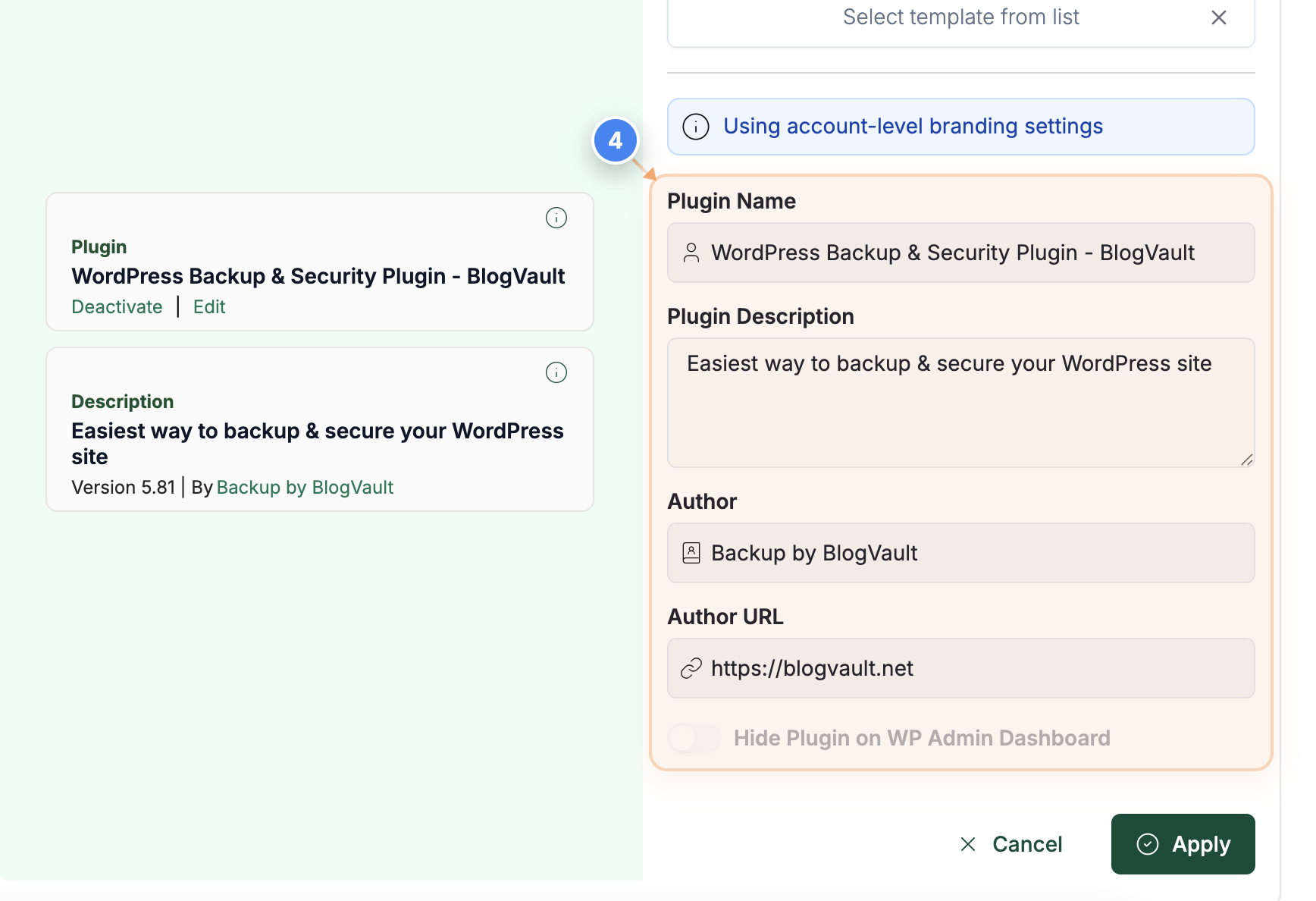
Open the Site Dashboard
Click on the site in the Sites page to open its detailed dashboard and manage connected features.
Note: This action lets you view and manage all options related to the selected website.
Step 2 of 4
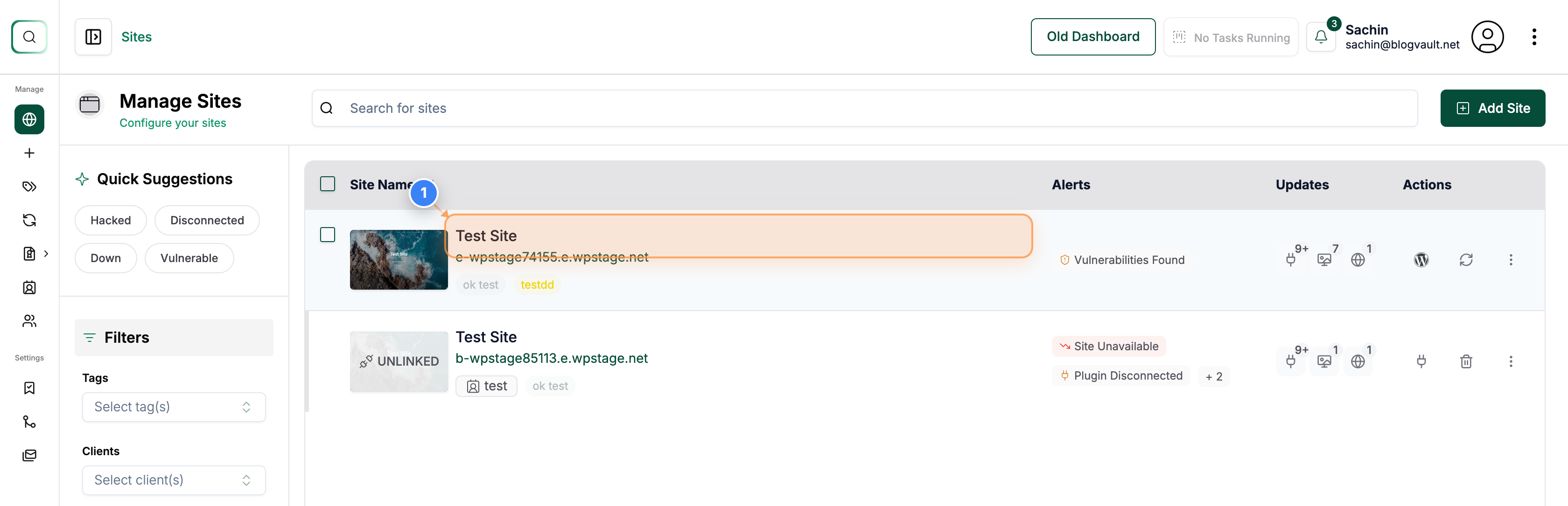
Access Site Settings
Click on 'Settings' from the left sidebar to open the configuration options for the selected site.
Note: The Settings page allows you to customize various aspects of your site, including plugin branding and authentication.
Step 3 of 4
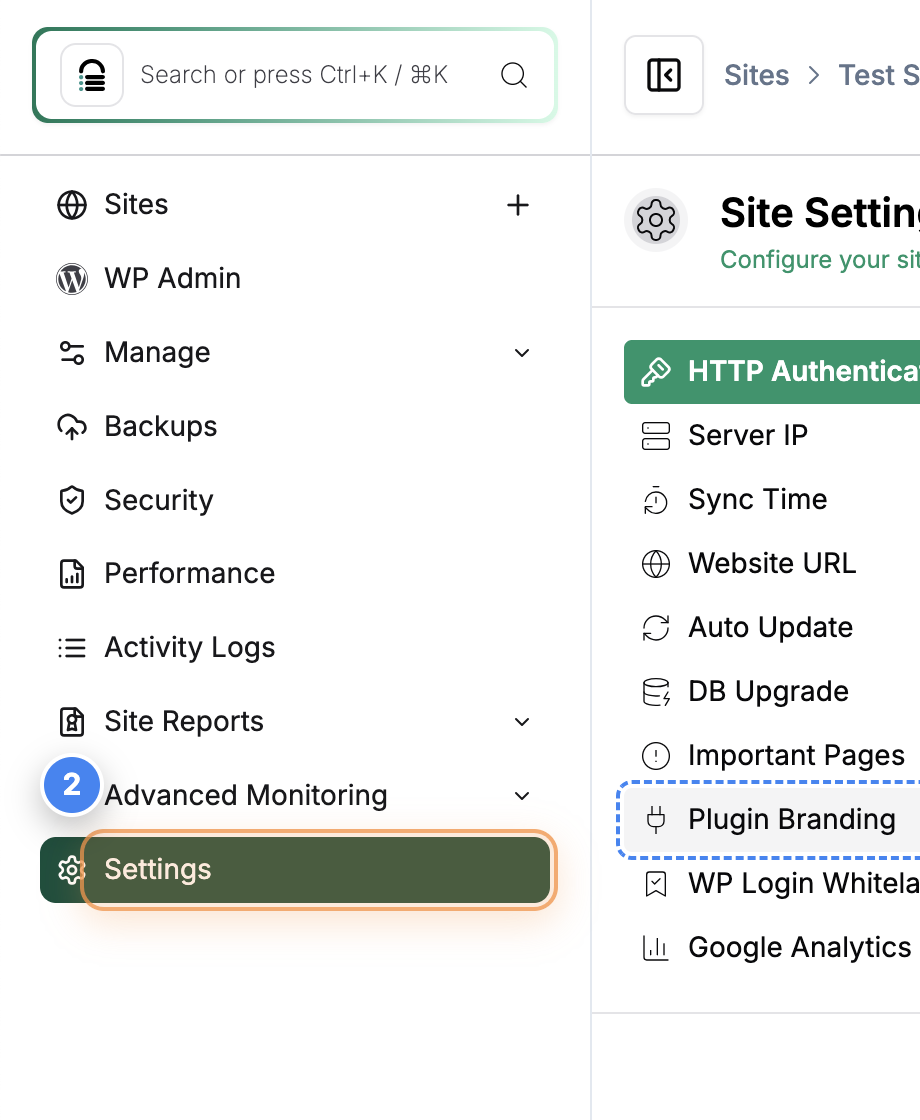
Open Plugin Branding Options
Click the 'Plugin Branding' button in the Site Settings area to view and customize branding options for your plugin. (No Whitelabel, Select Whitelabel Template, Hidden, Custom)
Note: You can adjust branding elements like plugin name and description to match your company identity.
Step 4 of 4
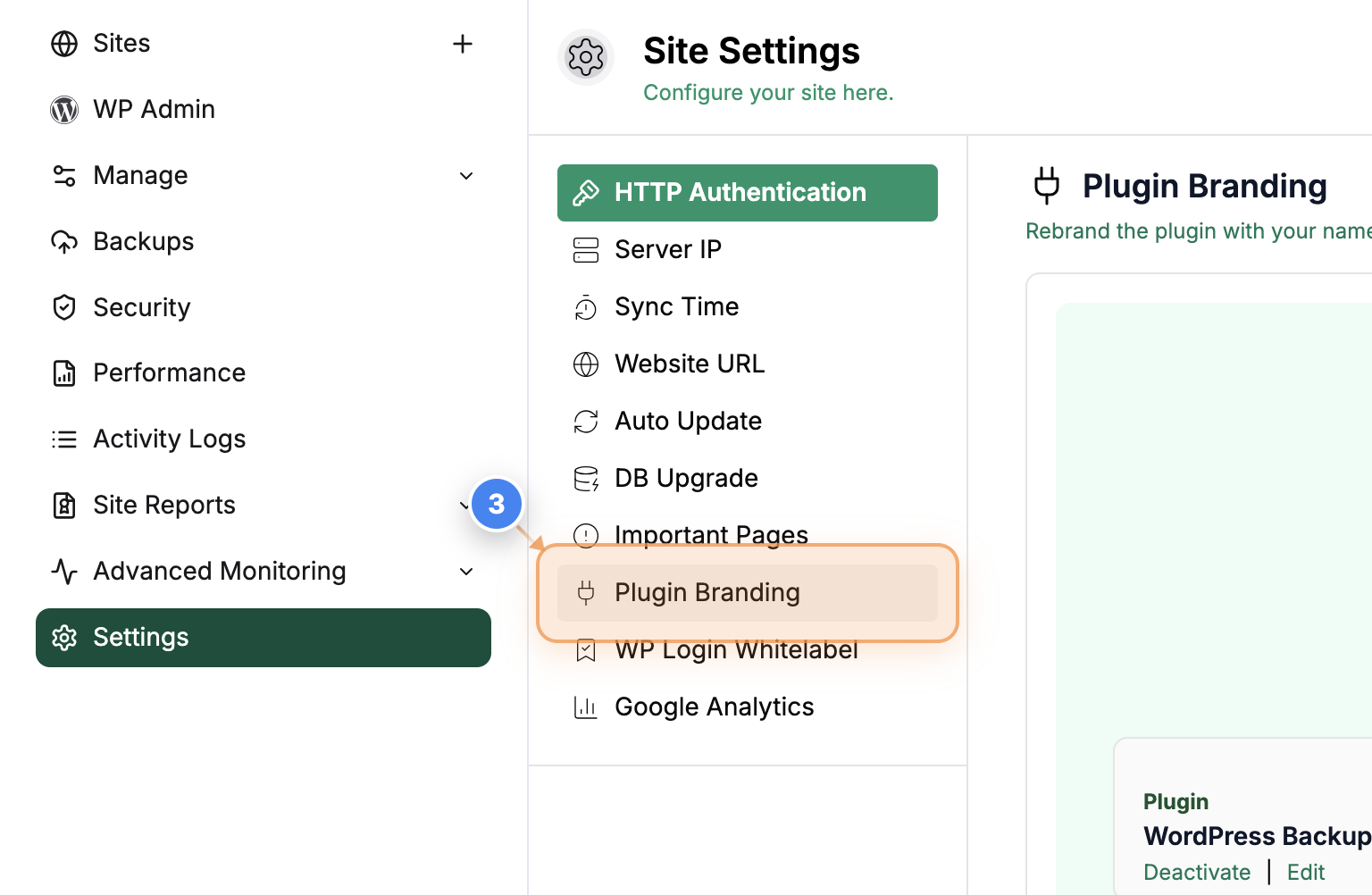
Review Plugin Name and Description
Review the plugin details section in the center of the page to view or update the plugin name and description.
Note: Ensure that the information left side accurately reflects your plugin customization before saving changes.