How Do I Delete Team Members from the Dashboard?
Step 1 of 4
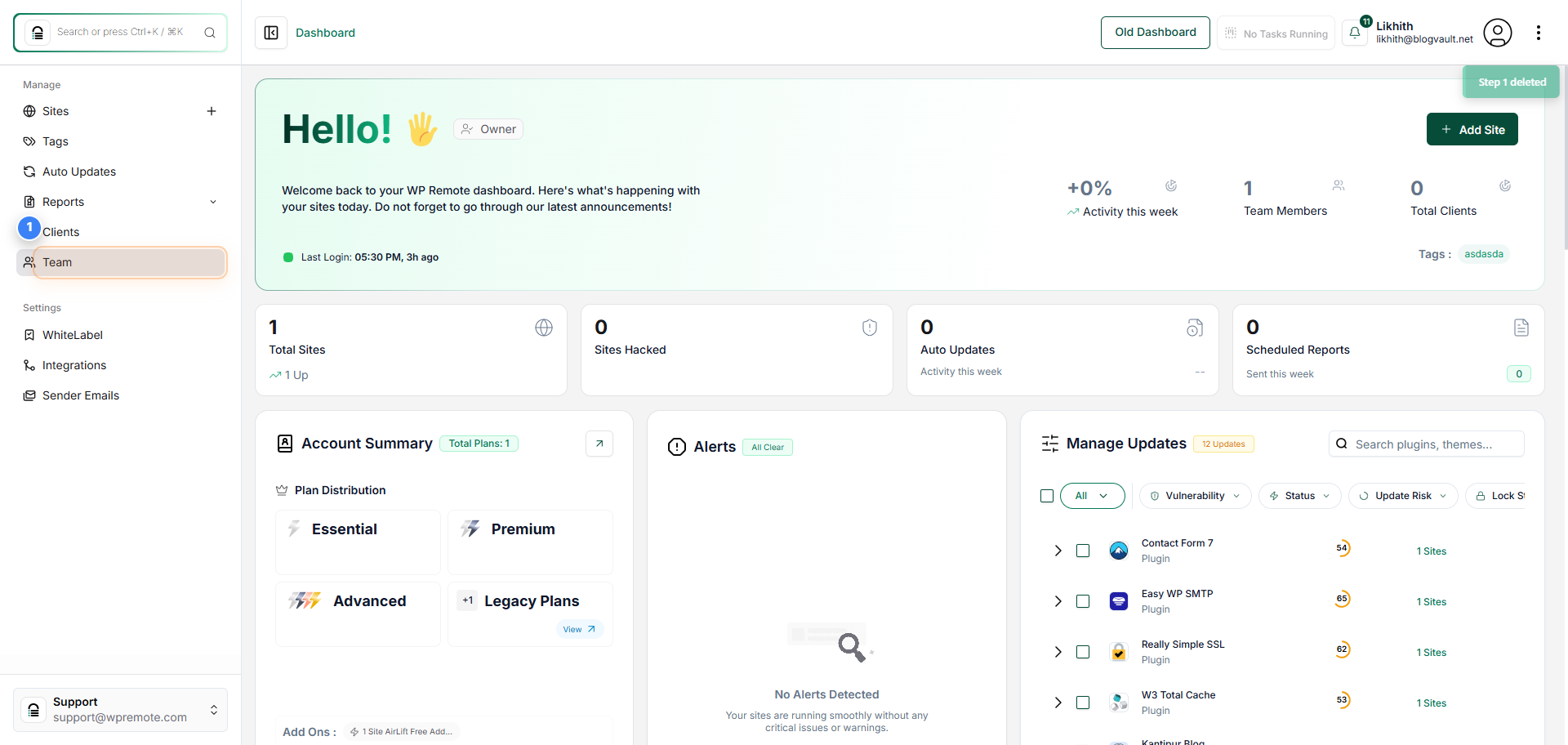
Open the Team Section
Click on 'Team' in the left sidebar to access your team management area and view all team members linked to your account.
Note: From here, you can invite new members, update existing roles, or remove users as needed.
Step 2 of 4
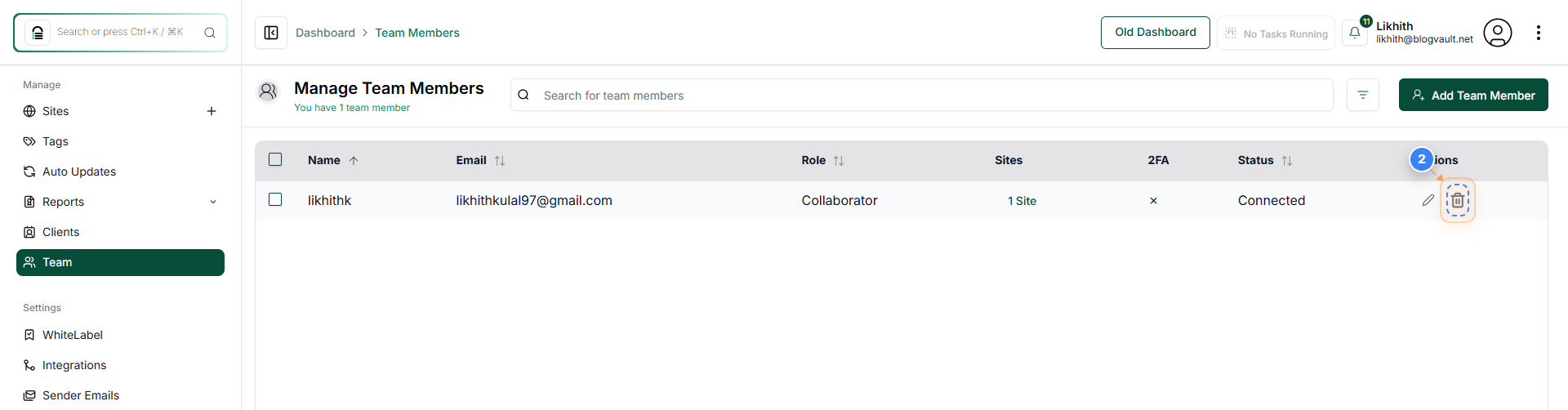
Access Team Member Options
Click the edit or delete icon next to a team member's name to open management options for that user.
Note: This allows you to update user permissions or remove a member from the team.
Step 3 of 4
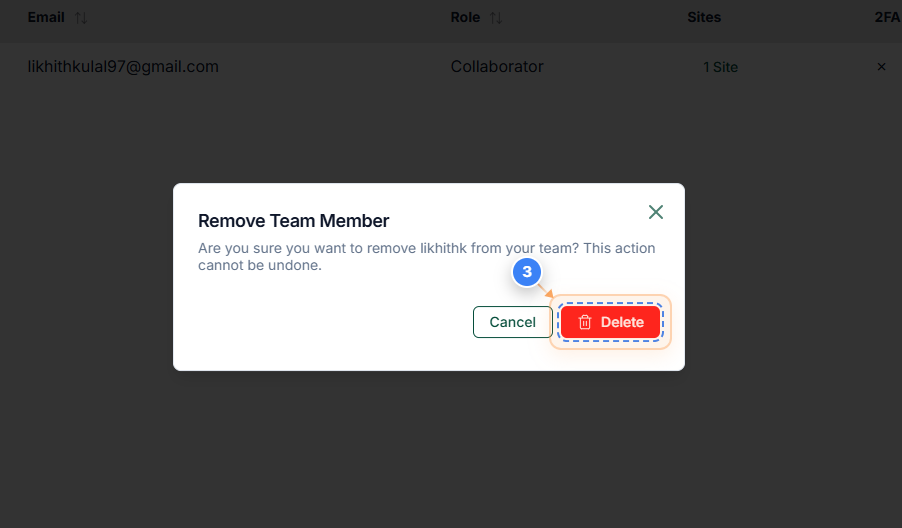
Confirm Team Member Removal
Click the 'Delete' button in the confirmation dialog to permanently remove the selected team member from your account.
Note: Be cautious-this action cannot be undone, and the removed member will lose all access immediately.
Step 4 of 4
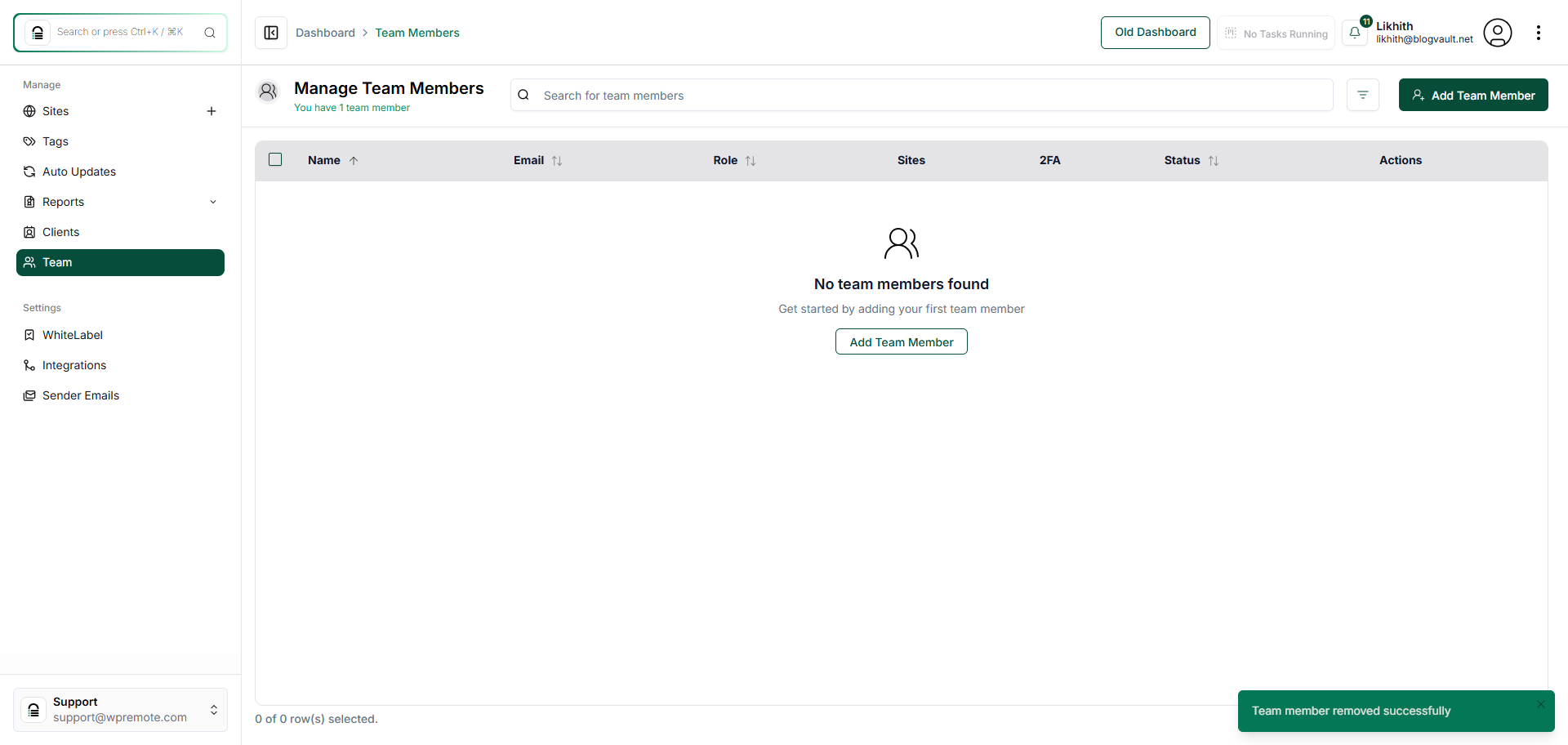
Verify Team Member Deletion
Once the deletion is complete, the Team Members page will refresh and show a success message confirming the user has been removed.
Note: If the deleted user still appears, refresh the page. Look for the green 'Team member removed successfully' message to confirm the change.