How Do I Test PHP Version Compatibility?
Step 1 of 5
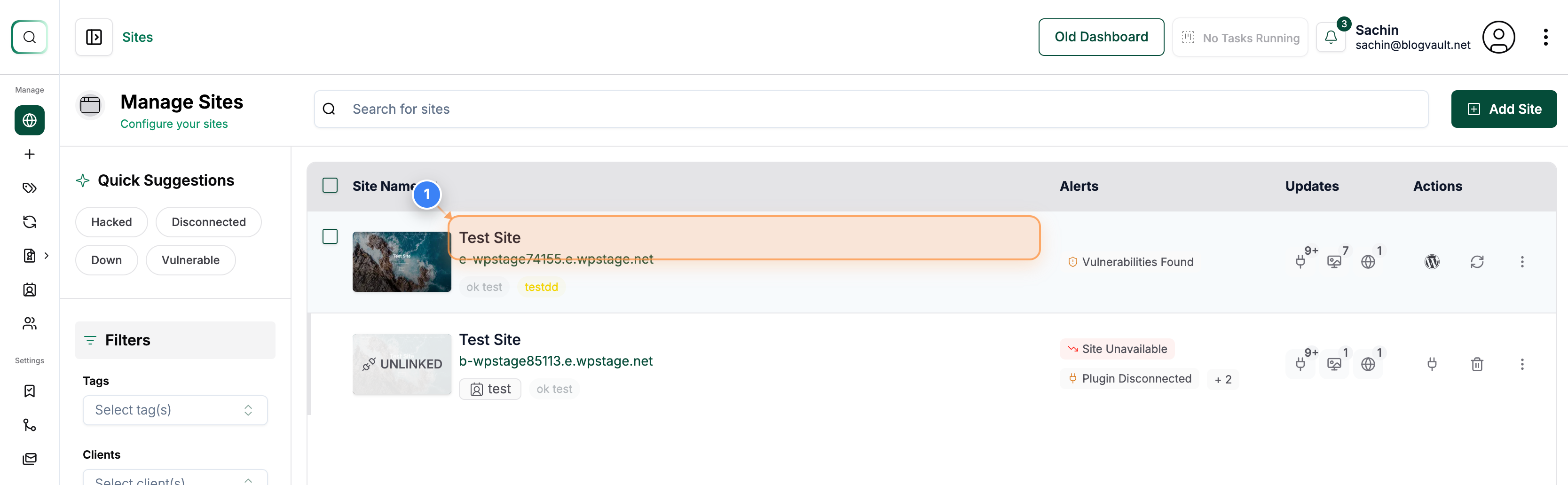
Open Your Site Dashboard
Click on your site name in the Sites page to open its management dashboard.
Note: You'll be taken to your selected site's overview page, where you can manage backups, staging, and settings.
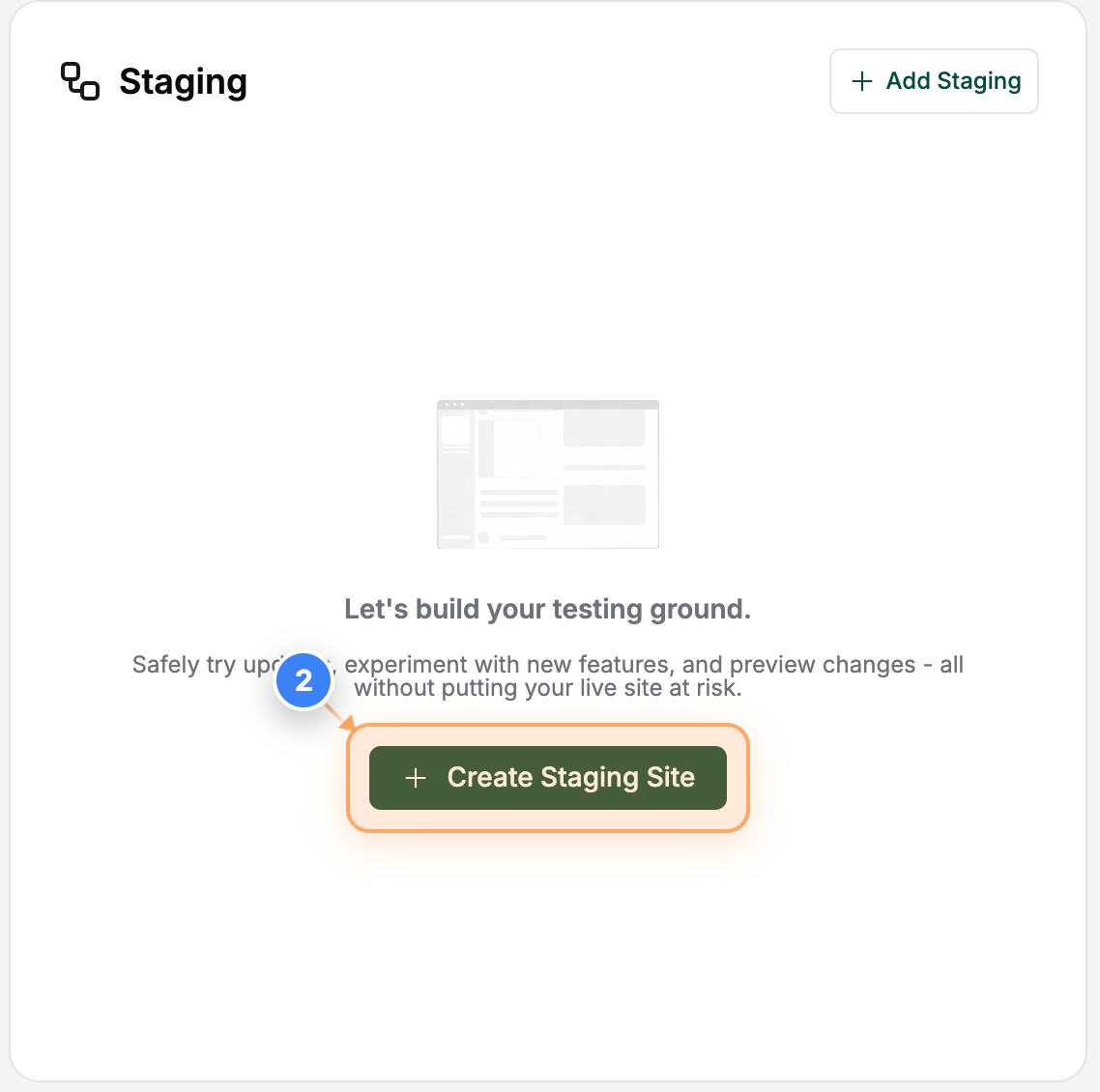
Step 2 of 5
Start Creating a Staging Site
Click the Create Staging Site button at the bottom of the page to begin setting up a safe testing environment.
Note: A staging site lets you test a PHP version without affecting your live website.
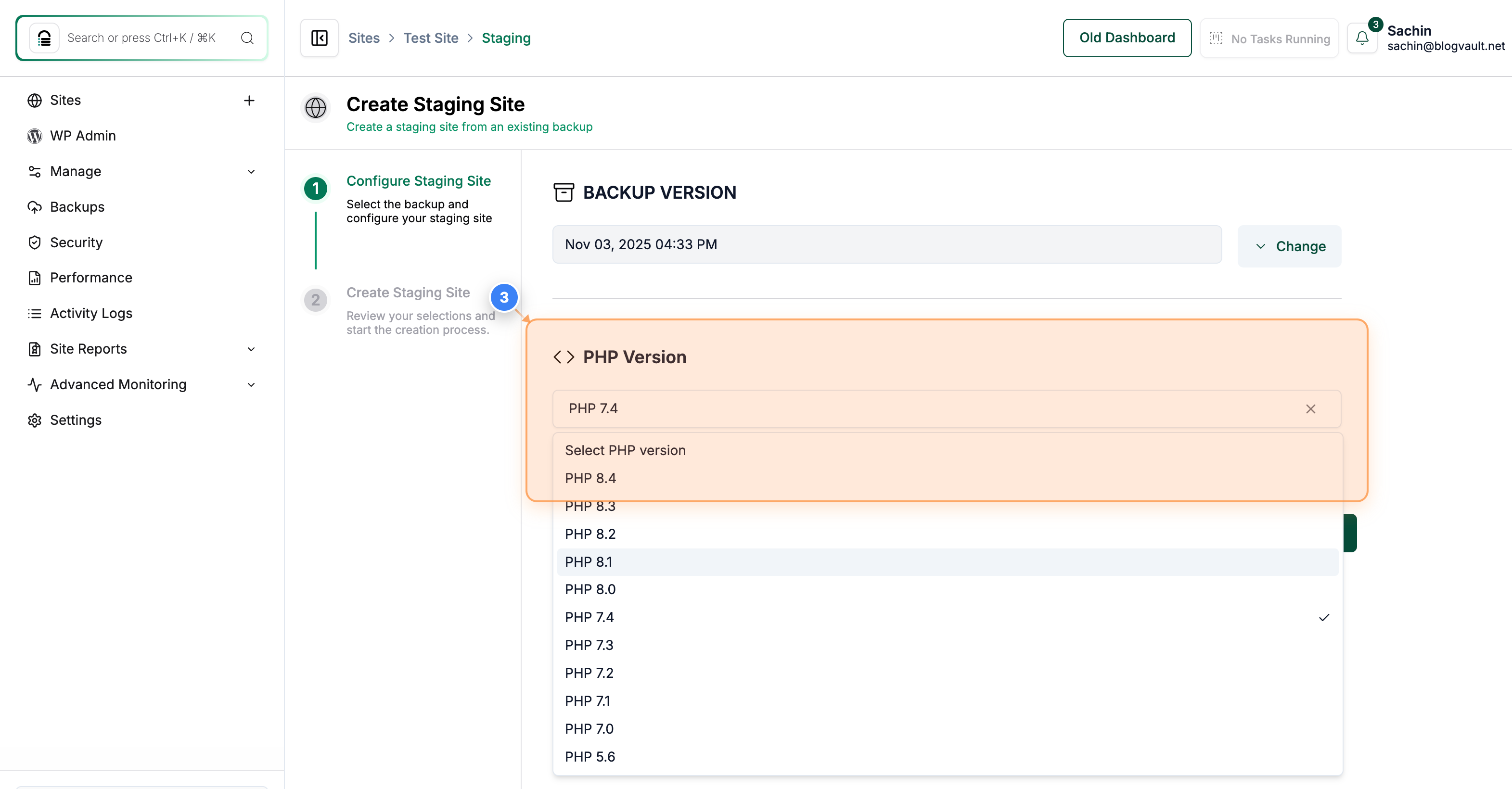
Step 3 of 5
Choose PHP Version for Staging
Click on the PHP Version option in the configuration section to select the PHP version for your staging site.
Note: The list includes other available PHP versions too. You can select it according to your testing requirements.
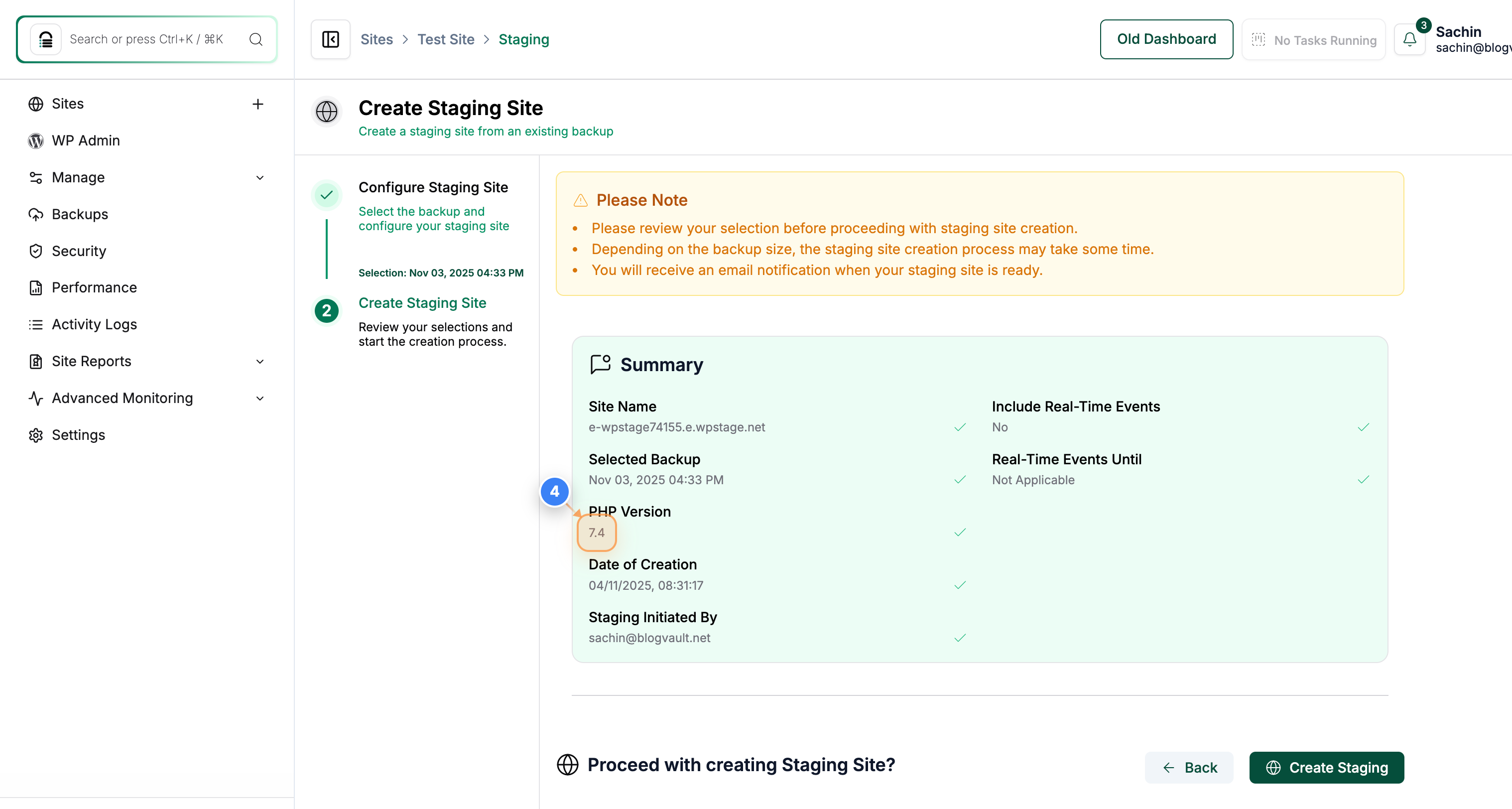
Step 4 of 5
Confirm PHP Version Selection
Select the PHP version you want to use from the list in the summary section to confirm your staging configuration.
Note: You can review other settings like site name and backup version before finalizing in the Summery section.
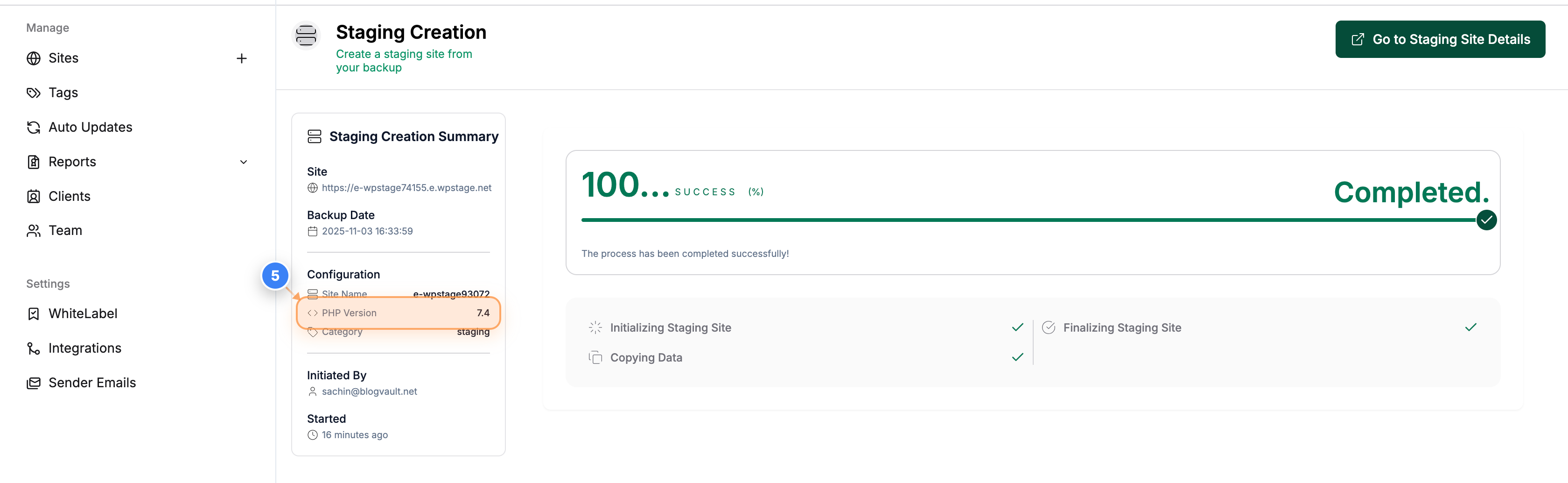
Step 5 of 5
Review Staging site Details
Review the PHP Version field in the details page to review the configuration used for your newly created staging site.
Note: This page provides a summary of the staging site setup including PHP version, site name, and category.