
How Do I Delete a Staging Site?
Step 1 of 5
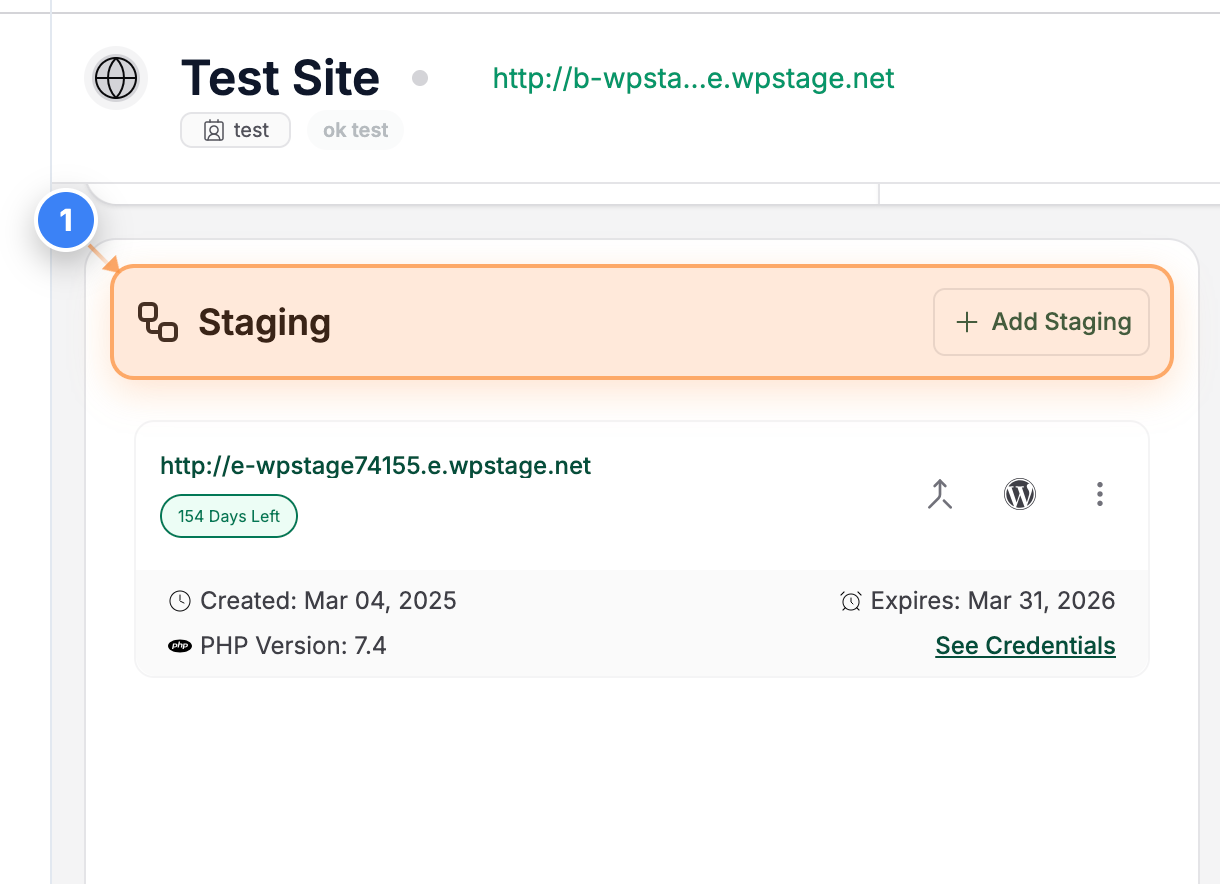
Access the Staging site
Open the site & go to the Staging site Section on the dashboard.
Step 2 of 5
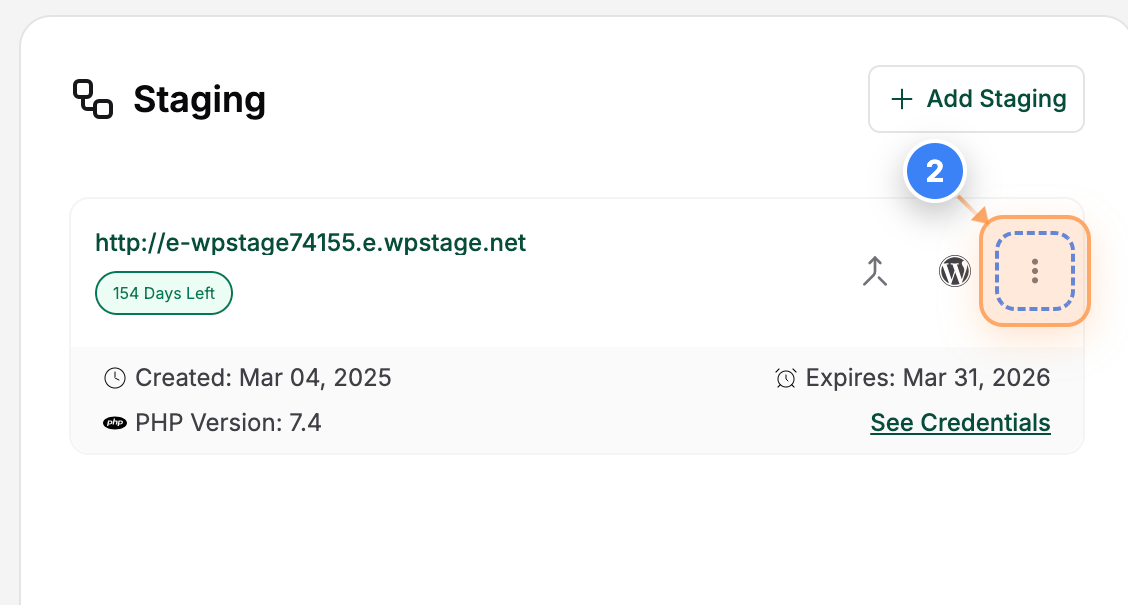
Open the Staging site Options
Click the (Three dots) button in the staging panel to view the Details.
Step 3 of 5
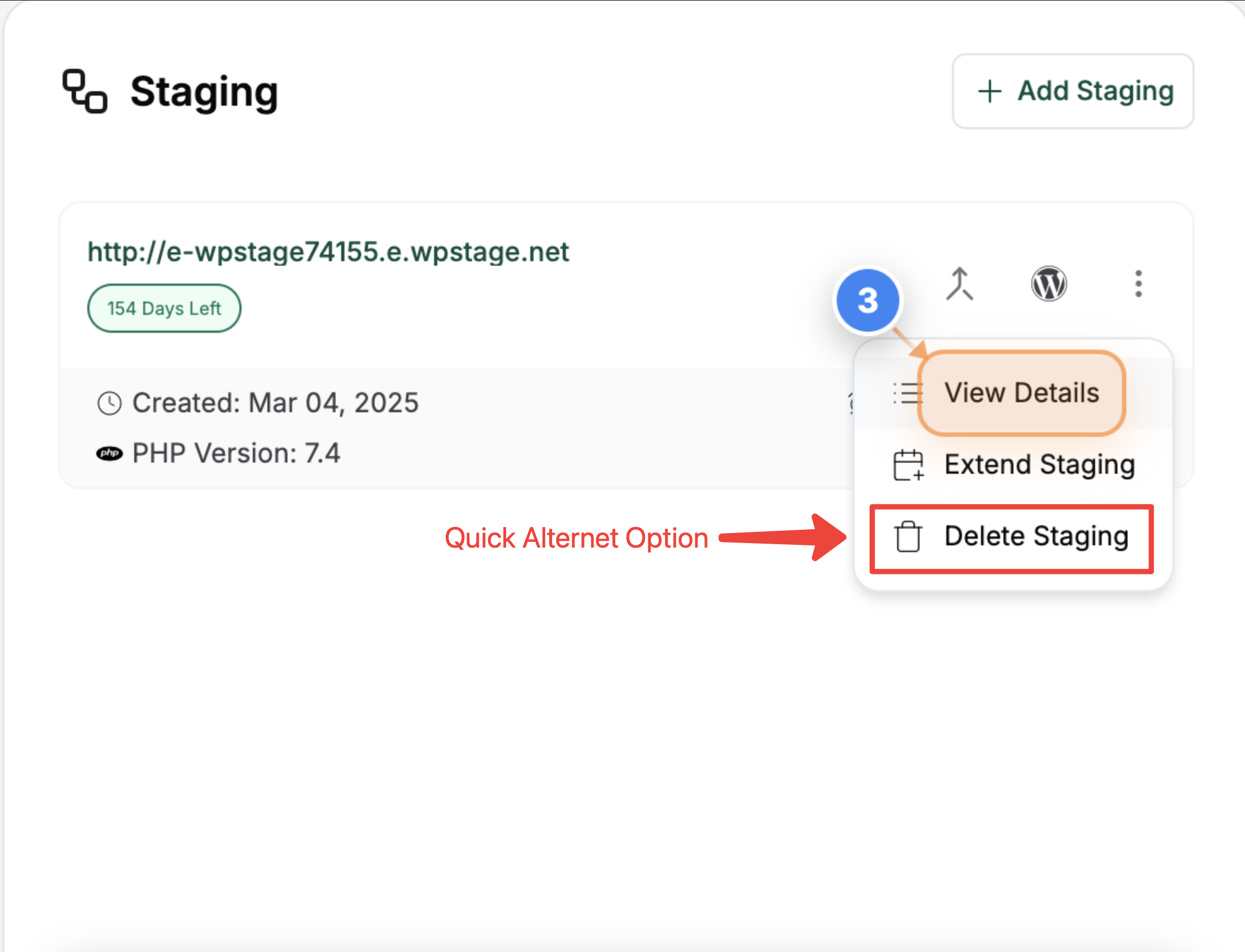
View Staging Details
Click the 'View Details' option in the staging site list to open detailed information about your staging environment.
Note: This view provides access to the staging details, remaining days, and available actions such as extend or delete.
Step 4 of 5
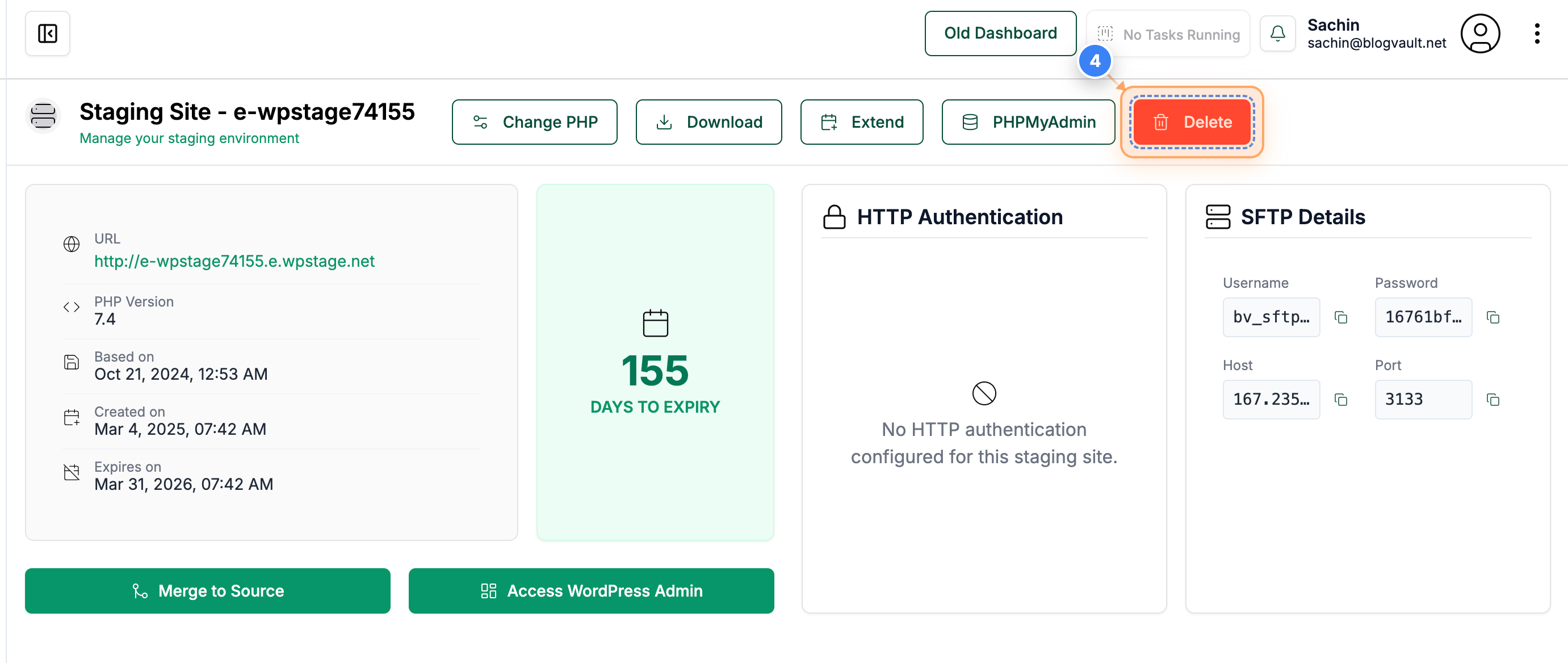
Delete Staging Option
Click the delete icon in the top-right corner of the staging details page to begin the process of removing the staging site.
Note: This action will open a confirmation dialog to ensure you want to delete the staging site permanently.
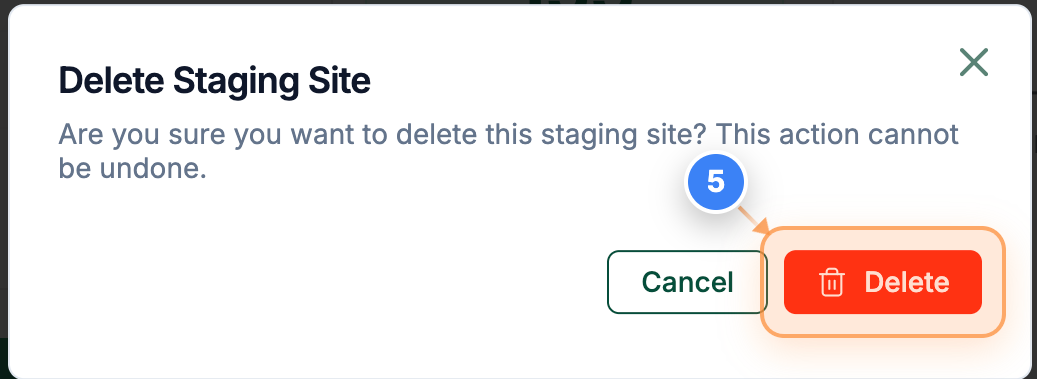
Step 5 of 5
Confirm Staging Site Deletion
Click the delete button in the confirmation dialog to permanently remove the selected staging site.
Note: This action cannot be undone, so make sure you've backed up any necessary data before confirming.
Created with DocFlow - Step Recorder Extension