How Do I Update Themes?
Step 1 of 7
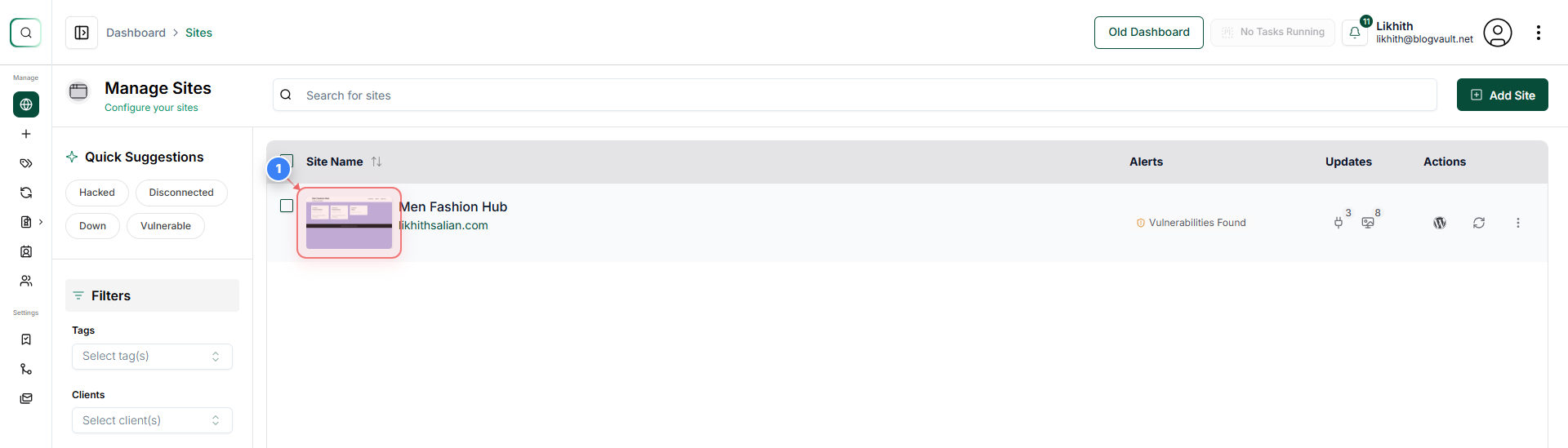
Open the Site Dashboard
Click on your site.
Note: This thumbnail is located on the left side of the Sites page and serves as the entry point to all management tools for the selected site.
Step 2 of 7
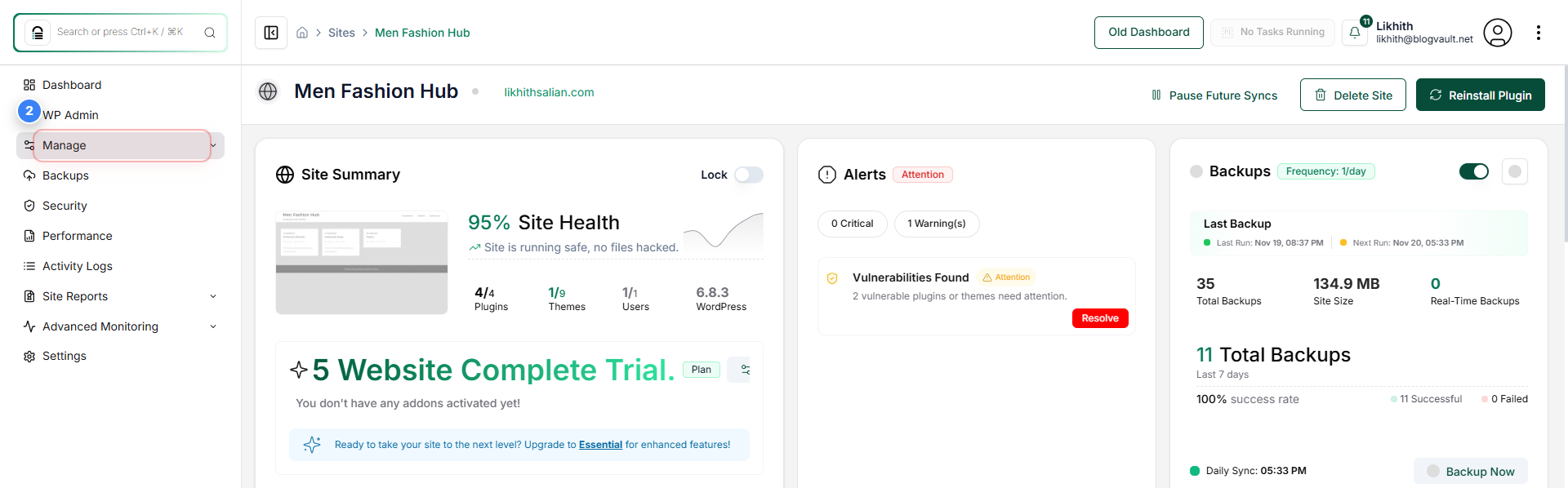
Access the Manage Section
Select the "Manage" option from the left sidebar to open site management tools.
Note: This section provides access to plugins, themes, users, backups, and other site-level controls.
Step 3 of 7
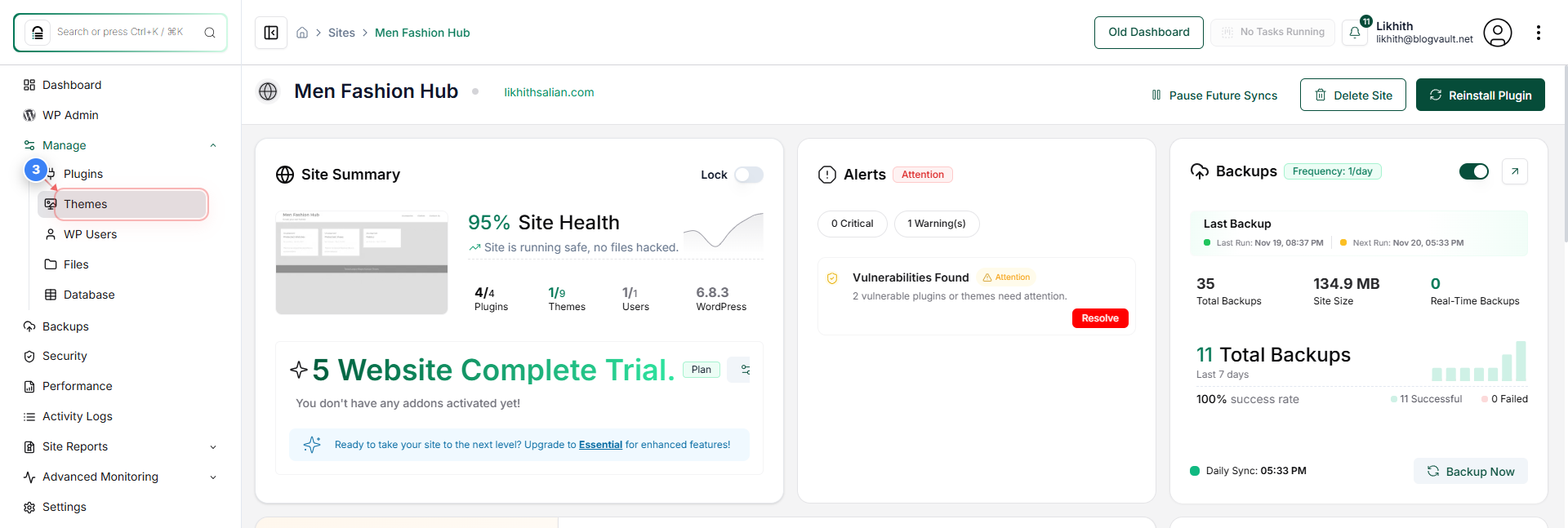
Open the Themes Page
Click the "Themes" option in the Manage submenu to view all installed themes.
Note: This page lists active and inactive themes and allows you to activate, update, or delete them.
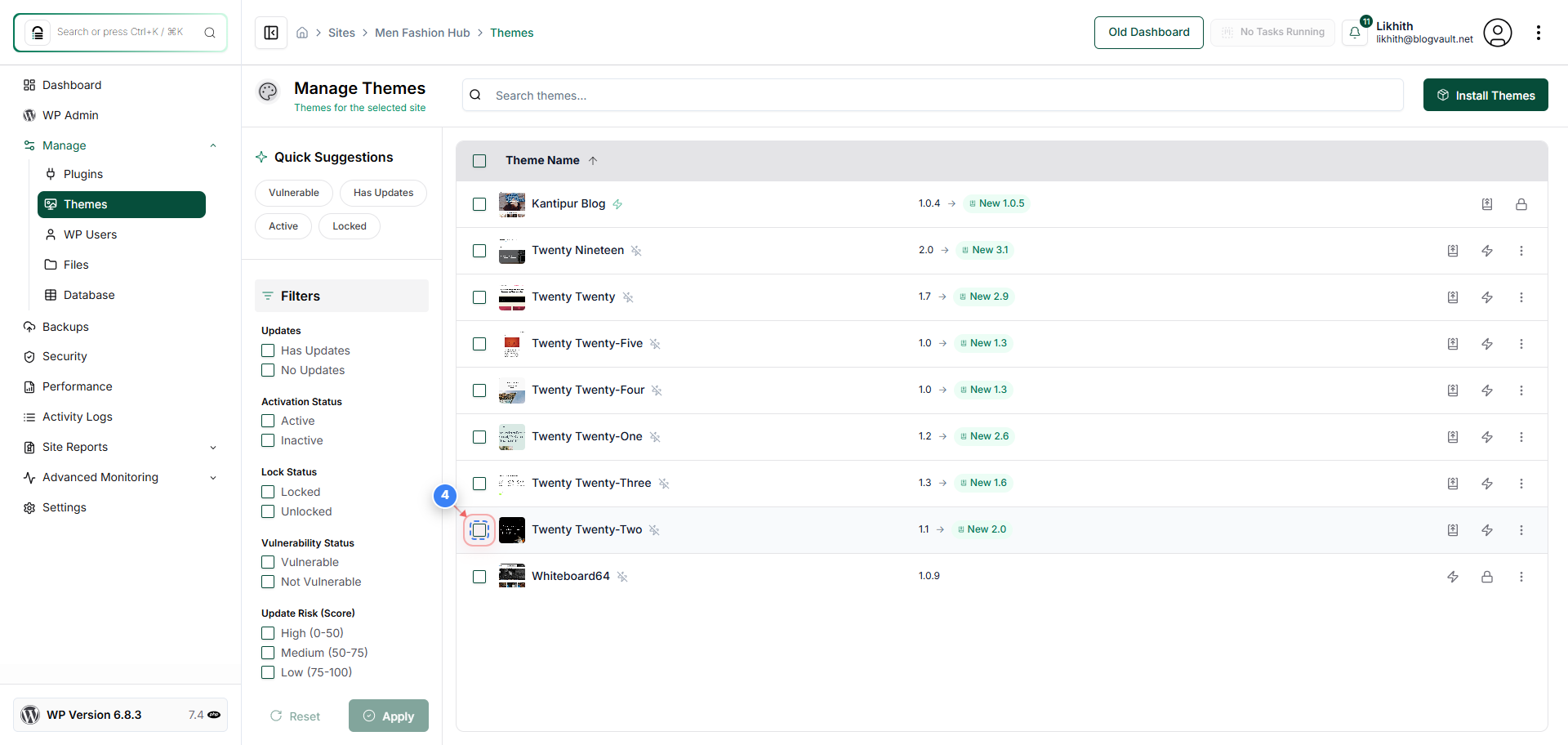
Step 4 of 7
Select a Theme
Click the checkbox next to the theme you want to update to select it.
Note: Selected themes will appear in the actions panel at the bottom of the page, indicating how many items are selected.
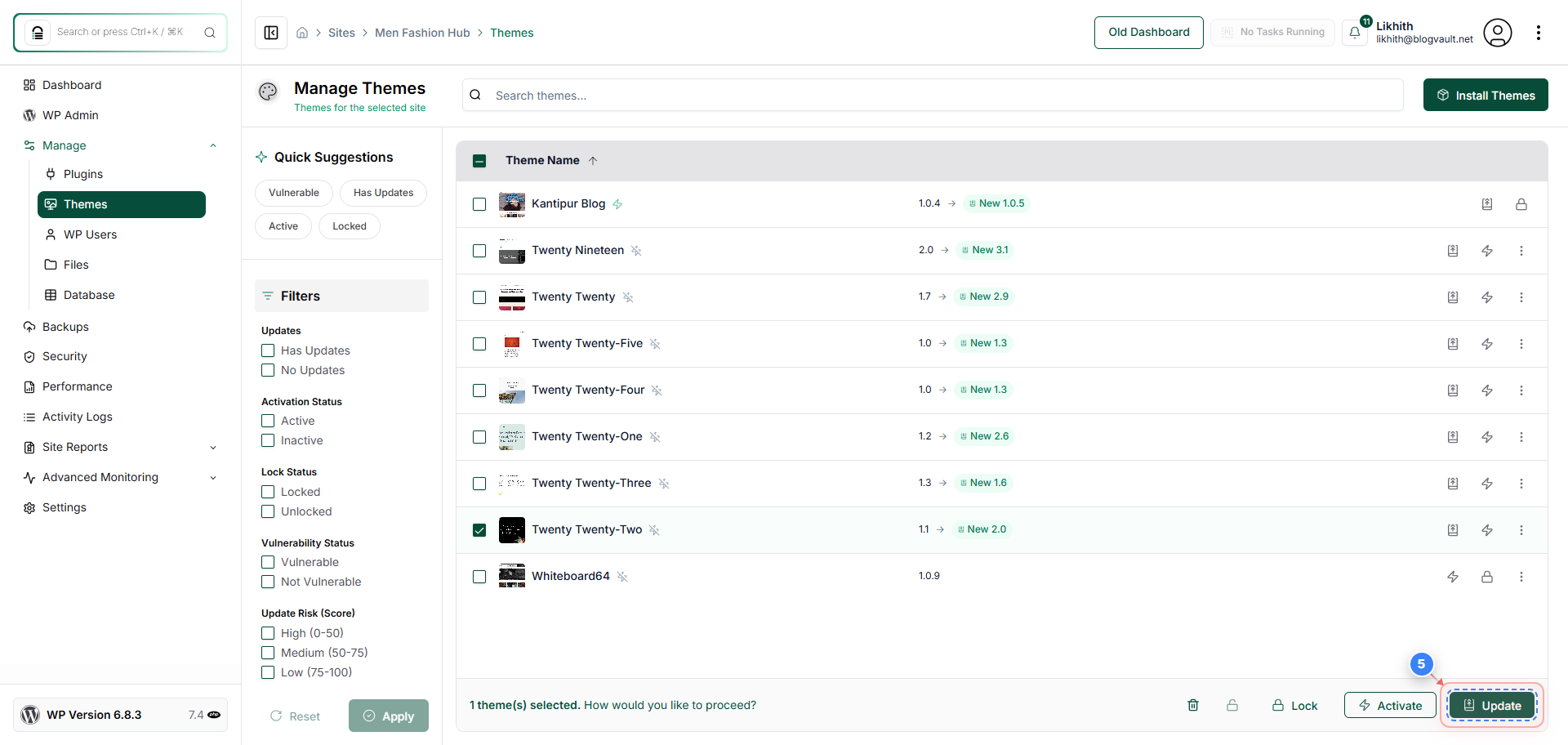
Step 5 of 7
Open Update Options
Click the update icon button in the bottom-right actions panel to proceed with updating the selected theme.
Note: This opens a dialog with update options for the selected theme(s).
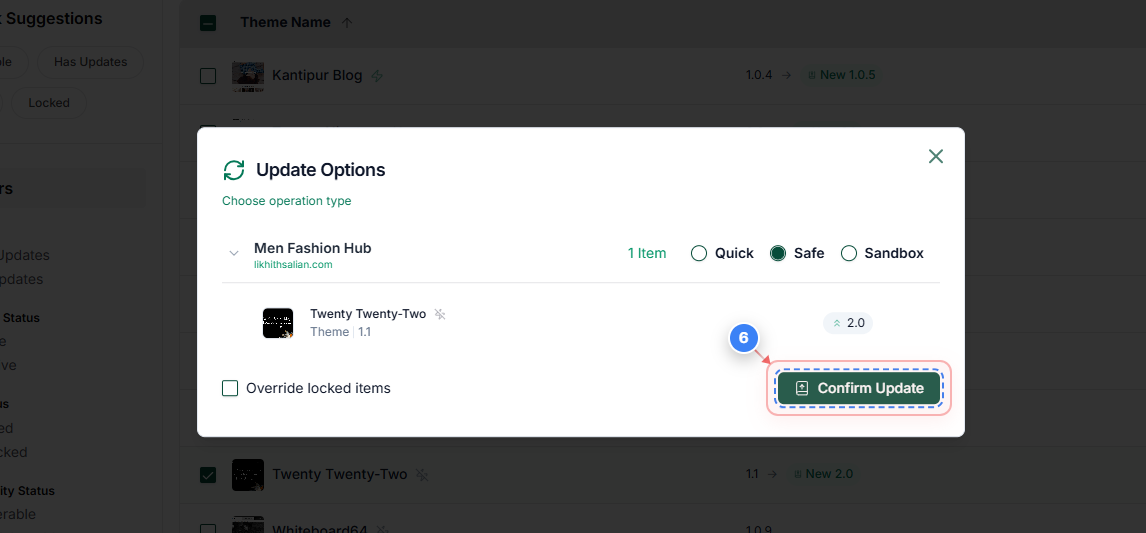
Step 6 of 7
Confirm the Update
In the Update Options dialog, click the confirm button to apply the update.
Note: Ensure you have selected the correct update option before confirming.
Step 7 of 7
Review Final Results
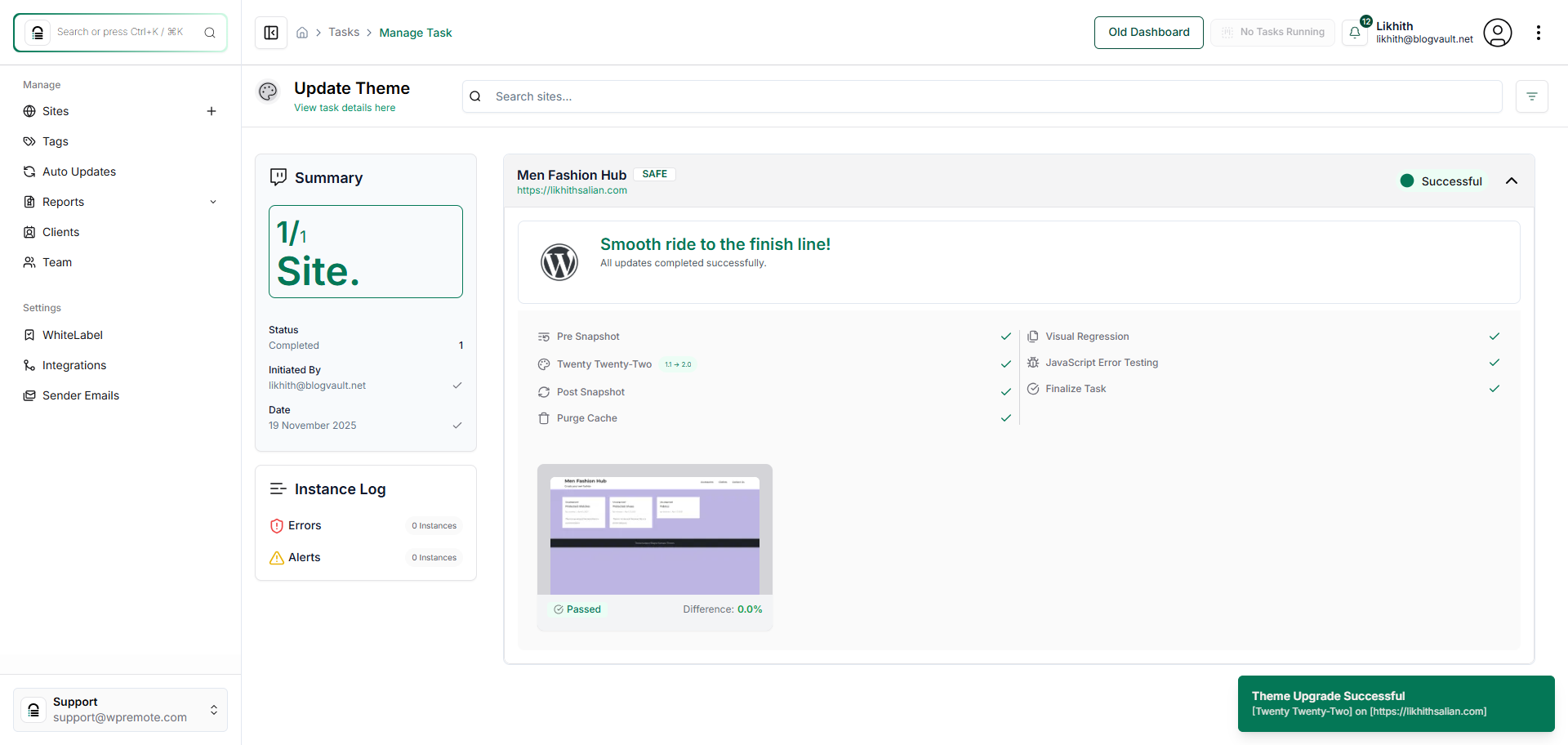
The final page will display an overview of the completed update task.
Note: This page confirms that the update process was executed successfully and shows relevant details of the task.