How Do I Schedule Auto Updates for Themes, Plugins, and WordPress Core?
Step 1 of 13
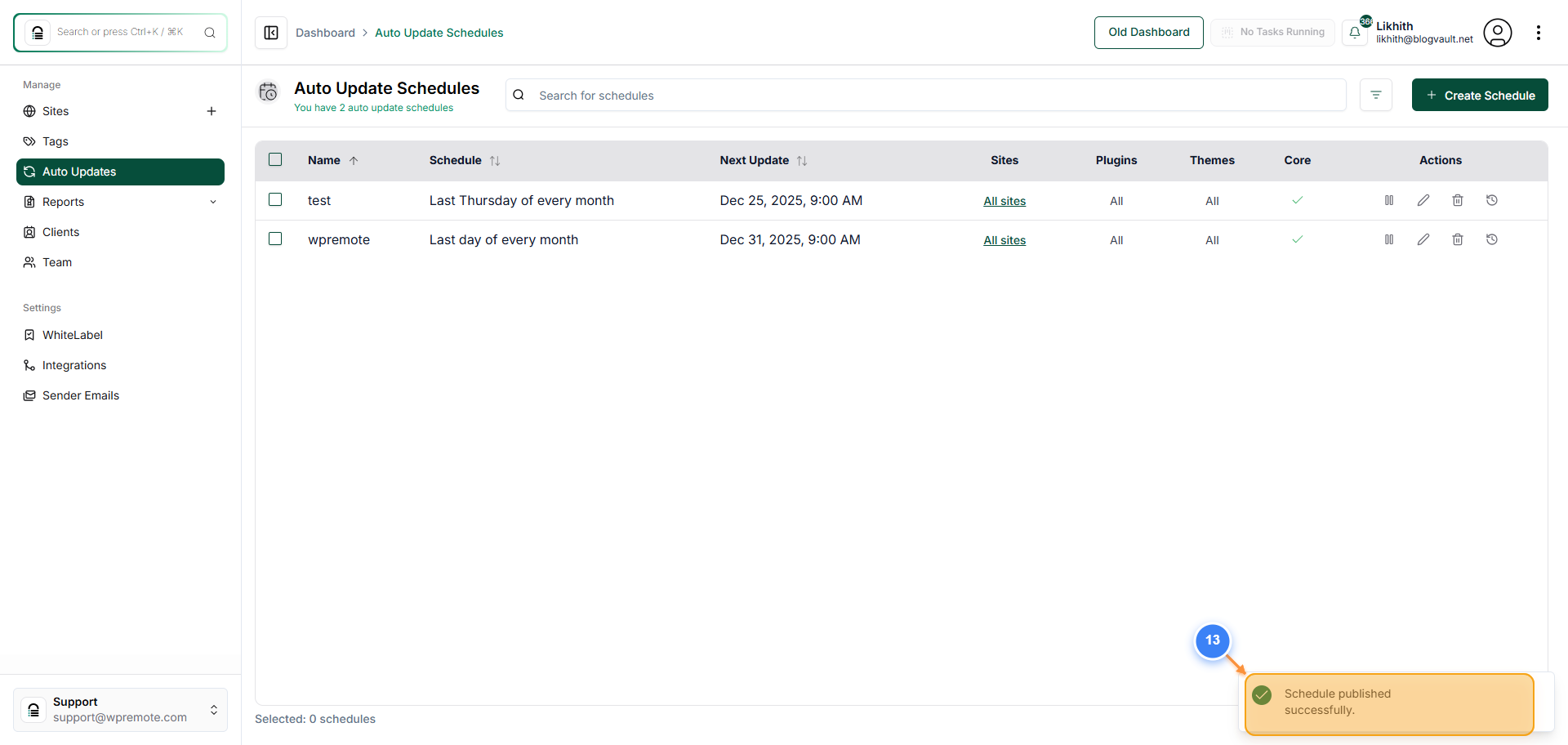
Open Auto Updates
Click **Auto Updates** in the left sidebar to access automatic update settings.
Step 2 of 13
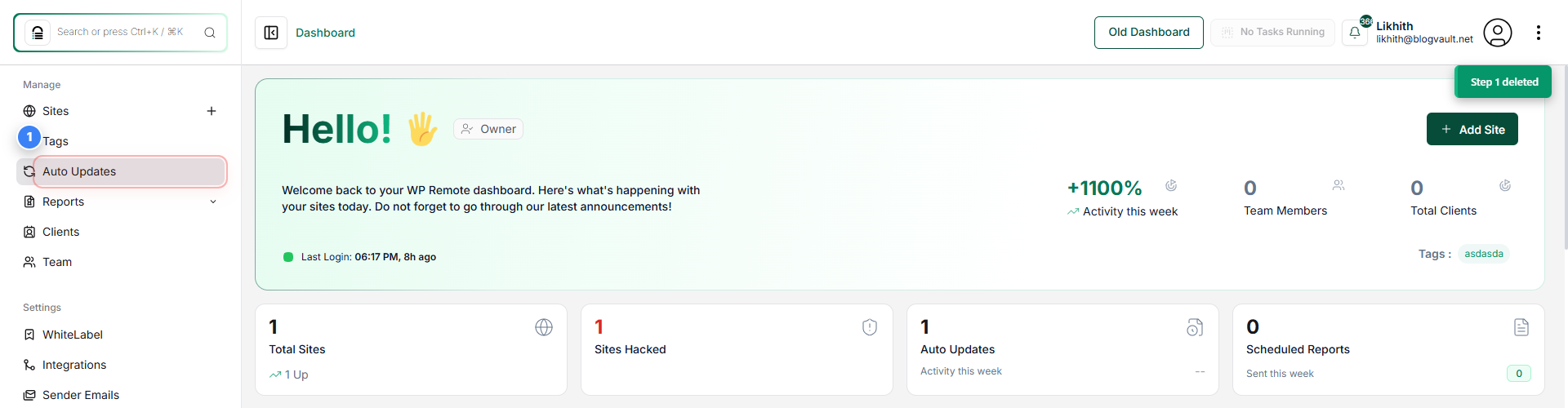
Start New Schedule
Click the **Create Schedule** button located in the top-right of the Auto Update Schedules page.
Step 3 of 13
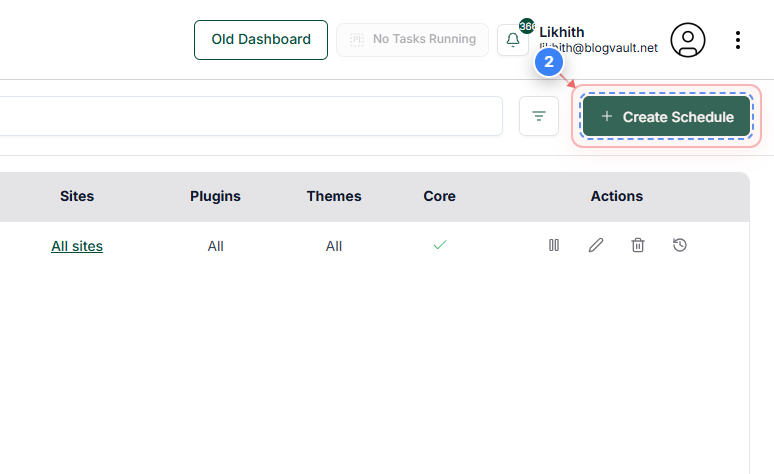
Choose Start Date
Click the Start Date field in the schedule form to define when automatic updates should begin.
Note: The start date determines when all future updates will be triggered.
Step 4 of 13
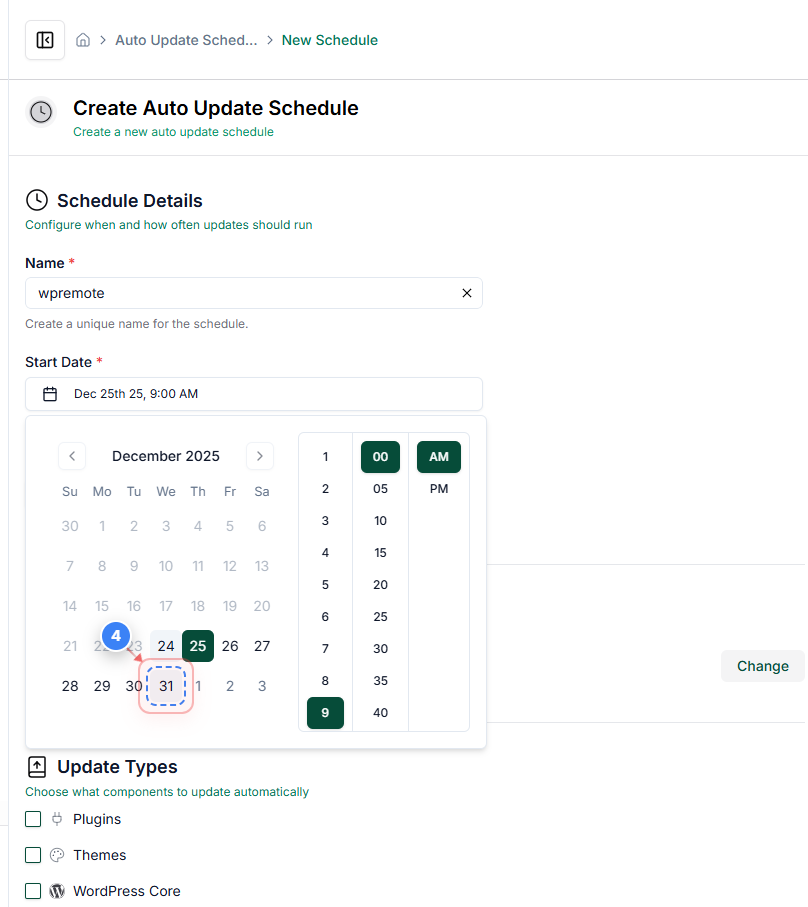
Select Calendar Date
Select the desired date from the calendar to set the first run of the auto-update schedule.
Step 5 of 13
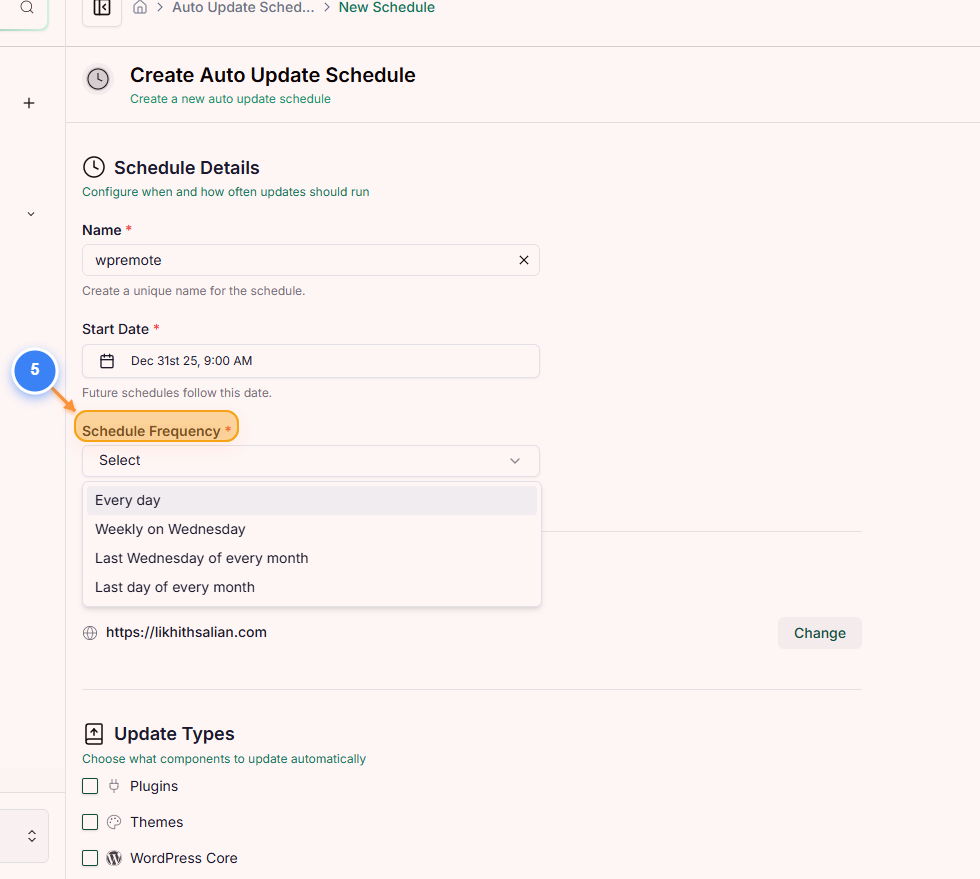
Confirm Date Selection
Once after selecting correct date, please make sure to select the schedule frequency.
Note: Need to choose the correct start date to check what options are available.
Step 6 of 13
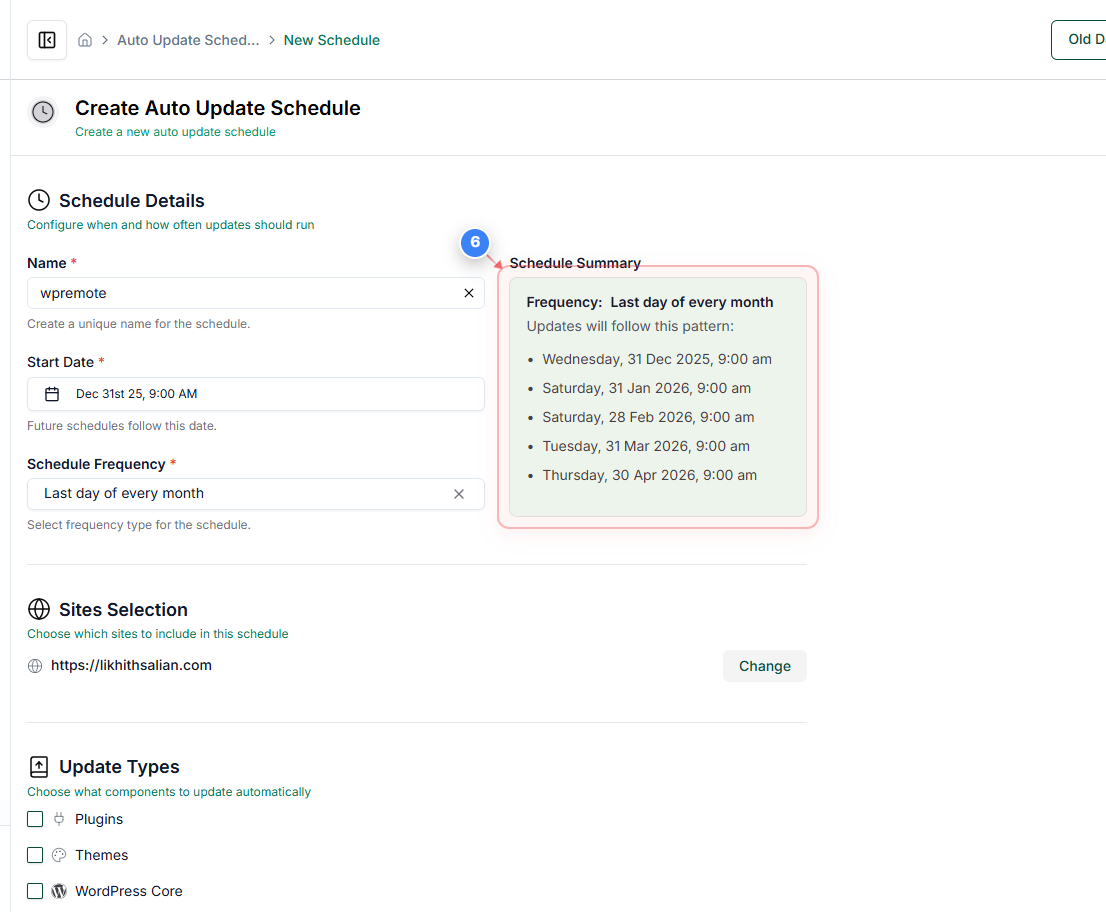
Review Update Frequency
Review the Frequency section in the middle of the page to confirm how often updates will run and the exact upcoming dates. For example, here we’ve chosen the last day of every month. The UI shows a preview of the upcoming schedules based on the selected start date and frequency.
Note: This preview helps ensure updates align with your maintenance plan.
Step 7 of 13
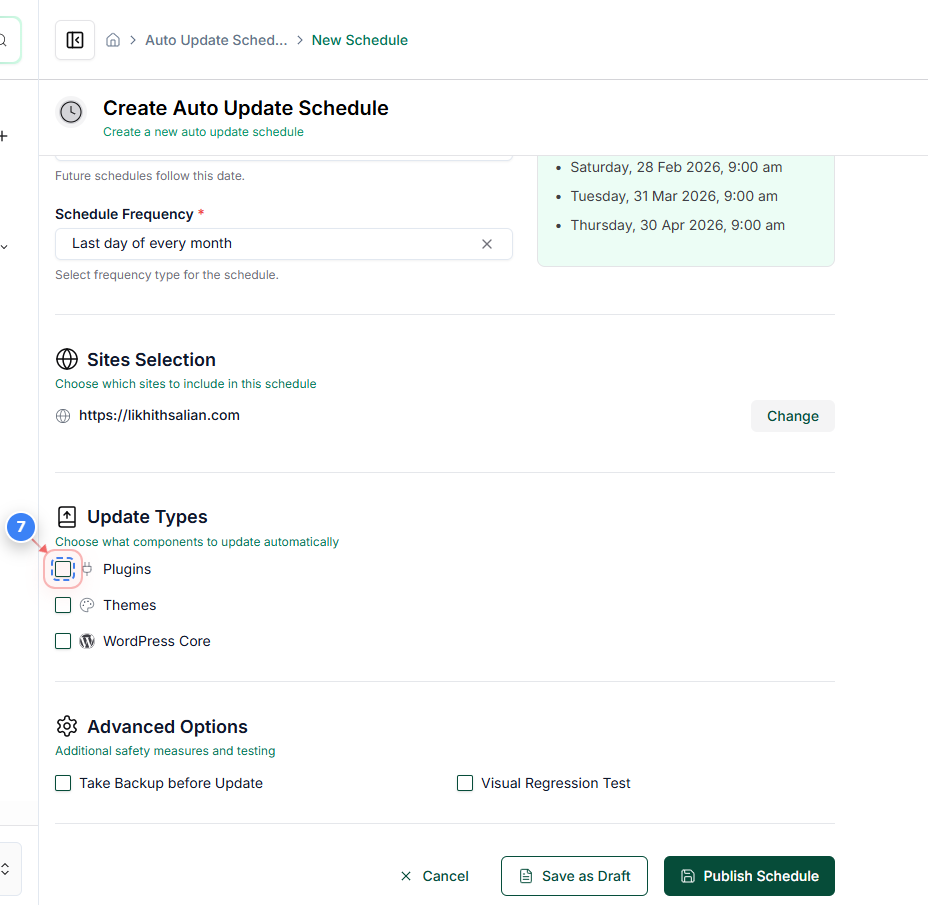
Enable Plugin Updates
Toggle the **Plugins** checkbox to turn auto updates on.
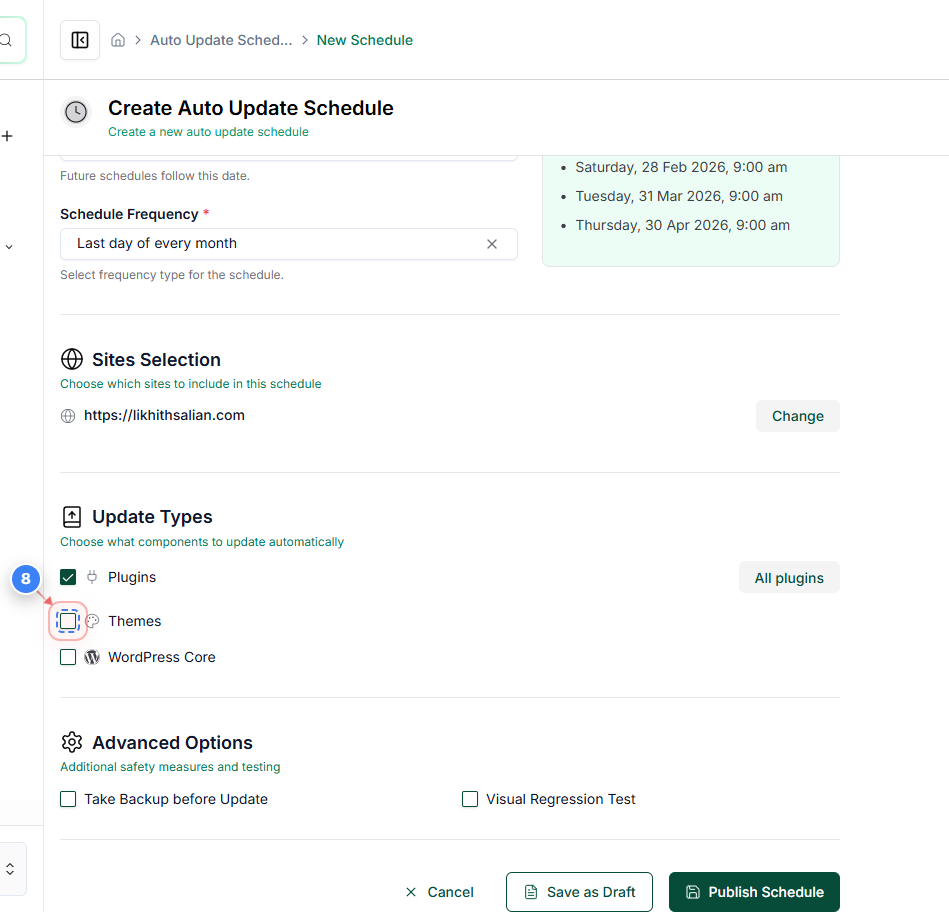
Step 8 of 13
Enable Theme Auto Updates.
Toggle the **Themes** checkbox to activate automatic theme updates.
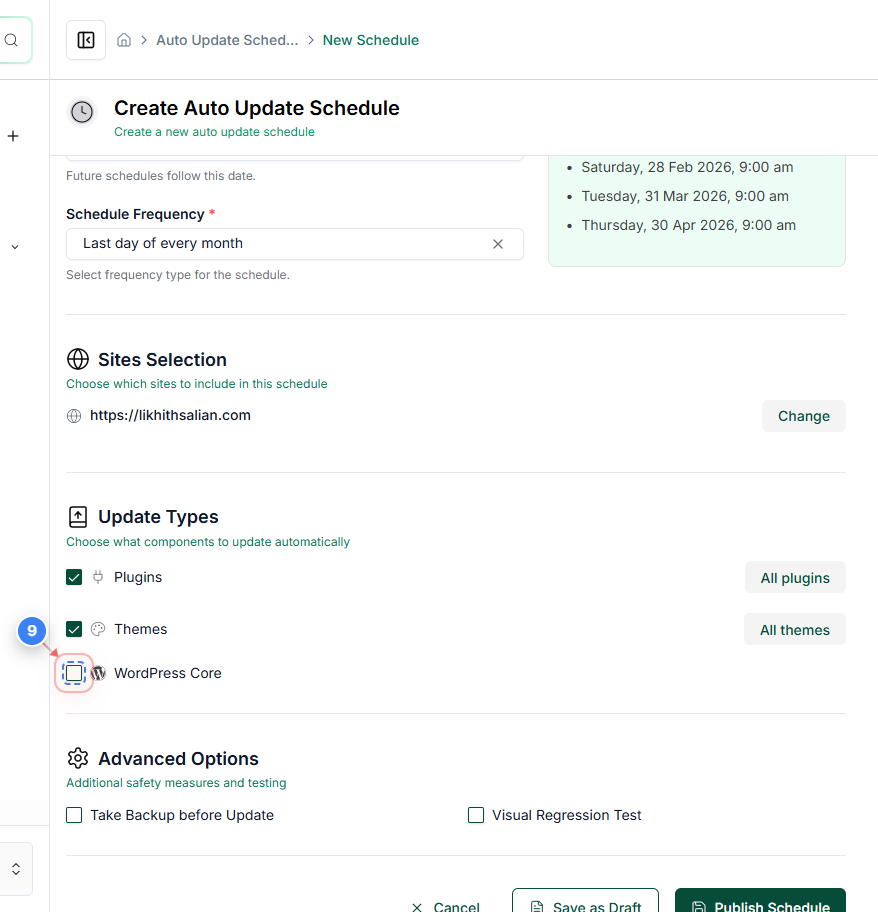
Step 9 of 13
Enable WordPress core Auto Updates
Toggle the **WordPress core** checkbox to automatically update WordPress core files.
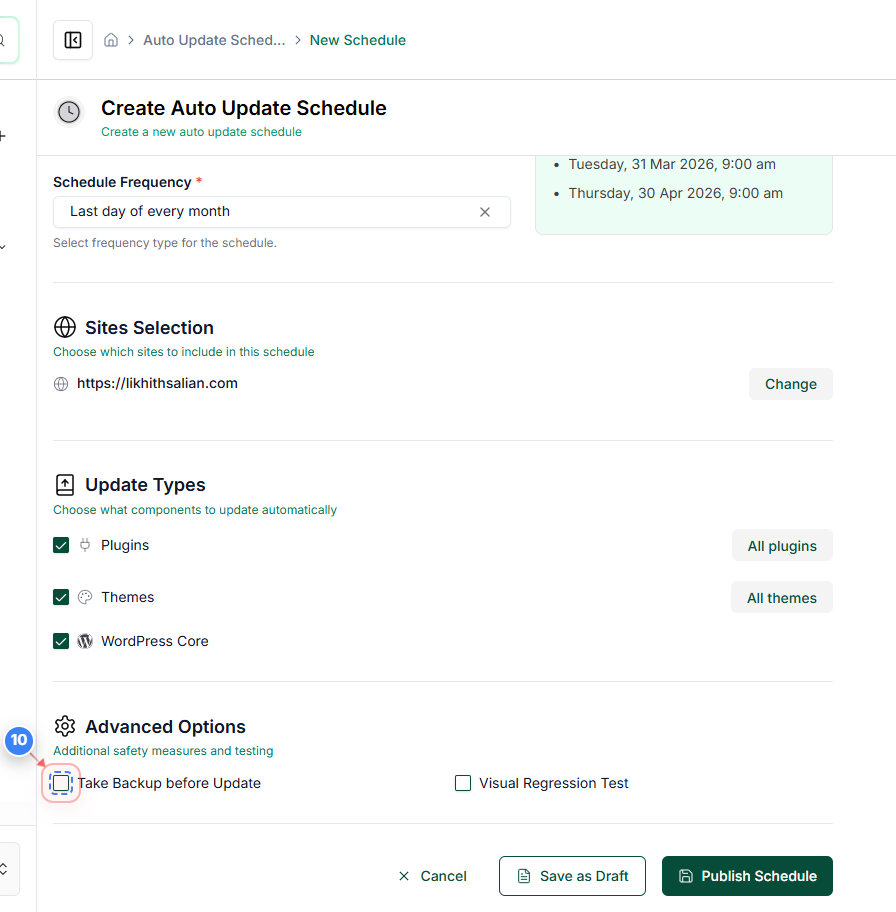
Step 10 of 13
Enable Backup Before Update
Toggle the **Take Backup Before Update** option under Advanced Options.
Note: These options help reduce the risk of update-related issues.
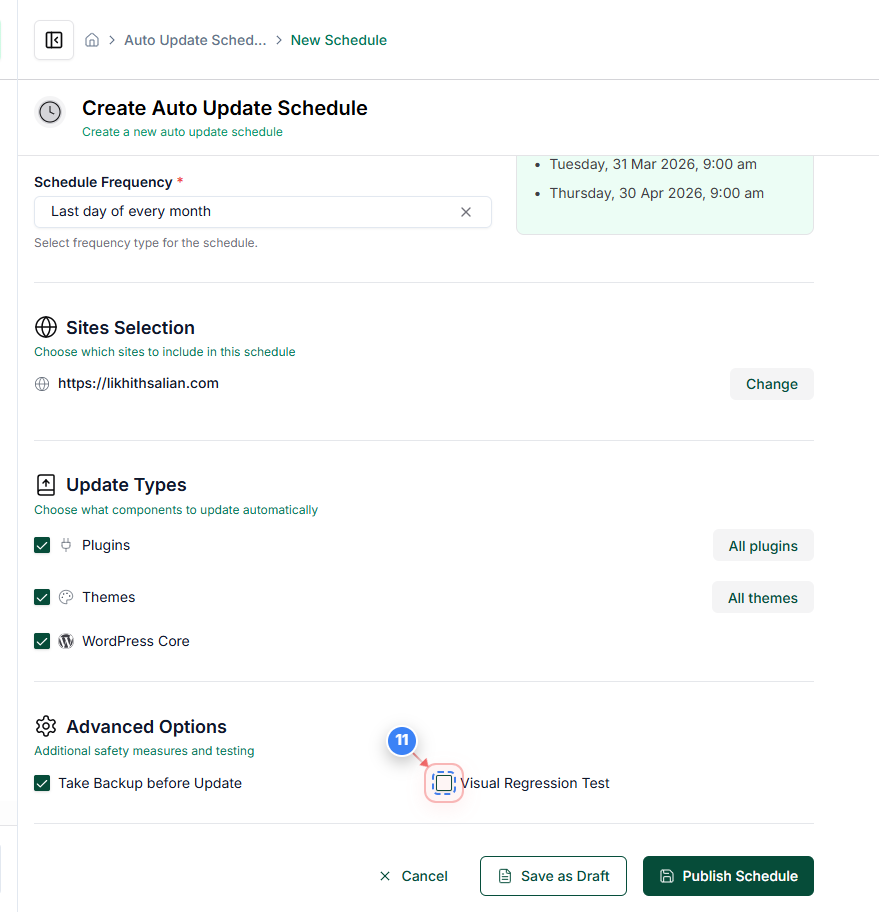
Step 11 of 13
Enable Visual regression Test Before Update
Toggle the **Visual regression Test** option under Advanced Options.
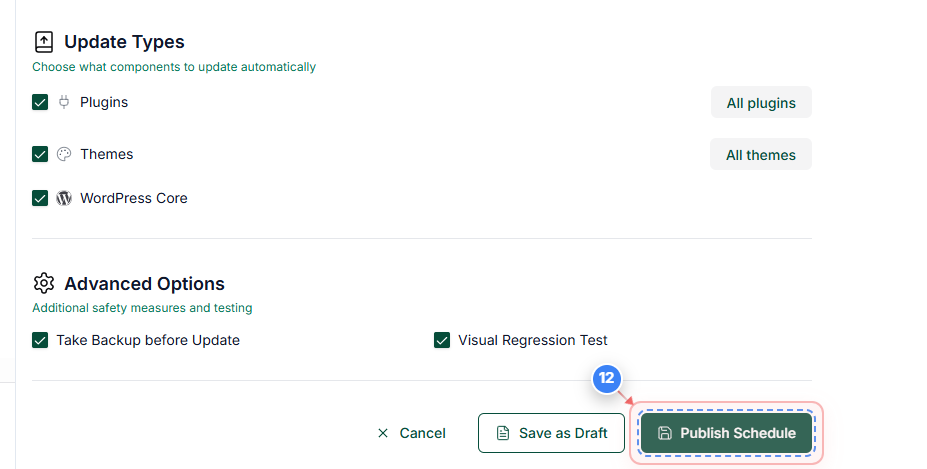
Step 12 of 13
Publish Schedule
Click Publish Schedule at the bottom of the page to activate the auto-update schedule.
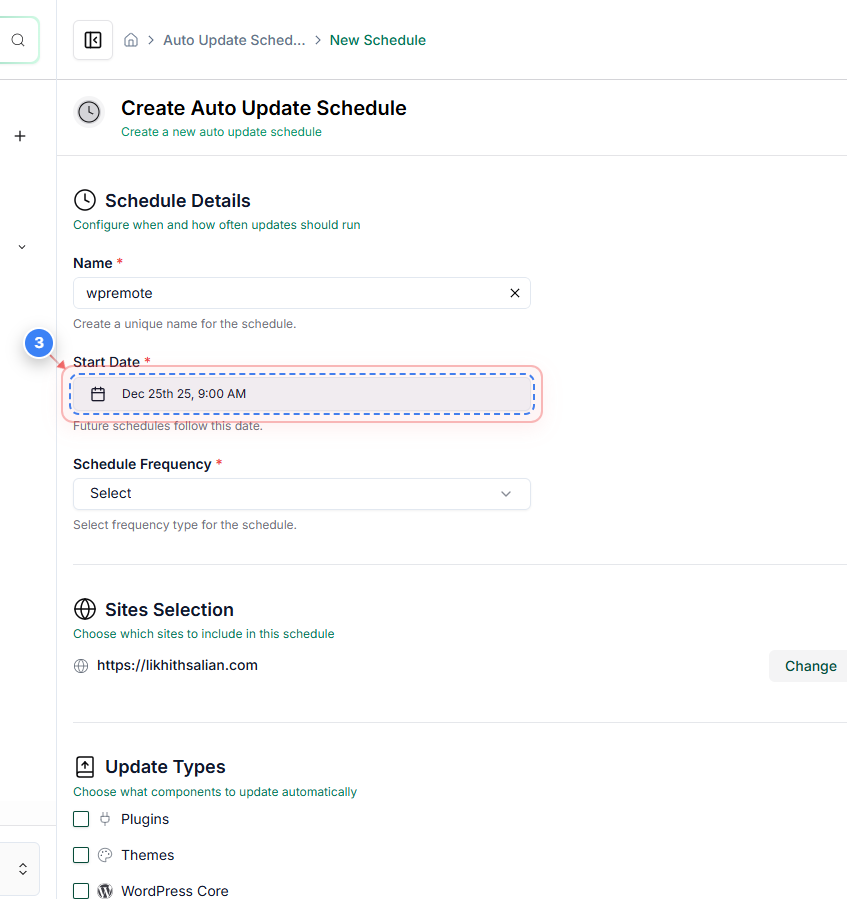
Step 13 of 13
Verify Schedule Creation
Review the Auto Update Schedules page to confirm the new schedule appears in the list with the correct frequency, next update date, and scope (sites, plugins, themes, and core).
Note: Ensure the schedule shows the expected next update date and that its status indicates it is active.