
Export Your Theme List in CSV Format
Step 1 of 7
Open Site Listing Page
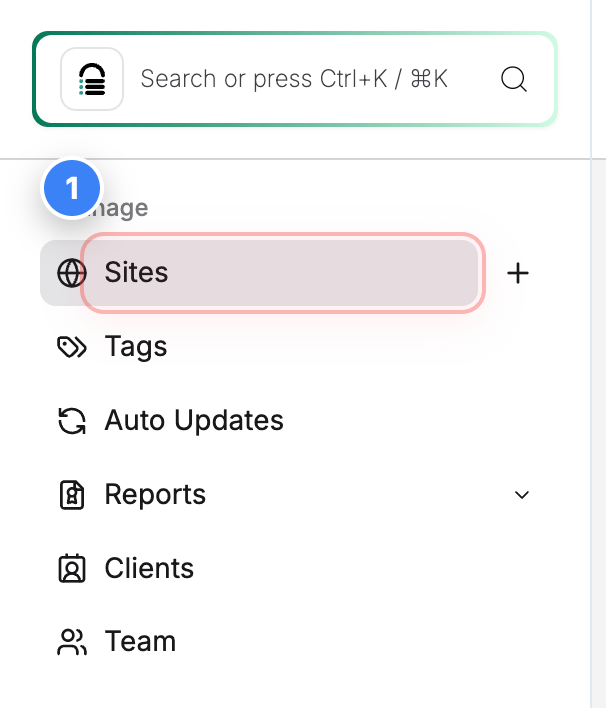
Click on Sites in the top-left navigation to view all websites present in the account.
Step 2 of 7
Select Your Site
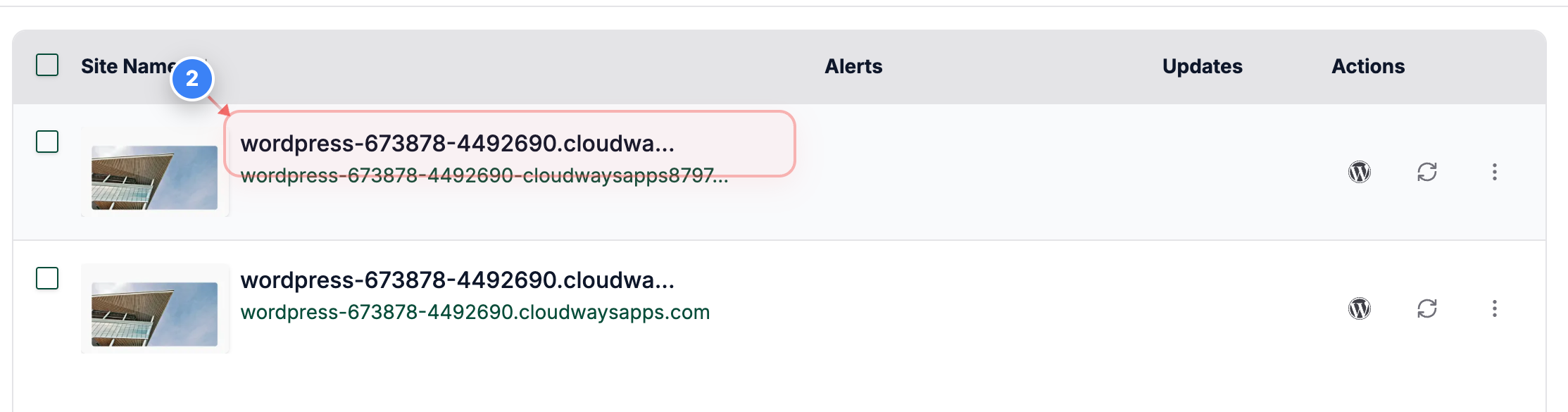
Click on your site name to open its management options.
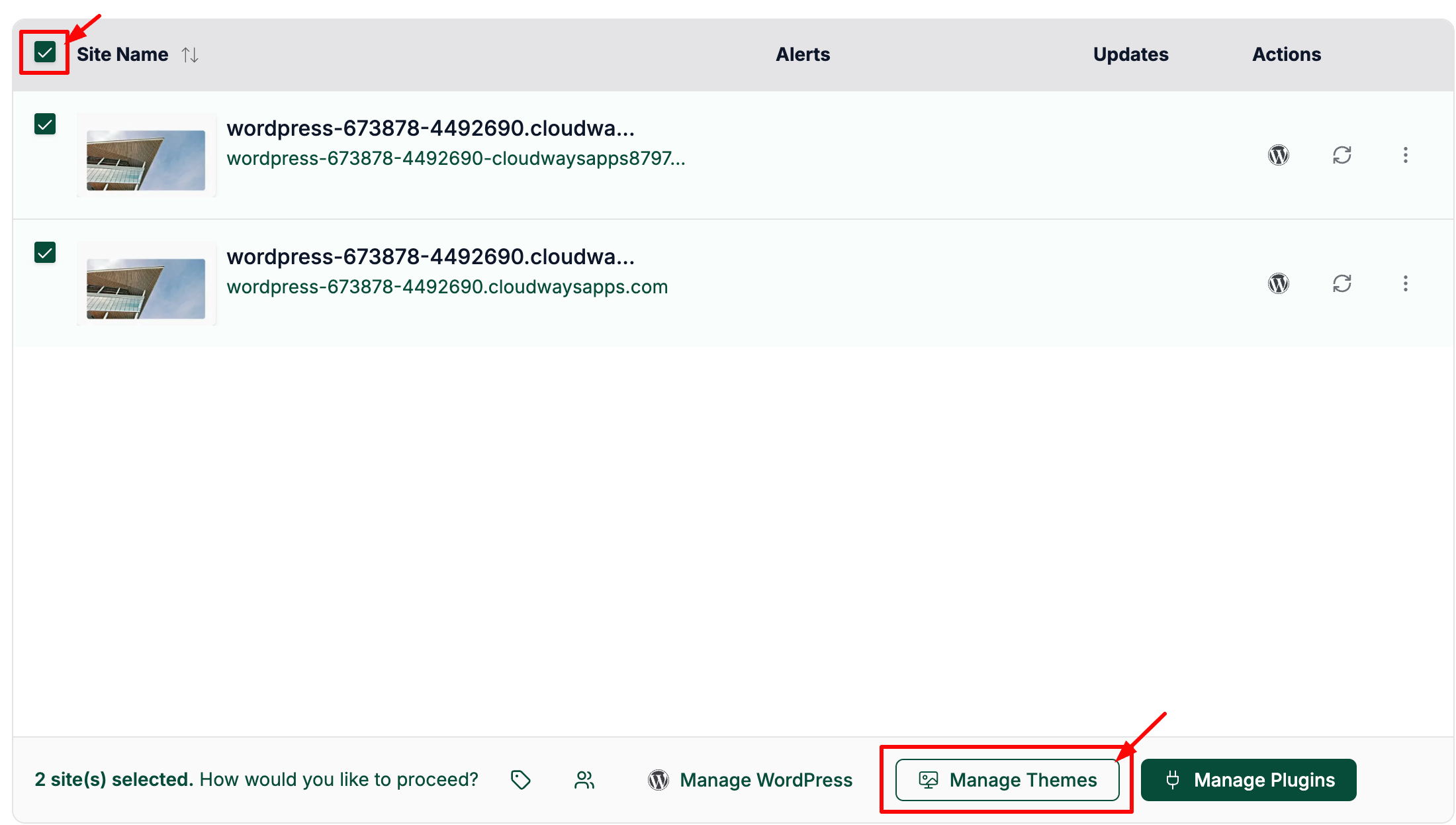
Note: You can select multiple sites to export all the themes for your sites
Otherwise, select single/multiple sites and click on the "Manage Themes" button as shown below to export all the plugins for the selected sites:
Step 3 of 7
Open Manage Options
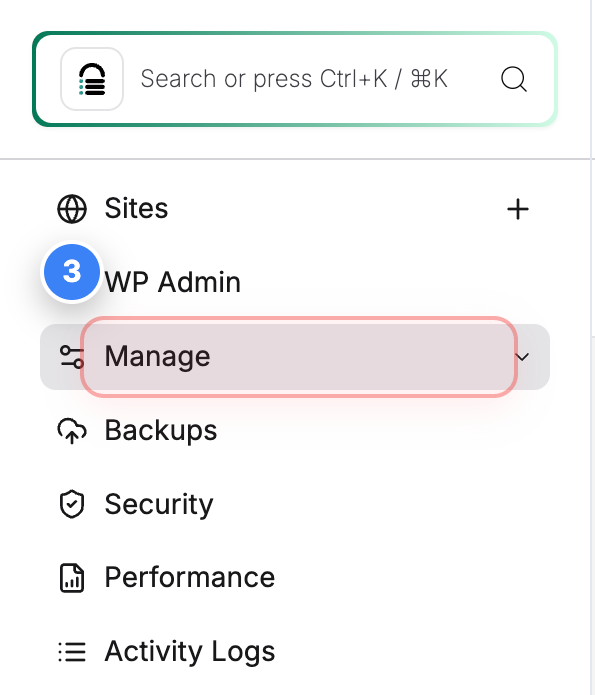
Click Manage in the left sidebar to access the theme management page for the selected site.
Step 4 of 7
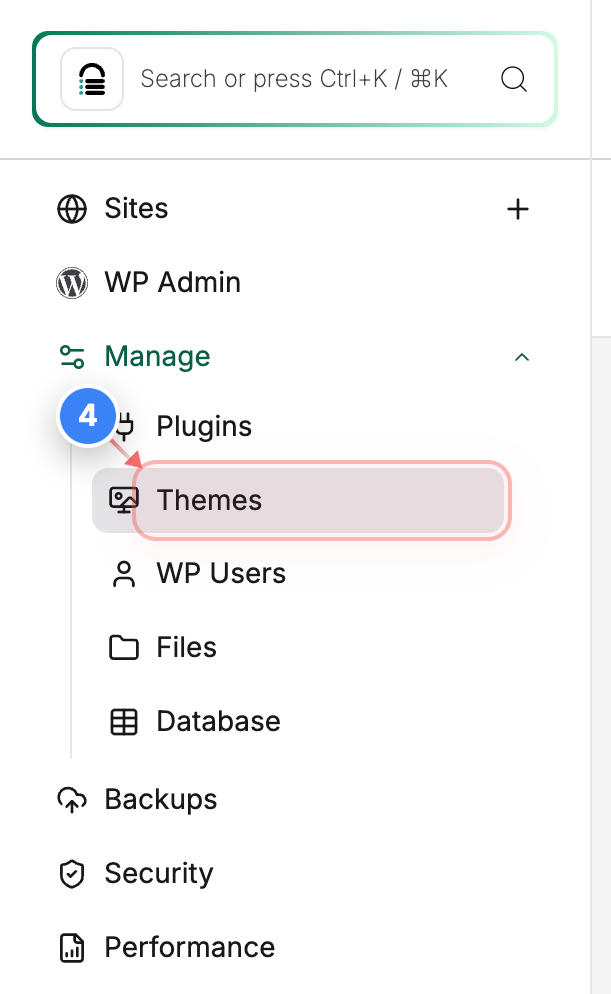
Go to Theme Management
Click on Themes in the Manage section to view and manage all themes installed on the site.
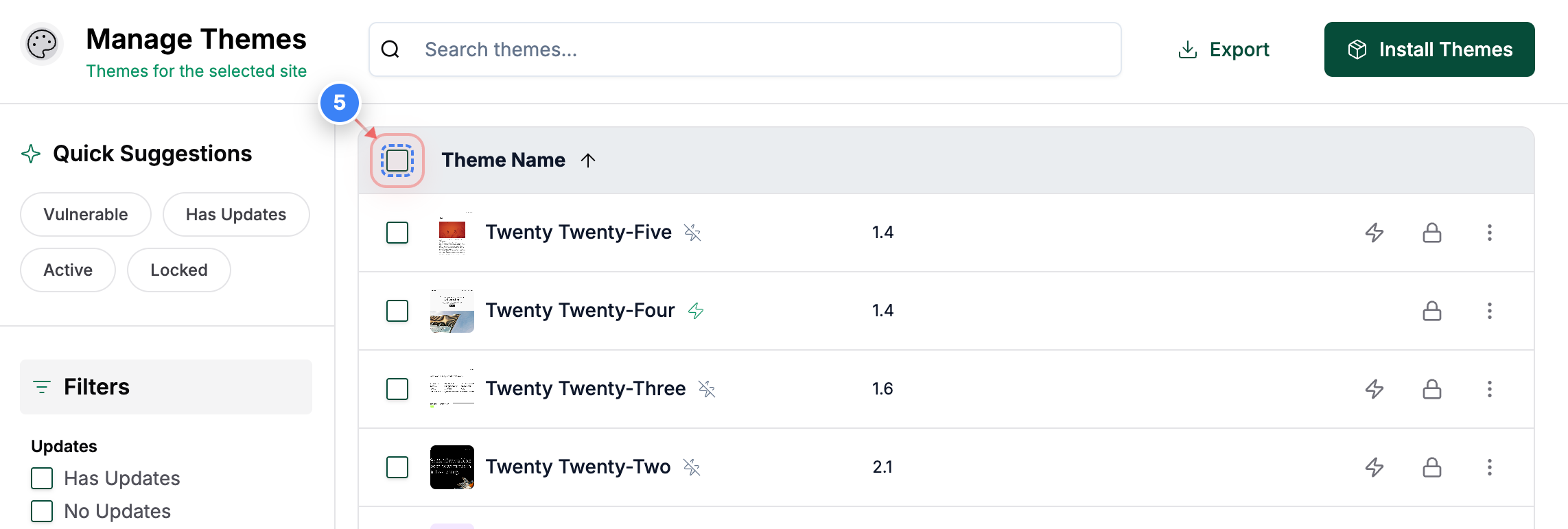
Step 5 of 7
Select Themes
Click the select-all checkbox at the top of the themes table to choose all listed themes.
Note: Selecting all themes ensures the full themes list is included in the export. You may select the specific themes or a filtered list.
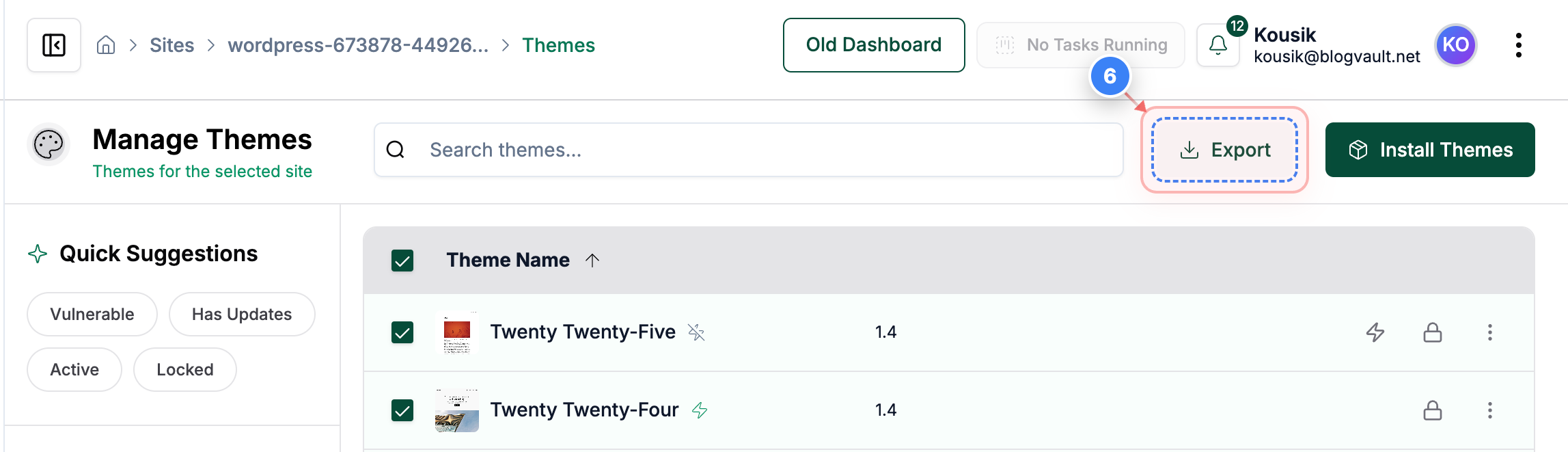
Step 6 of 7
Export Themes Data
Click the Export option in the top-right area to download the selected themes information.
Note: The export includes site URL, theme name, current version, available new version, status (active or inactive), theme lock status, site lock status, and vulnerability status.
Step 7 of 7
Successful Export Data Message
Clicking the export button will download the file to your computer, and a successful message will appear.
Note: The file is downloaded in CSV format and can be opened in spreadsheet tools.
