How to Set a Default WordPress Admin Login User For Site
Step 1 of 7
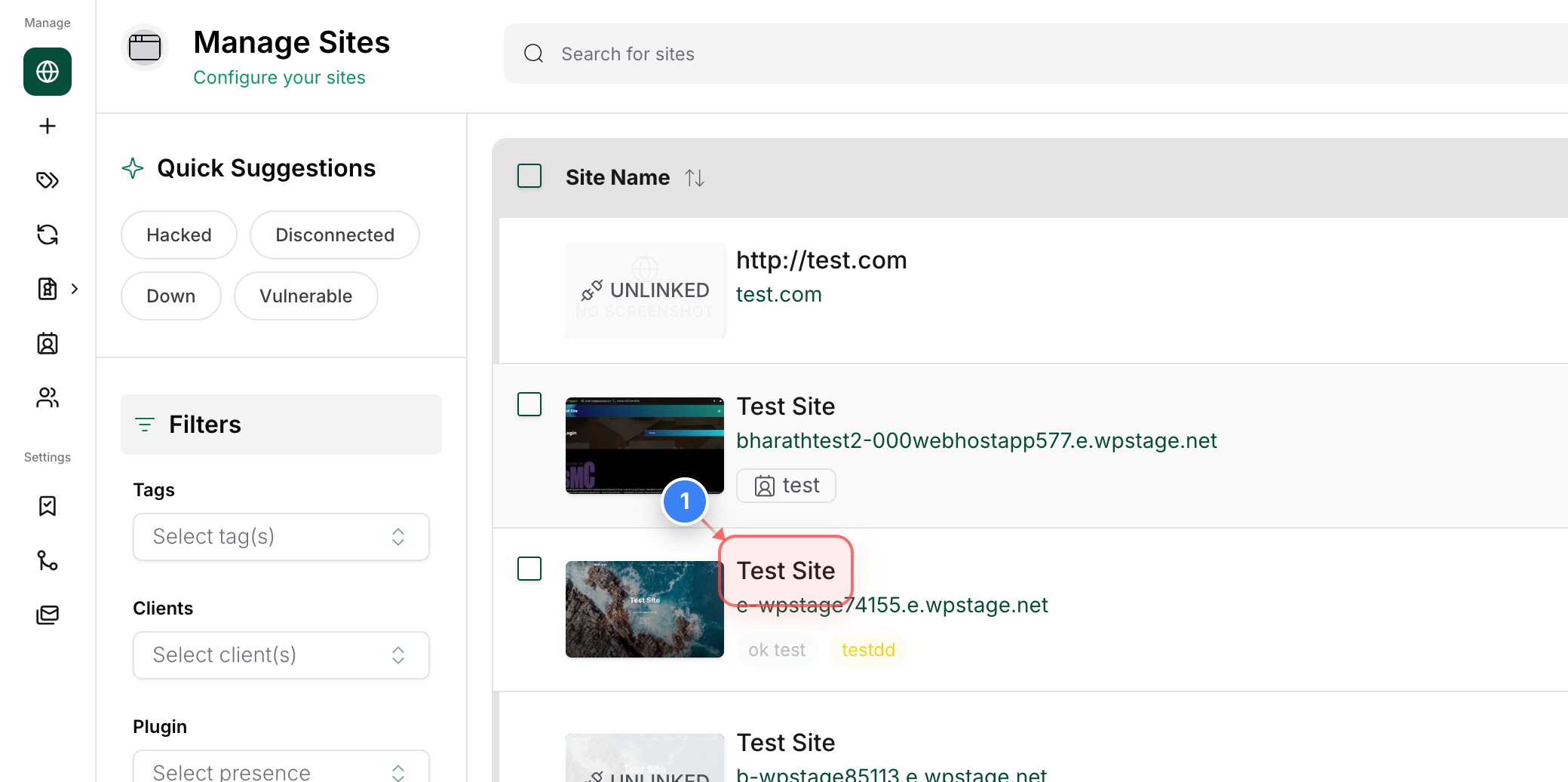
Select Your Website
Click on the site name in the center of the Sites dashboard to open the management overview for that specific website.
Note: Ensure you are selecting the correct site if you have multiple sites.
Step 2 of 7
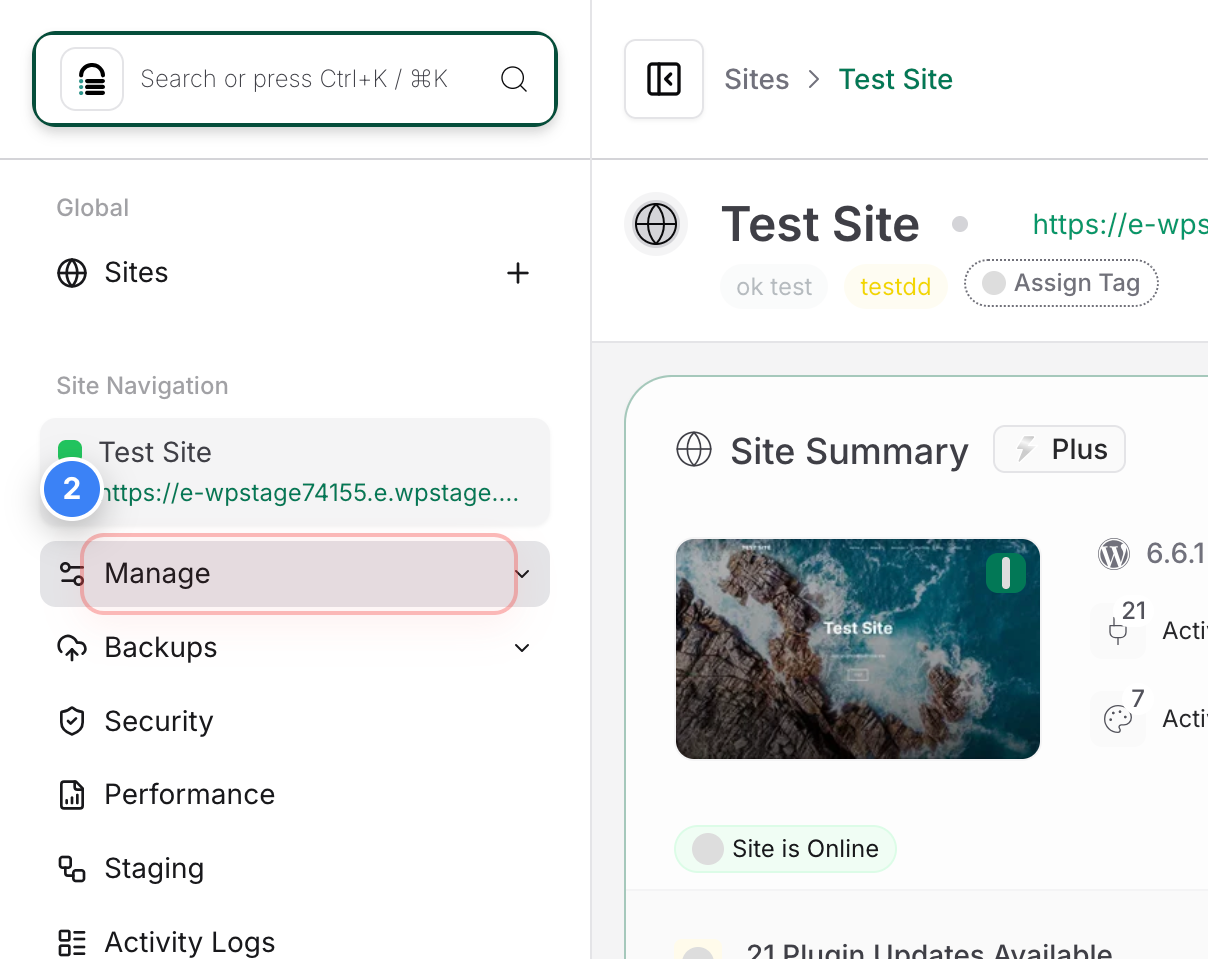
Access Site Management Tools
Click the Manage option in the left-hand sidebar to expand the settings for your site.
Step 3 of 7
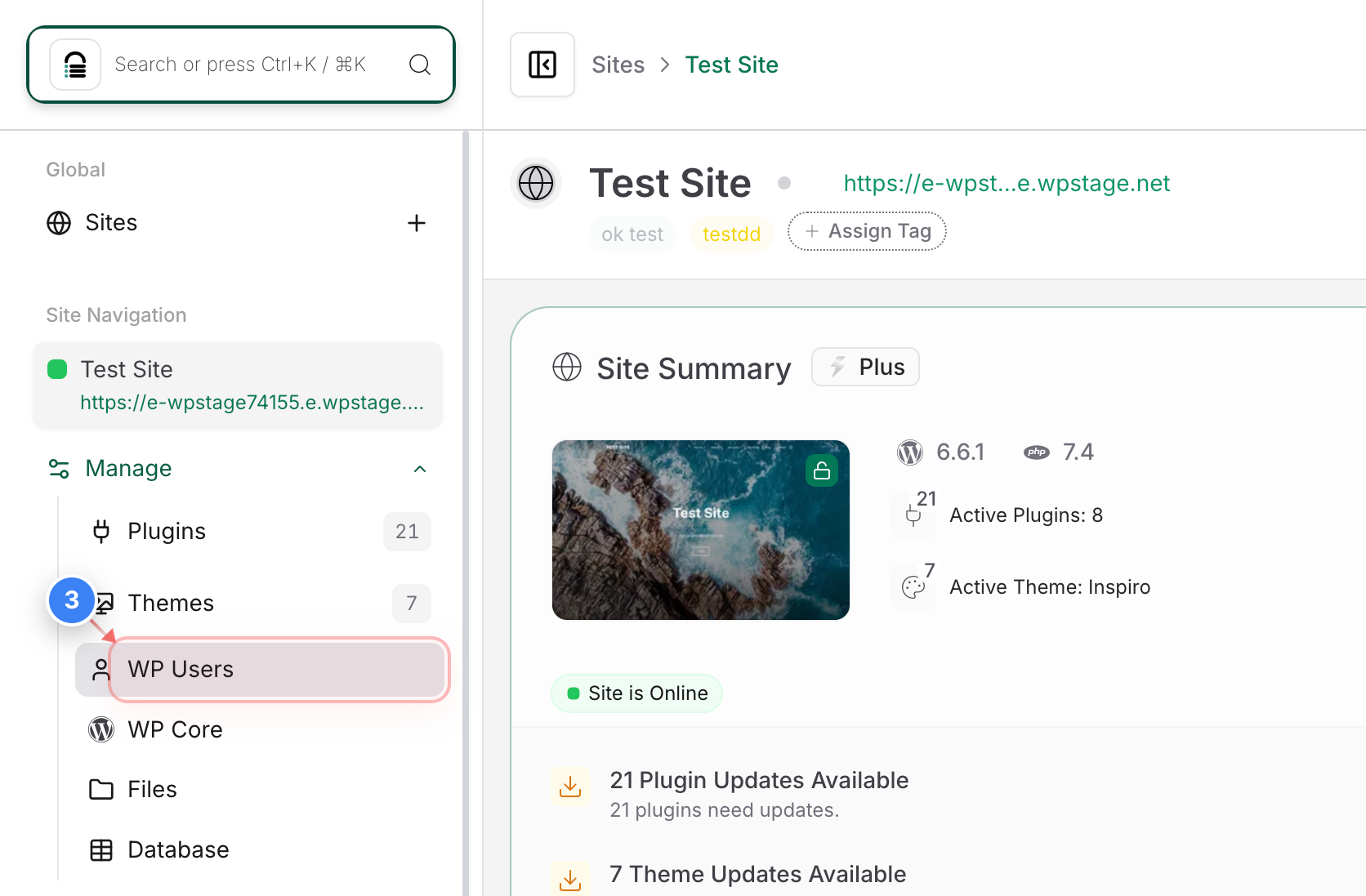
Open WP Users Section
Select WP Users from the sidebar menu to view and manage the WordPress users associated with your site.
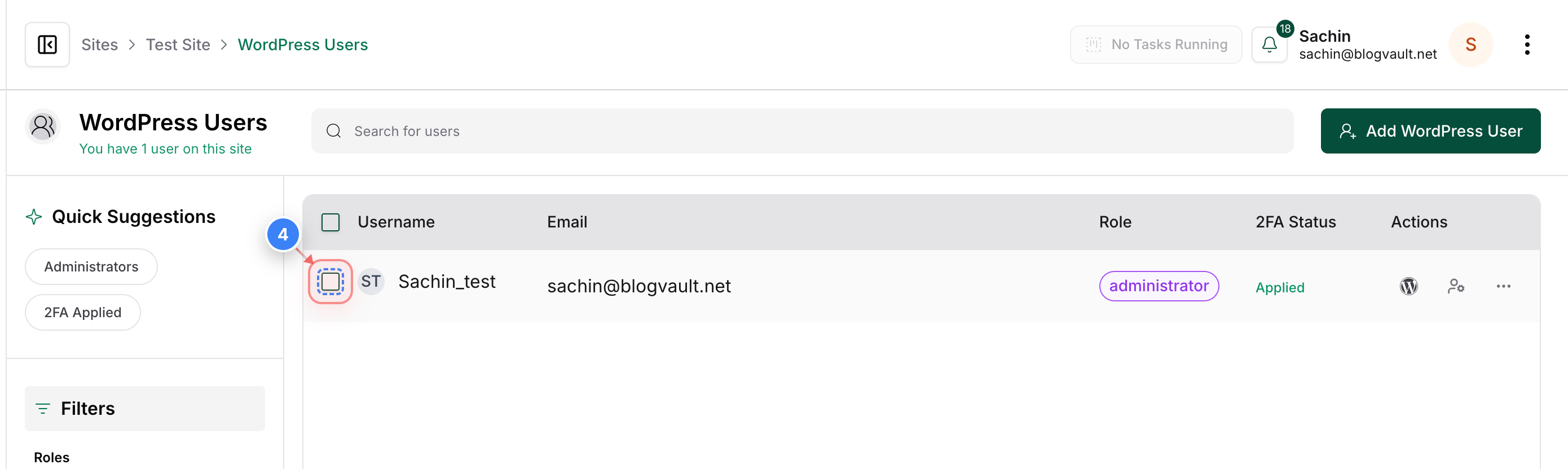
Step 4 of 7
Select a Specific User
Click the checkbox next to the desired username in the user list.
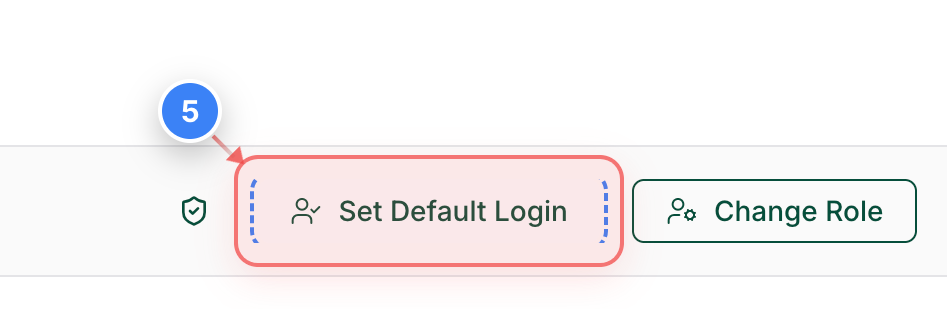
Step 5 of 7
Default Login Action
Click the Set Default Login button in the action bar at the bottom of the page to set up a default user.
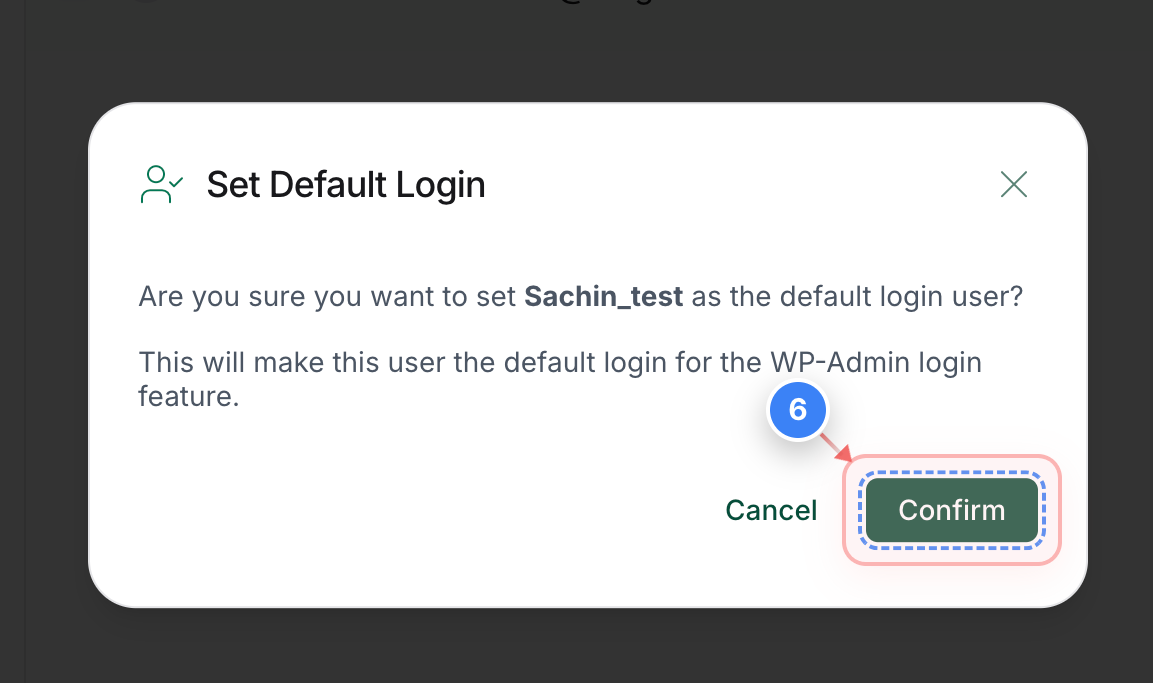
Step 6 of 7
Confirm User Update
Click the Confirm button in the pop-up dialog to set the selected user as the default user for WP-Admin access.
Note: This action will make this user the default User used for the automatic login feature.
Step 7 of 7
Verify Successful Update
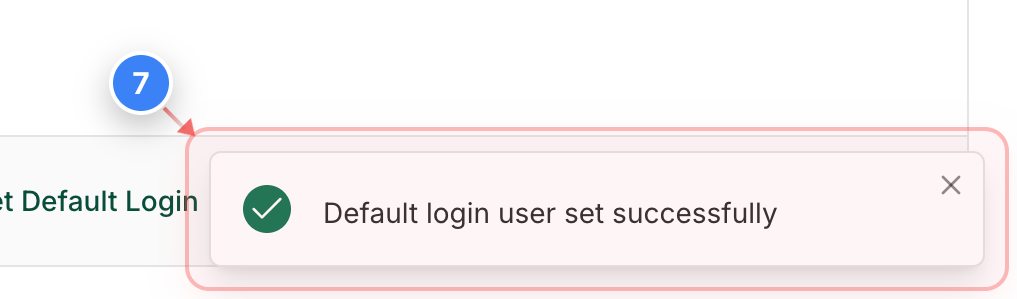
Confirm that the success notification appears in the bottom-right corner, indicating the default login user has been updated.