How Do I Disable Backup or Security Operations?
Step 1 of 5
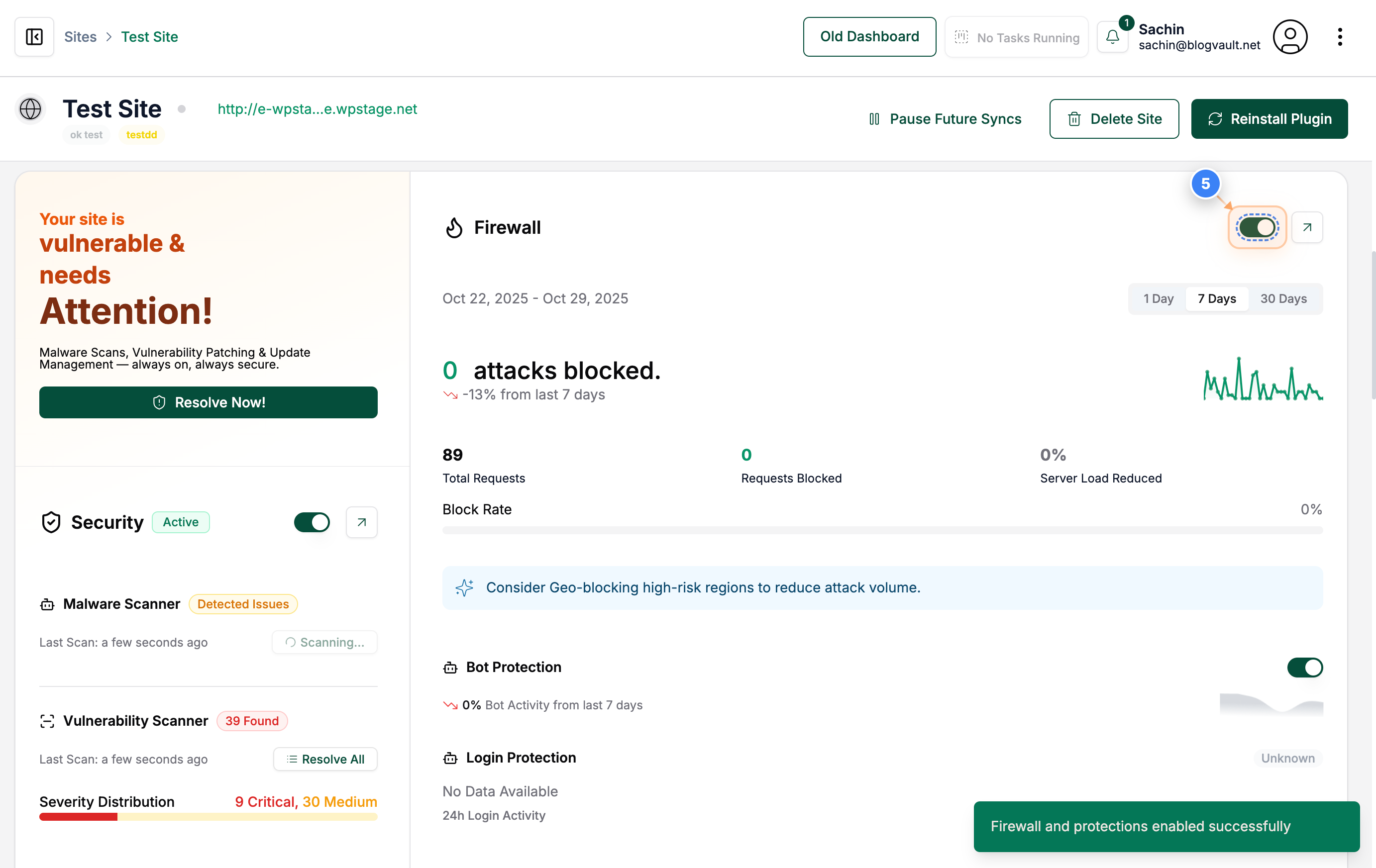
Open the site from the Dashboard
Click on the Site in the Sites page to open that site's dashboard and access its management features.
Note: You can identify the site by its domain listed just below the site name.
Step 2 of 5
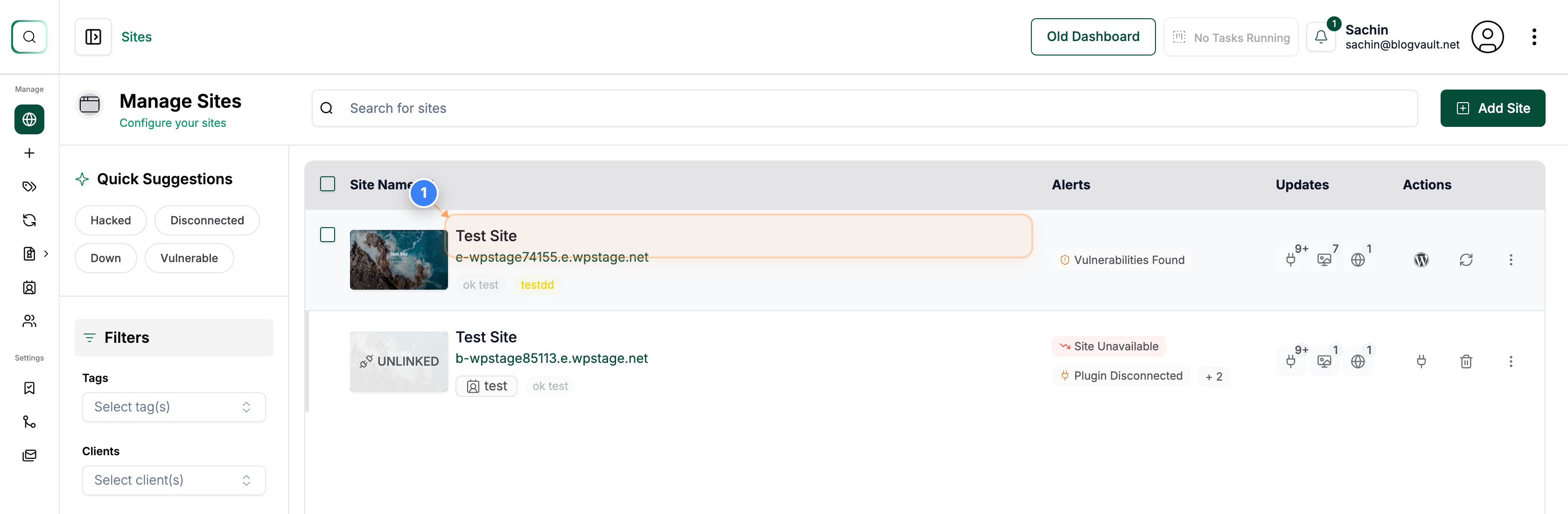
Turn Off Backups
Click the toggle switch in the Backups section to turn off automatic daily backups for the selected site.
Note: This temporarily disables scheduled backups but does not delete existing ones.
Step 3 of 5
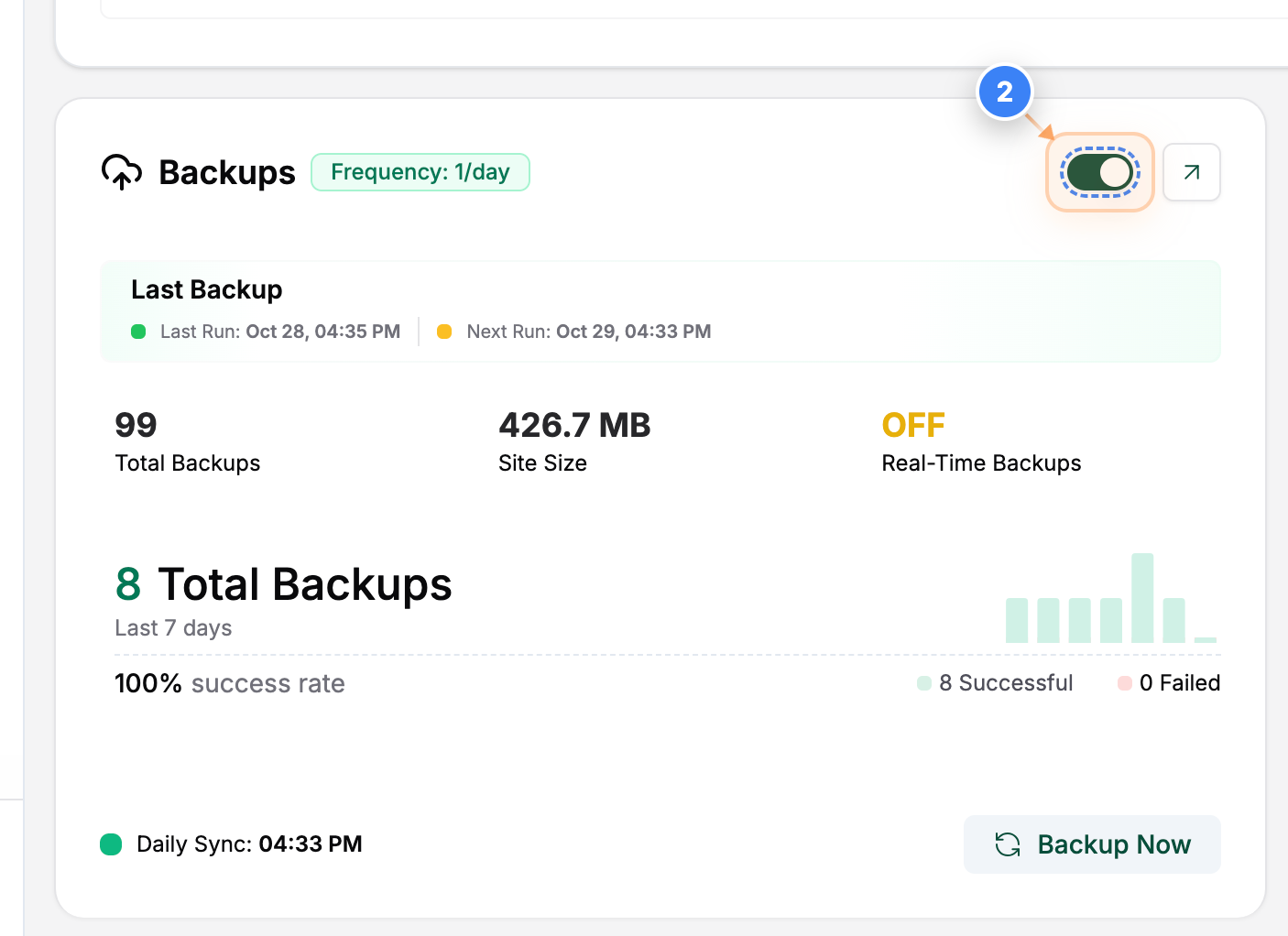
Turn On Backups
Click the same toggle switch in the Backups section to turn automatic daily backups back on for your site.
Note: Once enabled, the plugin will resume creating backups as per your set schedule.
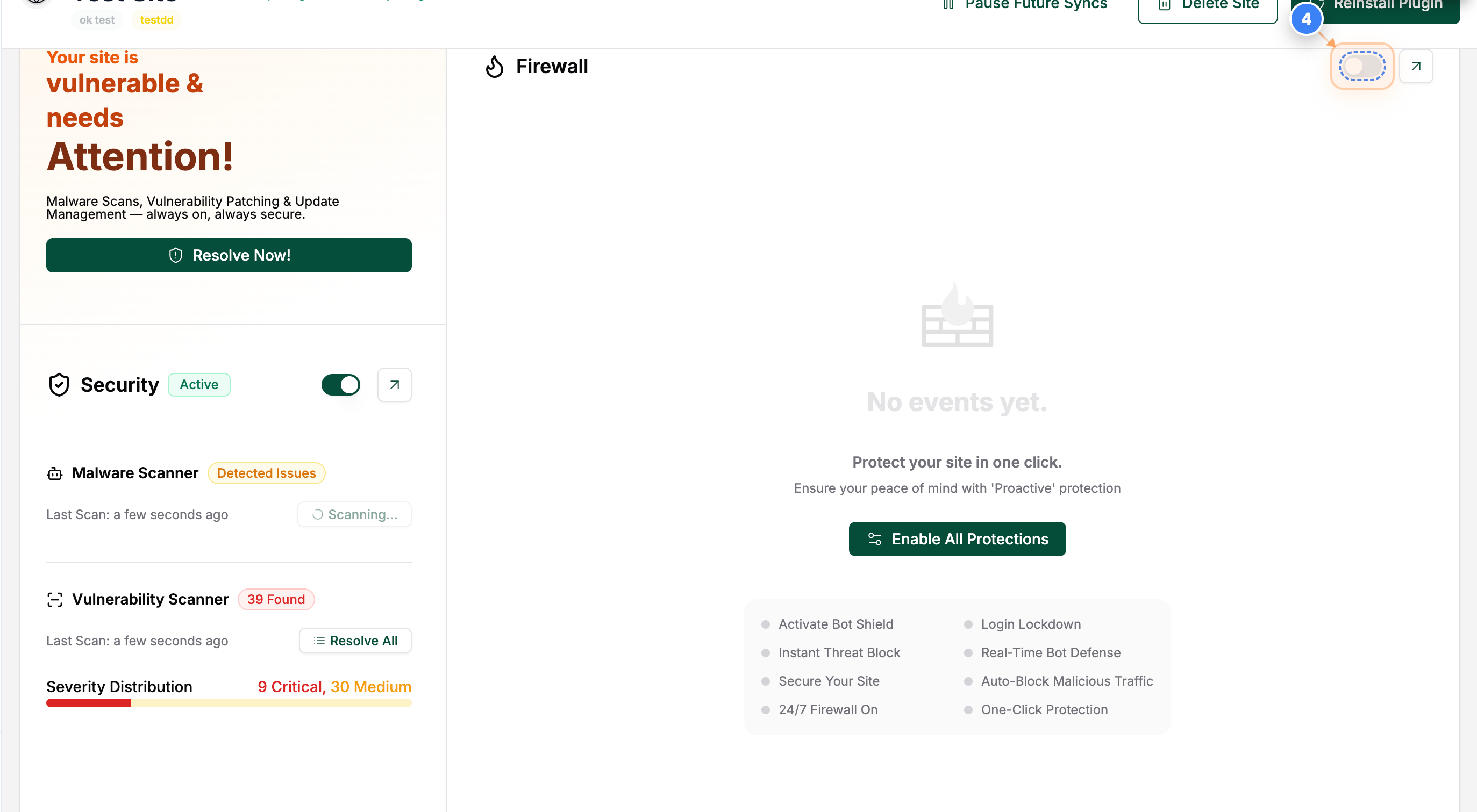
Step 4 of 5
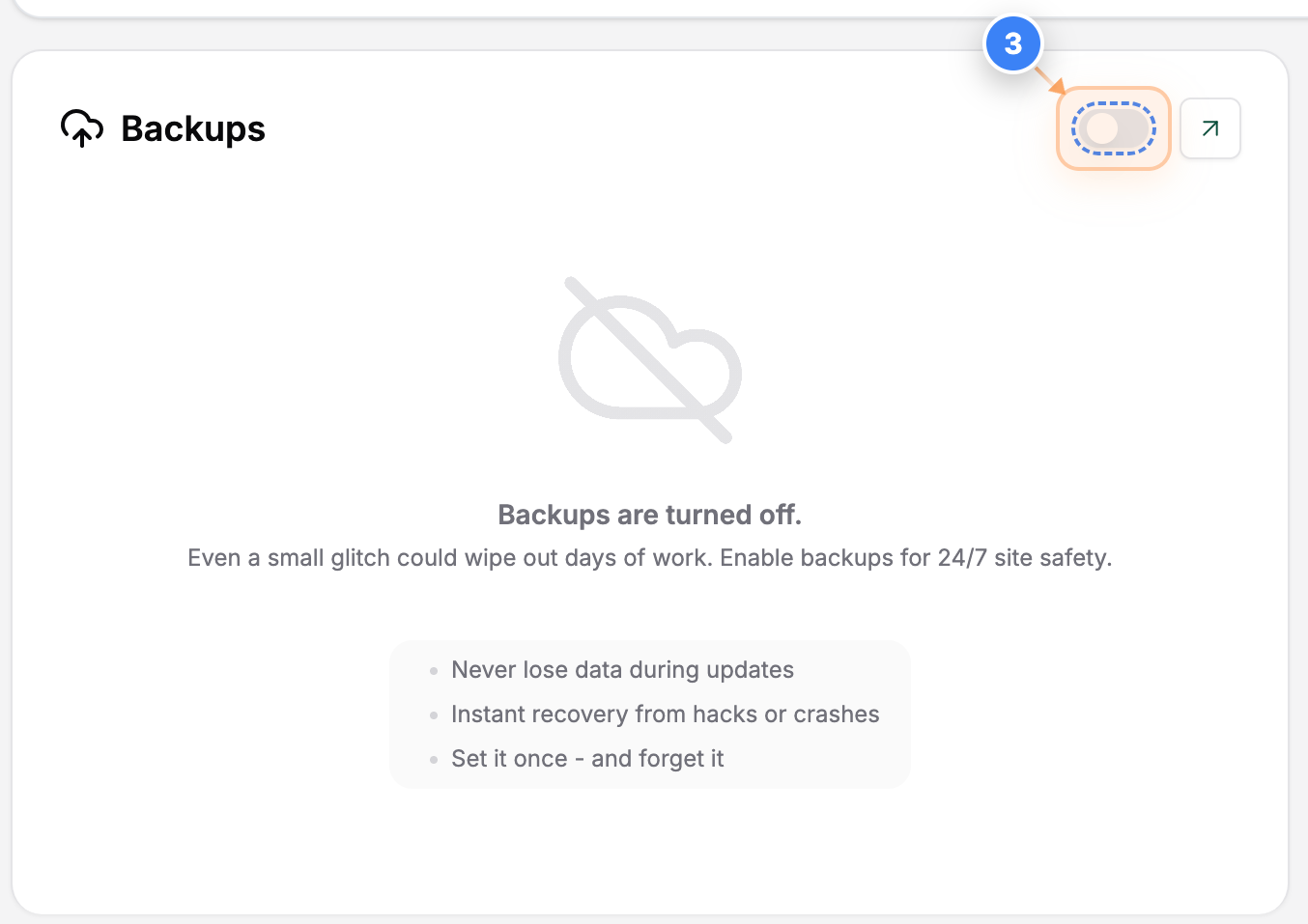
Enable Firewall Protection (Security)
Click the toggle switch in the Firewall section (top-right of the page) to activate the website firewall for enhanced security.
Note: When turned on, the switch will appear green to indicate that the firewall is active.
Step 5 of 5
Disable Firewall Activation (Security)
Click the same toggle switch in the Firewall section to confirm that the firewall is Disabled.
Note: If you need to turn it on later, use the same switch to enable firewall protection.