How Do I Mark a File as a False Positive?
Step 1 of 6
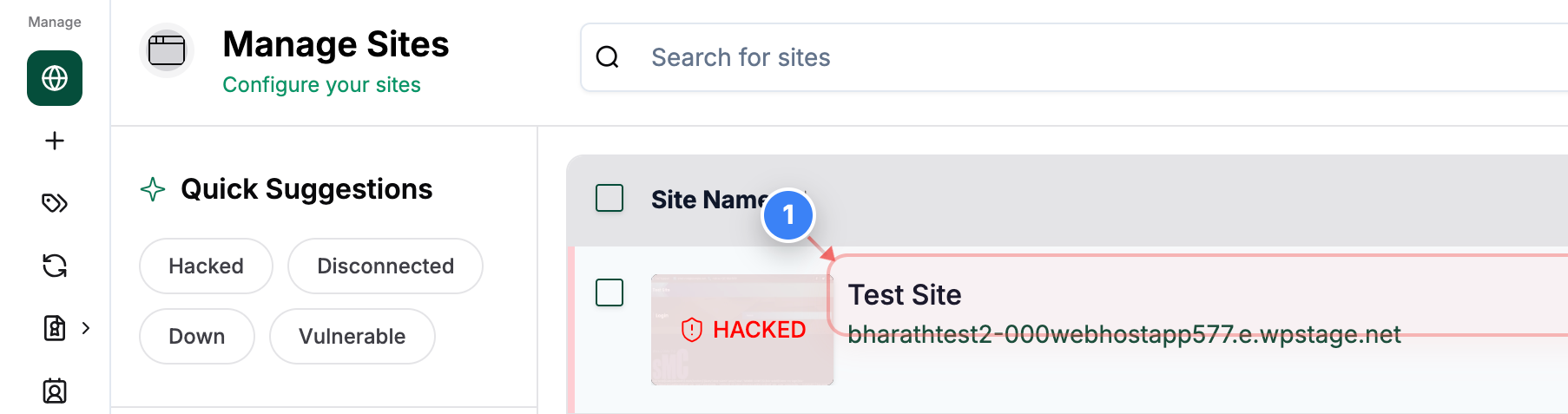
Open the Site Dashboard
Click on your site name in the Sites list to open its dashboard and access management options.
Step 2 of 6
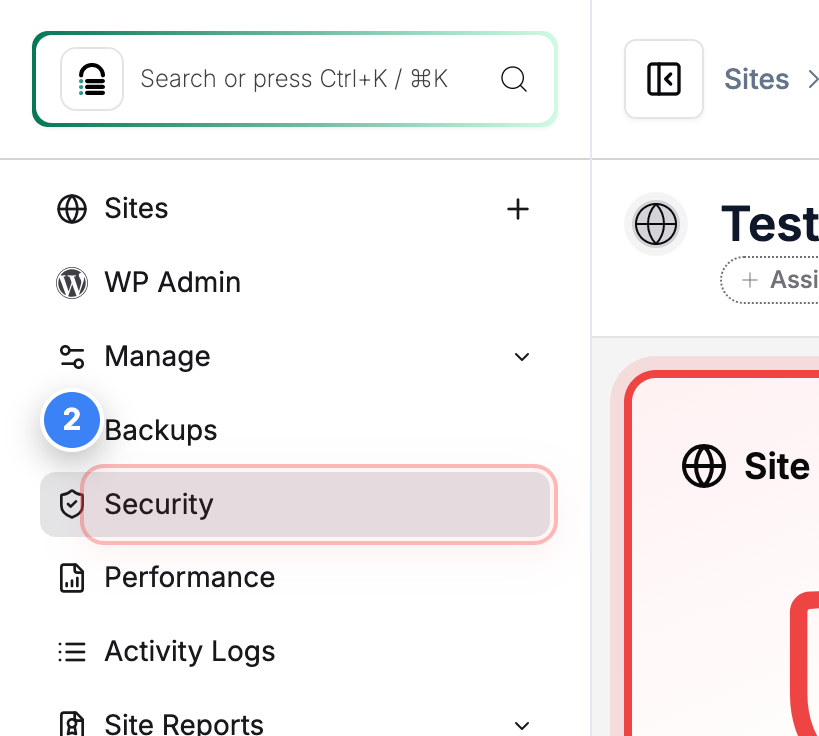
Go to Security Section
Click the Security option in the left sidebar to view security status and available actions for your site.
Step 3 of 6
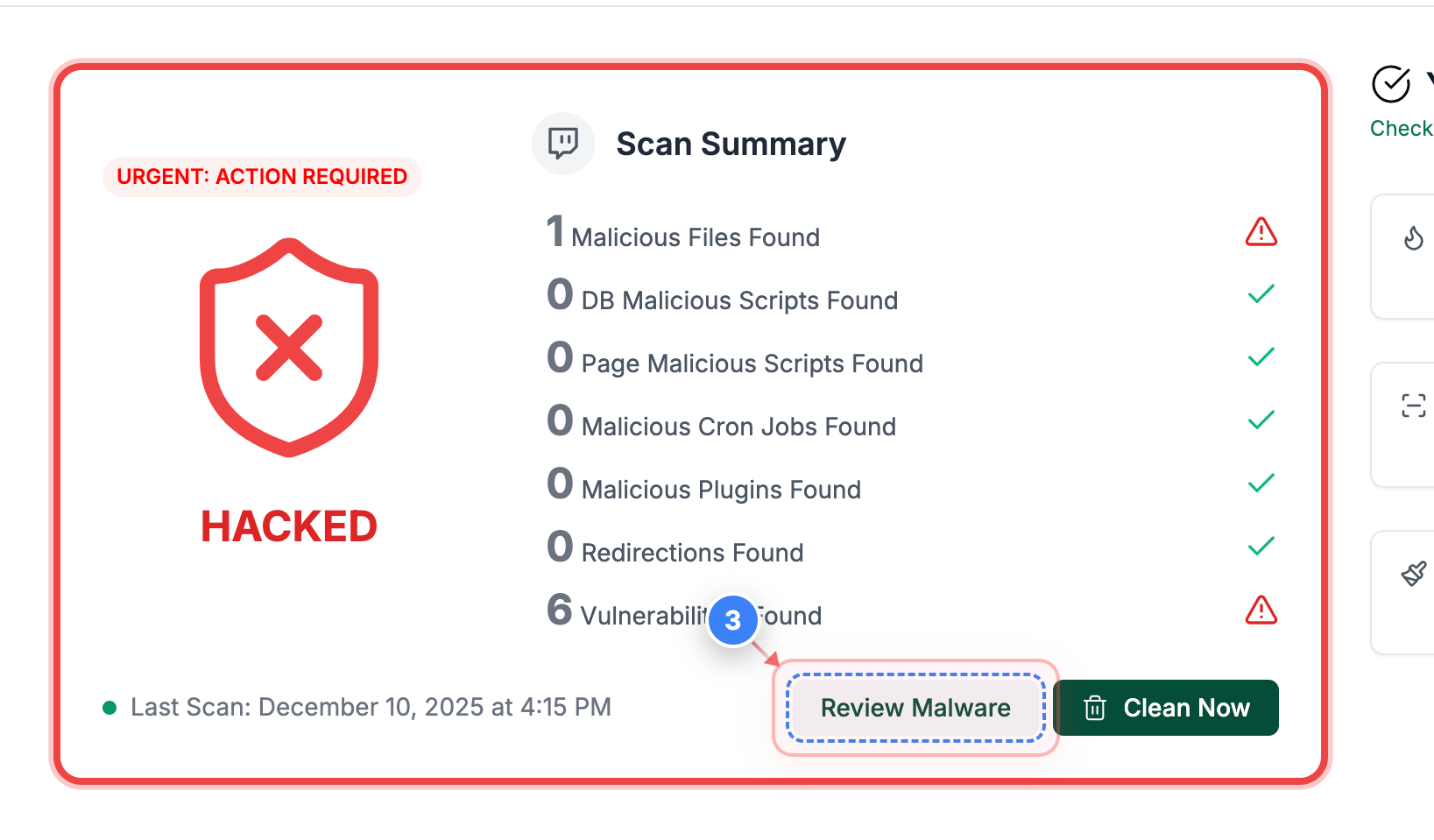
Review Detected Malware
Click the Review Malware button in the Security Details page to inspect files flagged during the latest scan.
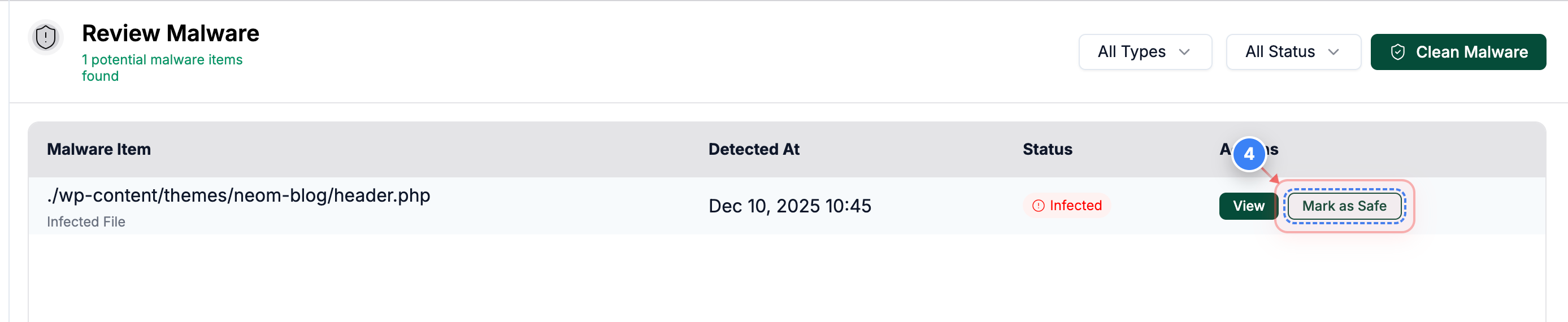
Step 4 of 6
Mark File as Safe
Click the Mark as Safe button next to the flagged file to exclude it from future malware scans.
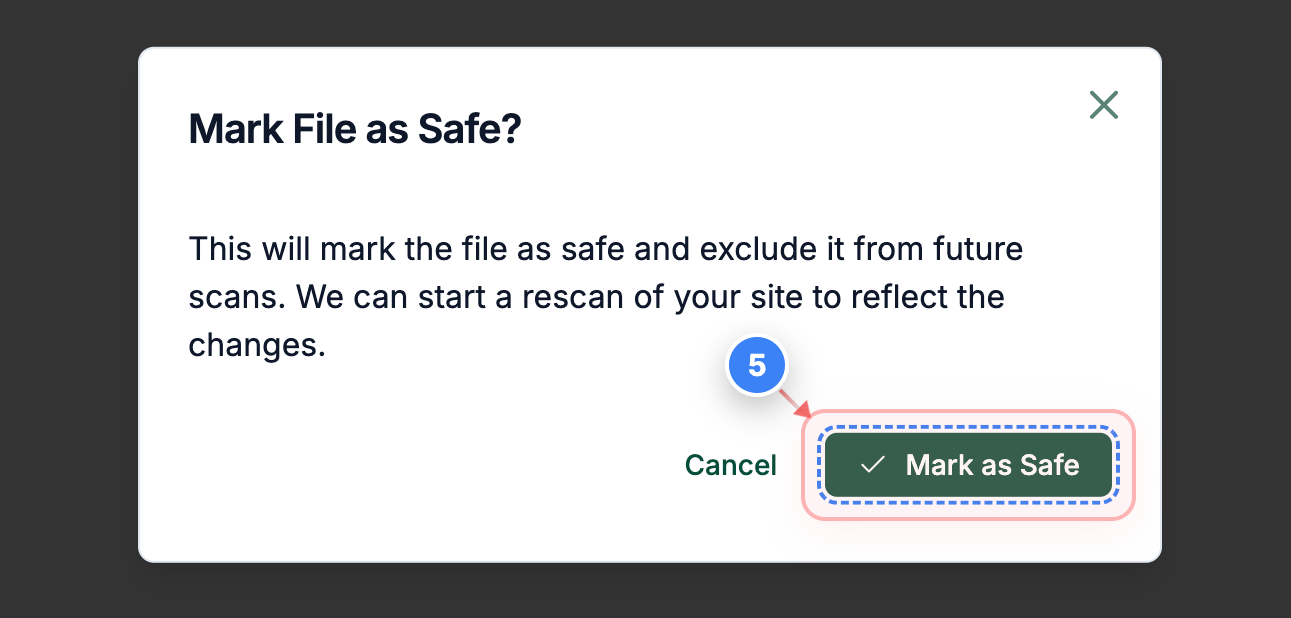
Step 5 of 6
Confirm Safe Status
Click the confirmation option in the dialog to finalize marking the file as safe.
Step 6 of 6
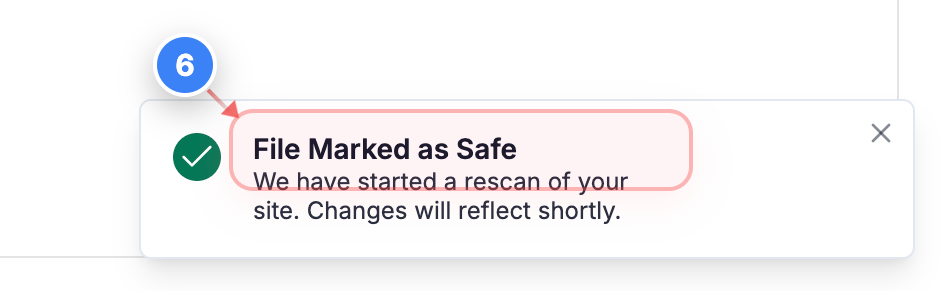
View Confirmation Notice
Check the notification in the lower corner confirming the file has been marked safe and a rescan has begun.