How to Manage Geo Blocking For Multiple Sites
Step 1 of 9
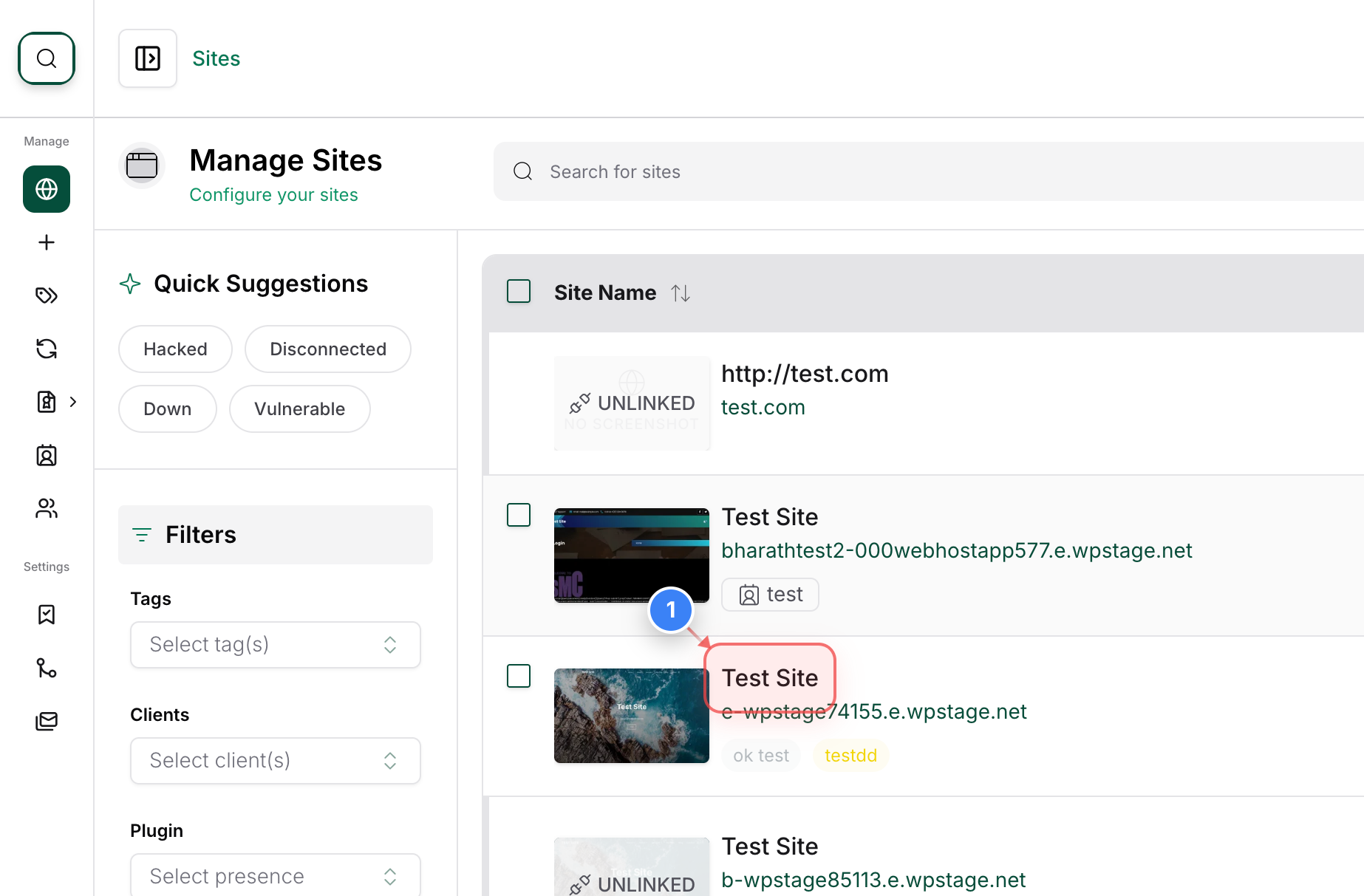
Select The Website
Click on the site name in the main sites list to open the management dashboard.
Note: This will take you to the individual site details page, where all management tools are located.
Step 2 of 9
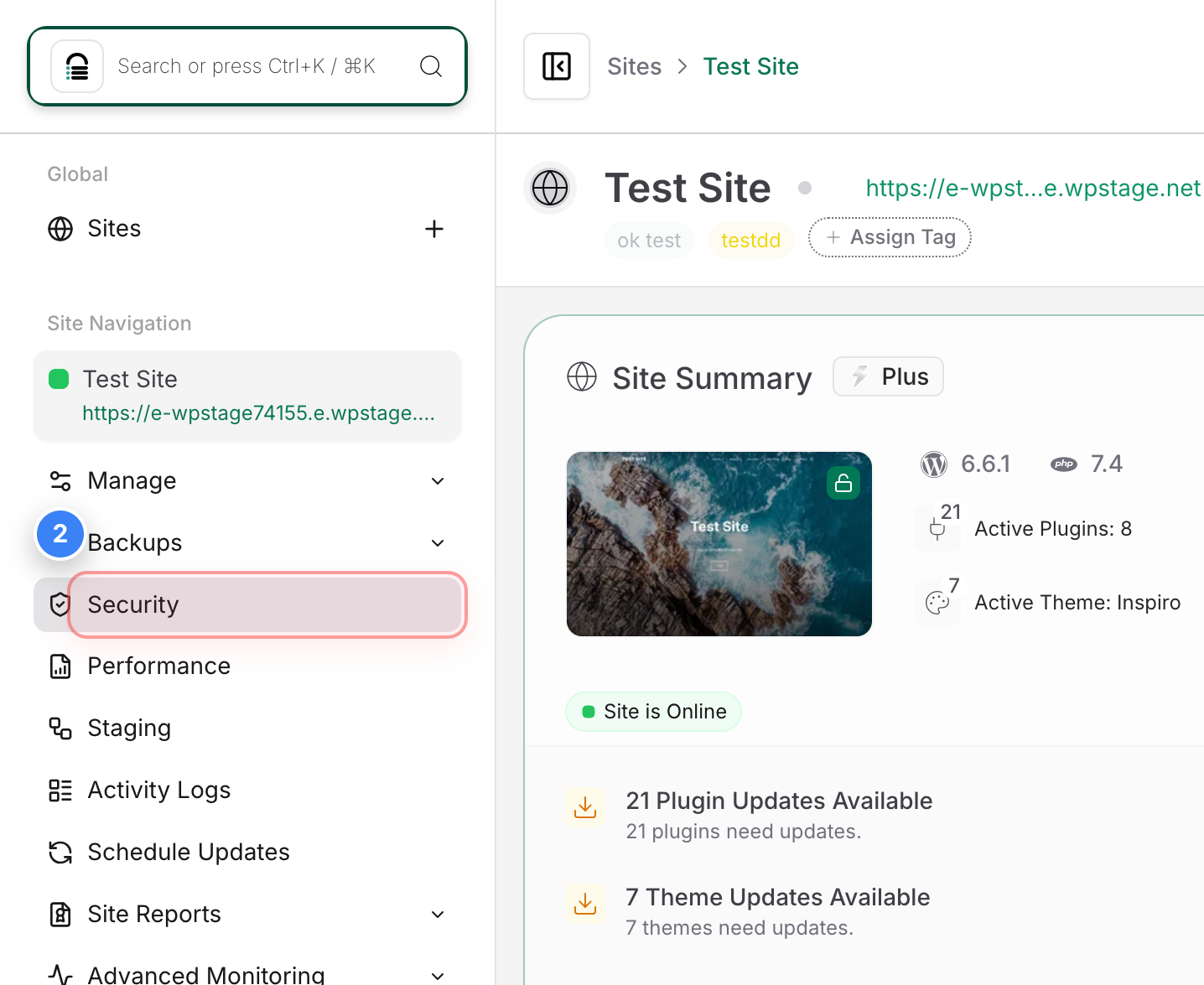
Access Security Settings
Select the Security option in the left-hand sidebar to view the protection and firewall status for your site.
Step 3 of 9
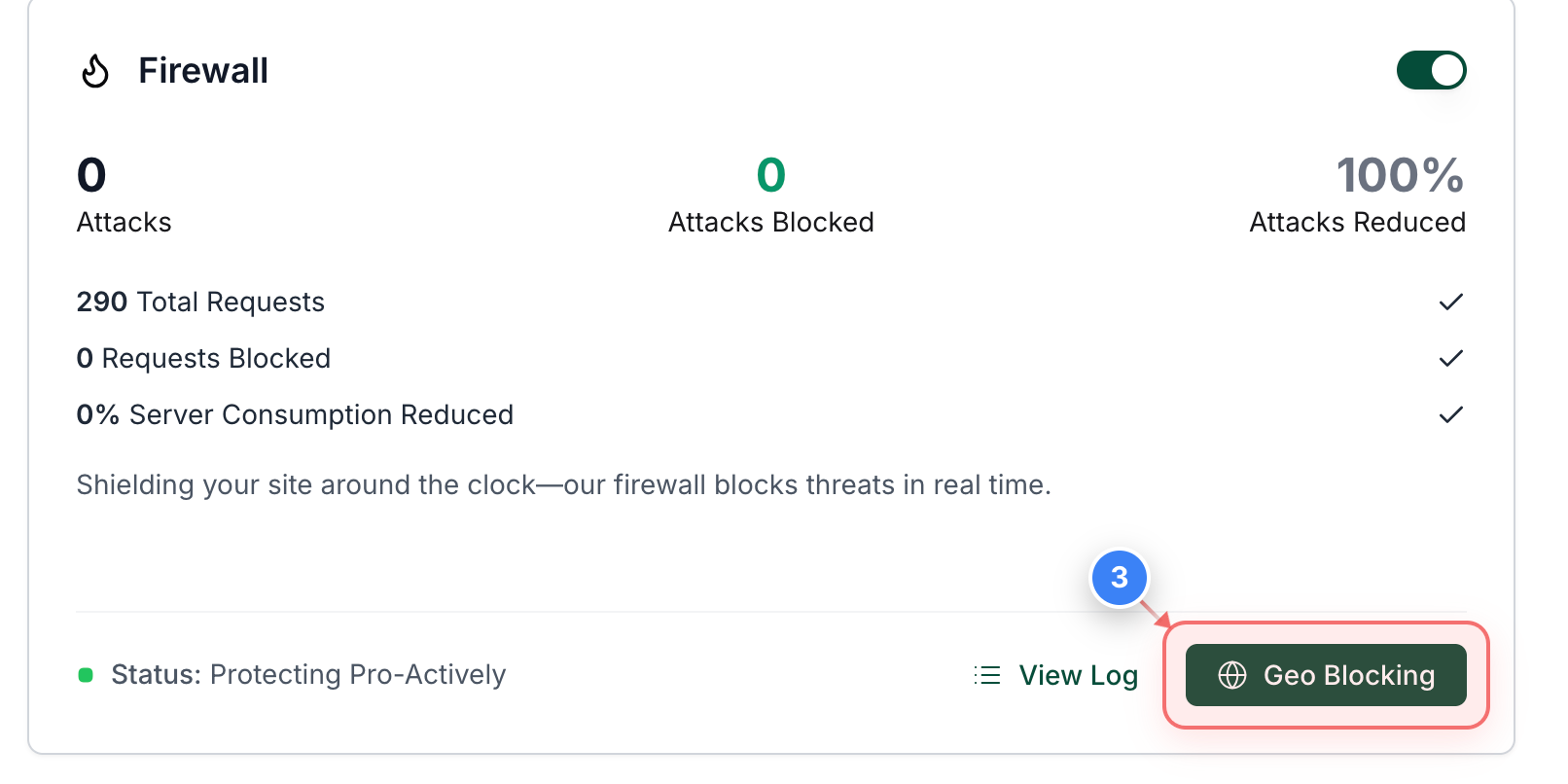
Open Geo Blocking Tools
Click the Geo Blocking button within the Firewall section to manage country-level access restrictions.
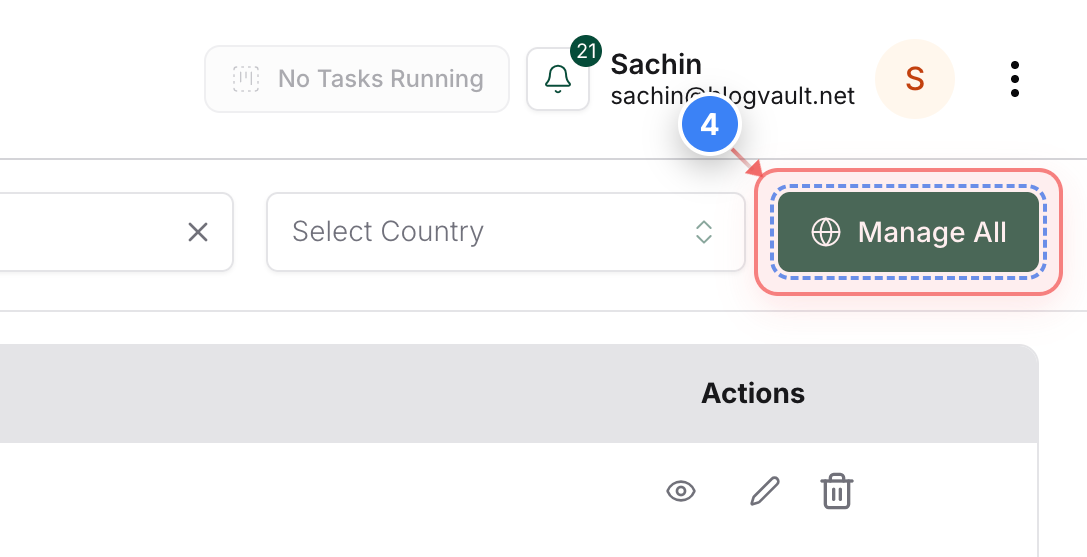
Step 4 of 9
Manage Global Blocking (ALL Sites)
Click the Manage All button in the top-right header to configure blocking rules across multiple sites.
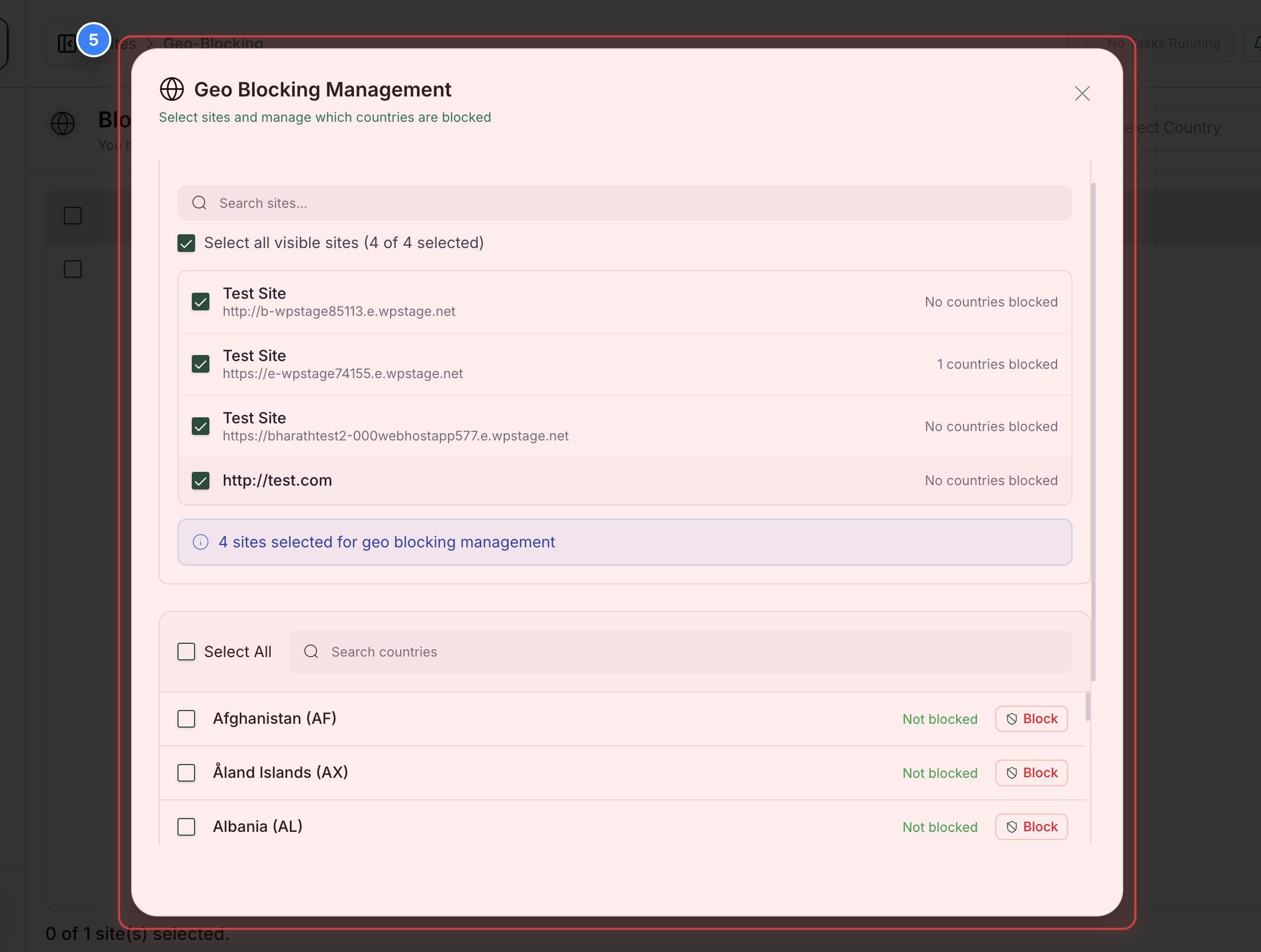
Step 5 of 9
Open Management Dialog
In the center of the Geo Blocking page, select specific Sites & Countries for restriction.
Note: Bulk Operation
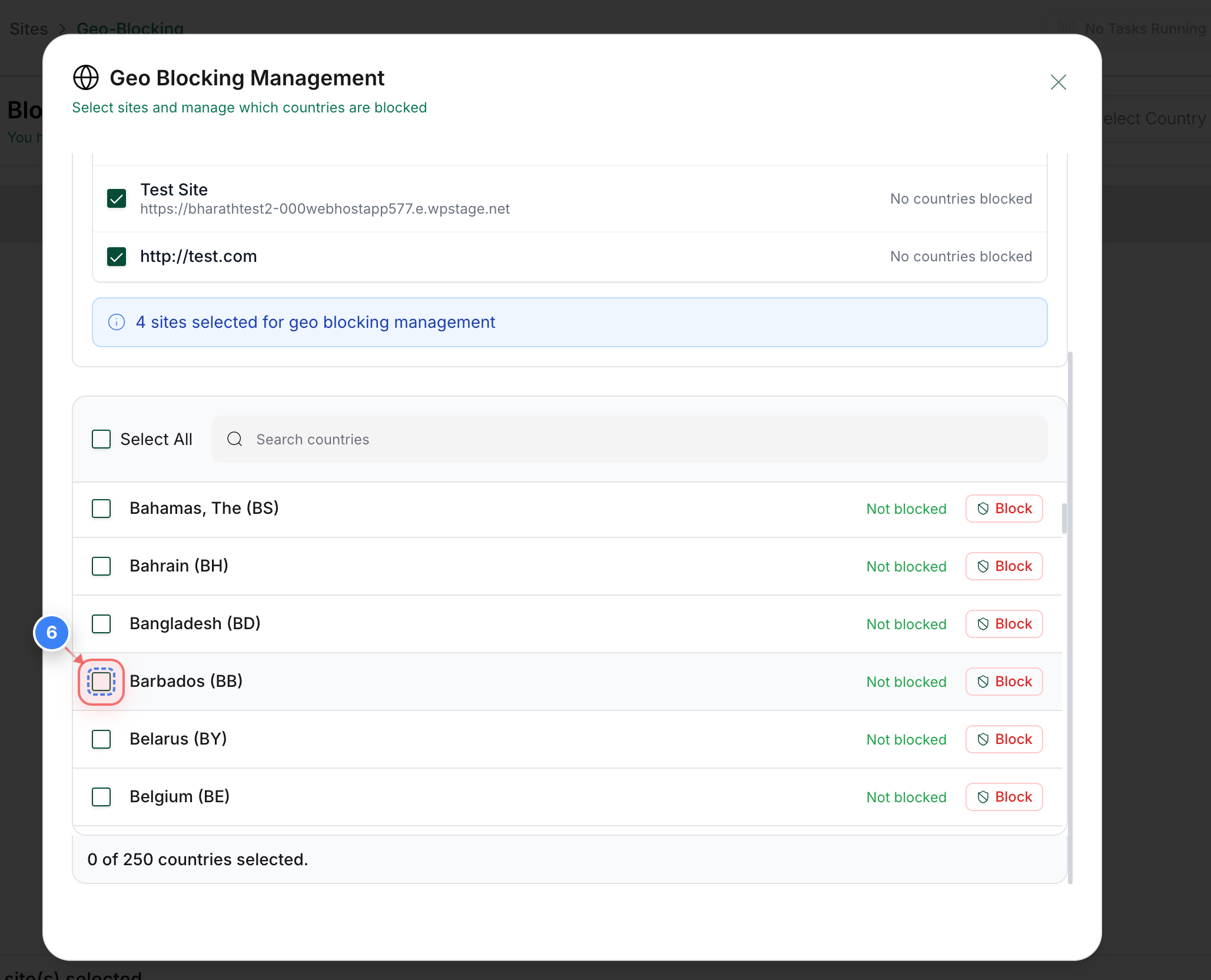
Step 6 of 9
Select Countries to Block
Click the checkbox next to the country name (e.g., Afghanistan) in the list to mark it for blocking.
Note: You can select multiple countries at once from this list.
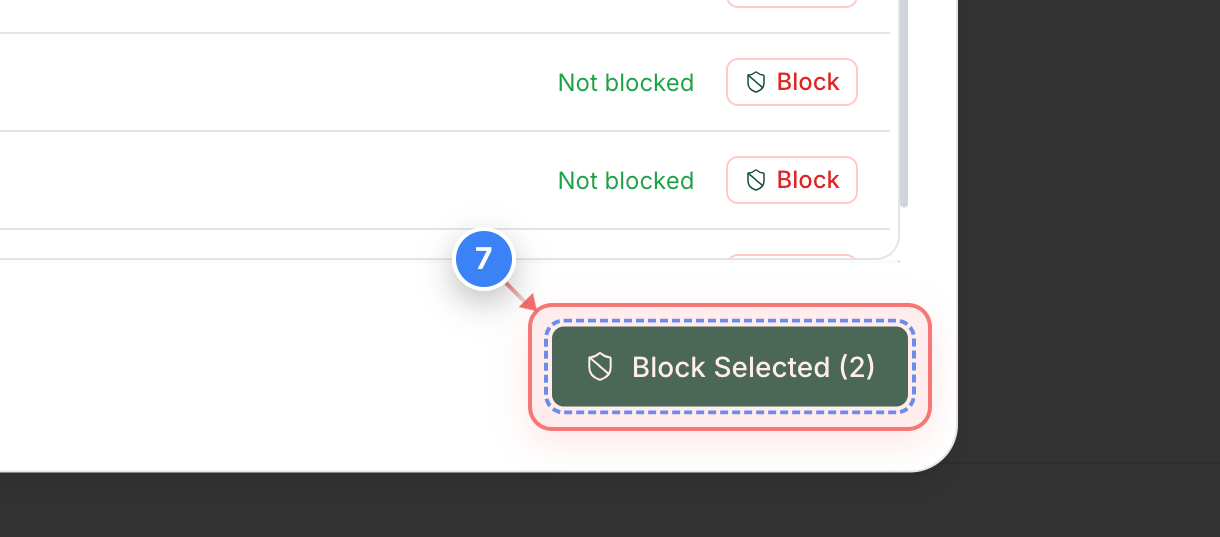
Step 7 of 9
Confirm Selection
Click the Block Selected button at the bottom of the management window to proceed with the restrictions.
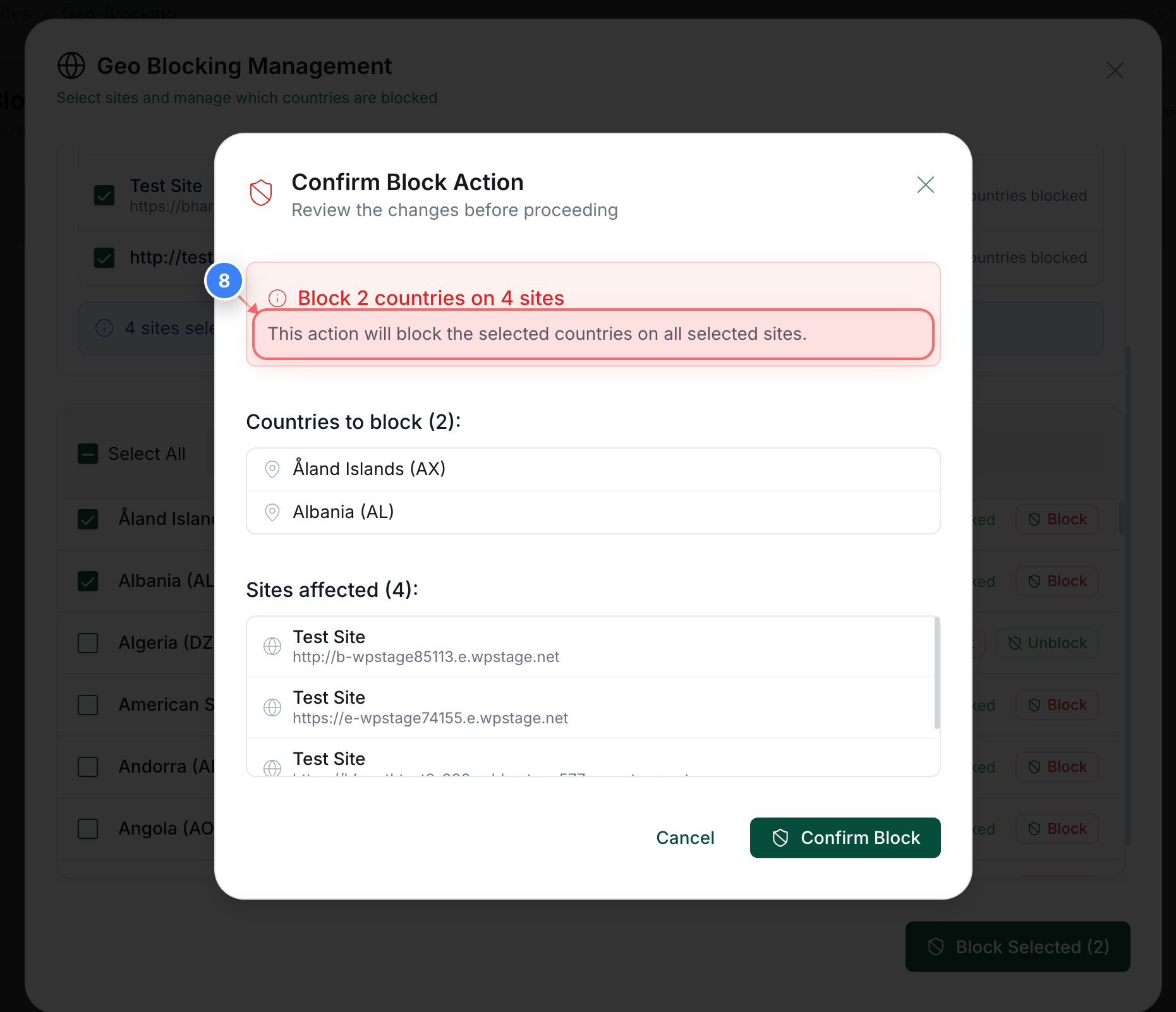
Step 8 of 9
Apply Changes to Sites
Verify Details & Click the Block Button in the dialog to apply the block to all selected websites.
Step 9 of 9
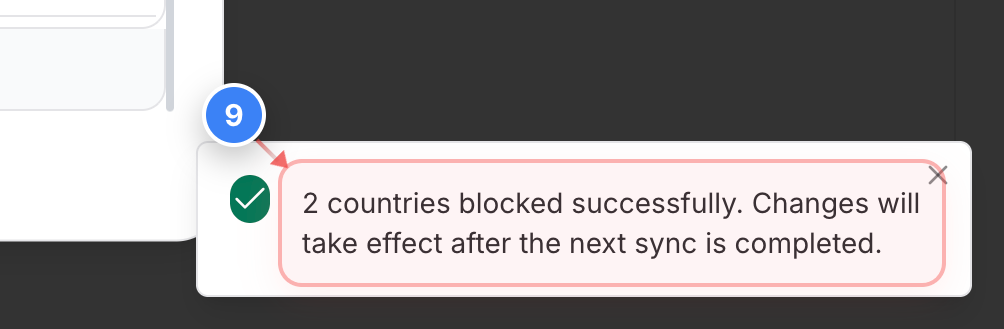
Verify Successful Blocking
Confirm the success notification in the bottom-right corner, which indicates the block will take effect after the next sync.