How Can I Download The Firewall Logs?
Step 1 of 7
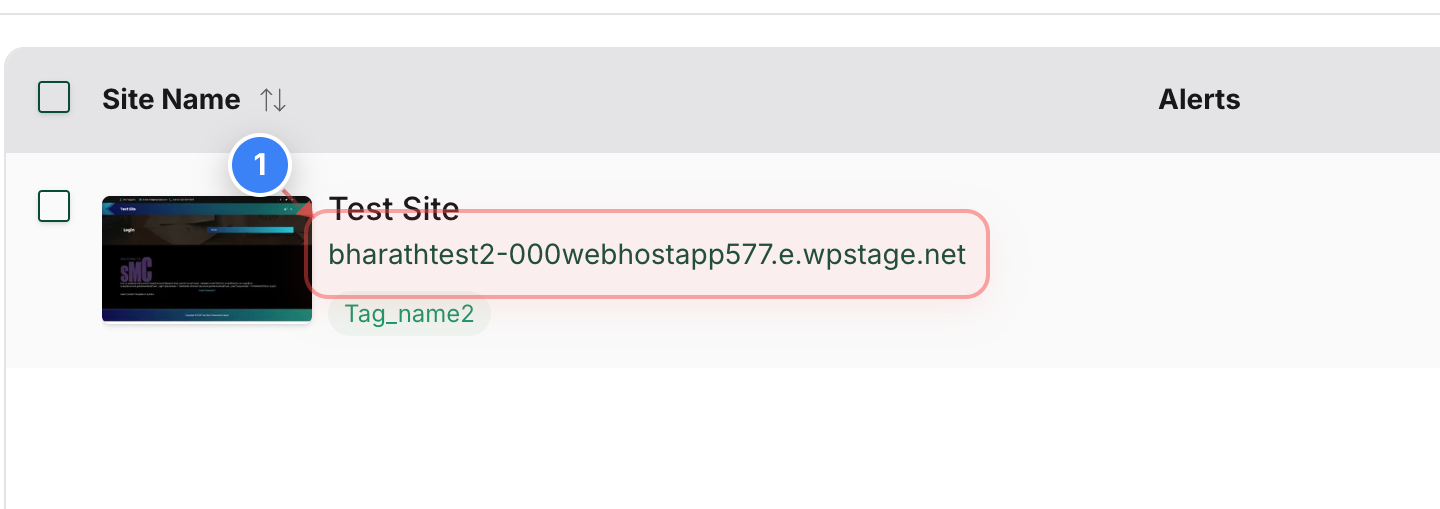
Select Your Website
Click on your site name in the center of the dashboard to open the site management area.
Note: This will take you to the overview page for that specific website.
Step 2 of 7
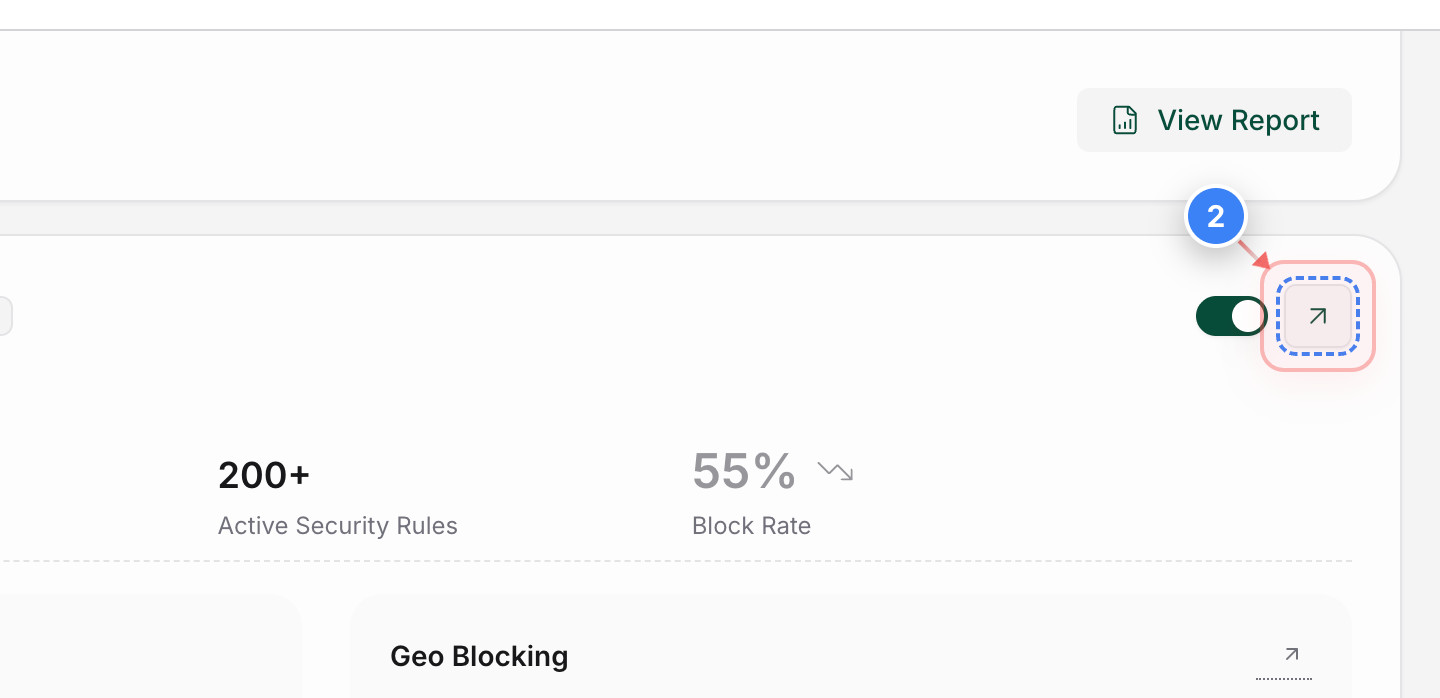
Access Security Settings
Click on the security section in the site overview to view detailed firewall and protection metrics.
Step 3 of 7
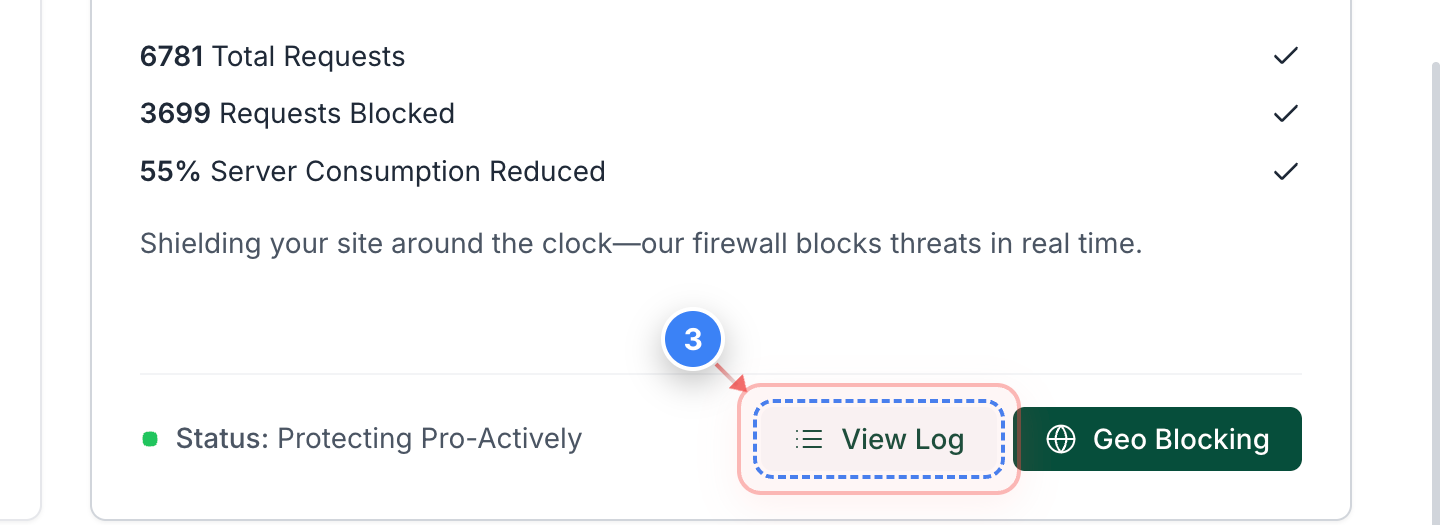
Open Firewall logs
Click the View Log button in the Firewall section to see a list of firewall logs.
Step 4 of 7
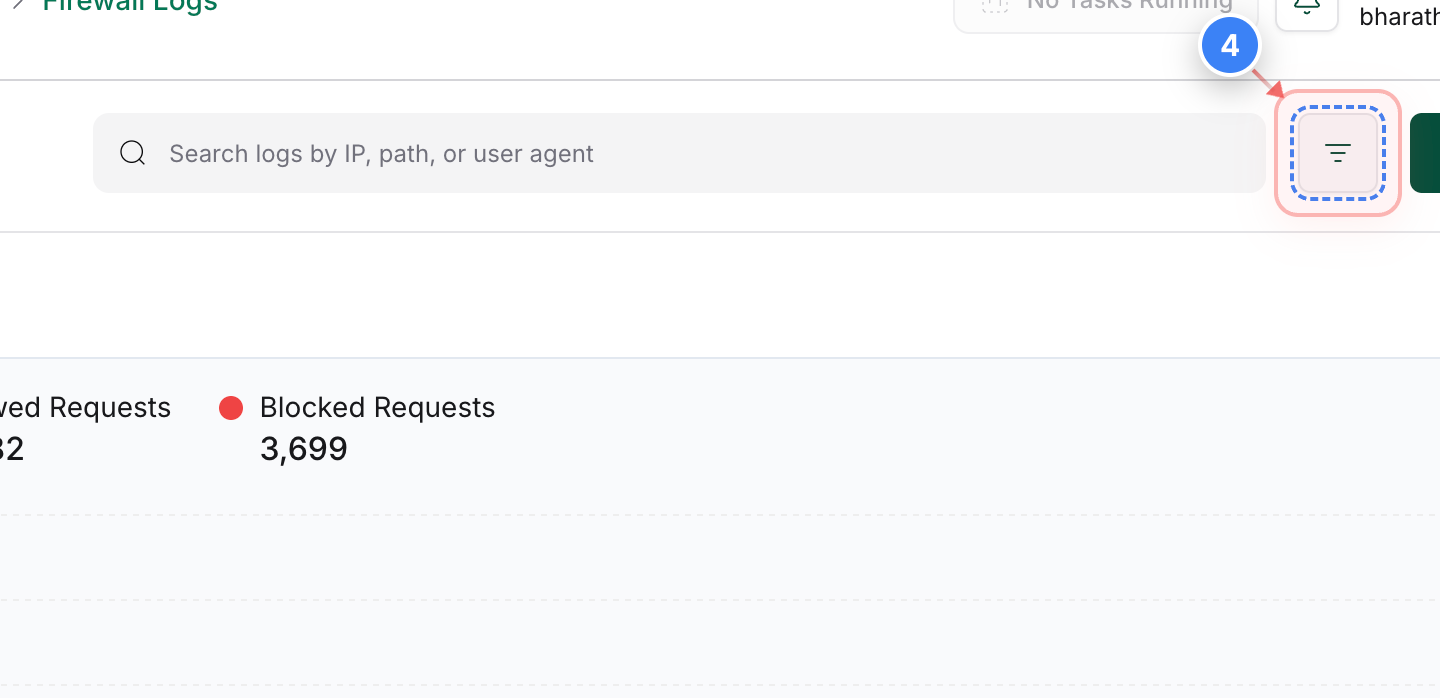
Filter Firewall Logs - Optional
Click the button in the top-right area of the Firewall page to filter the logs according to your requirements.
Step 5 of 7
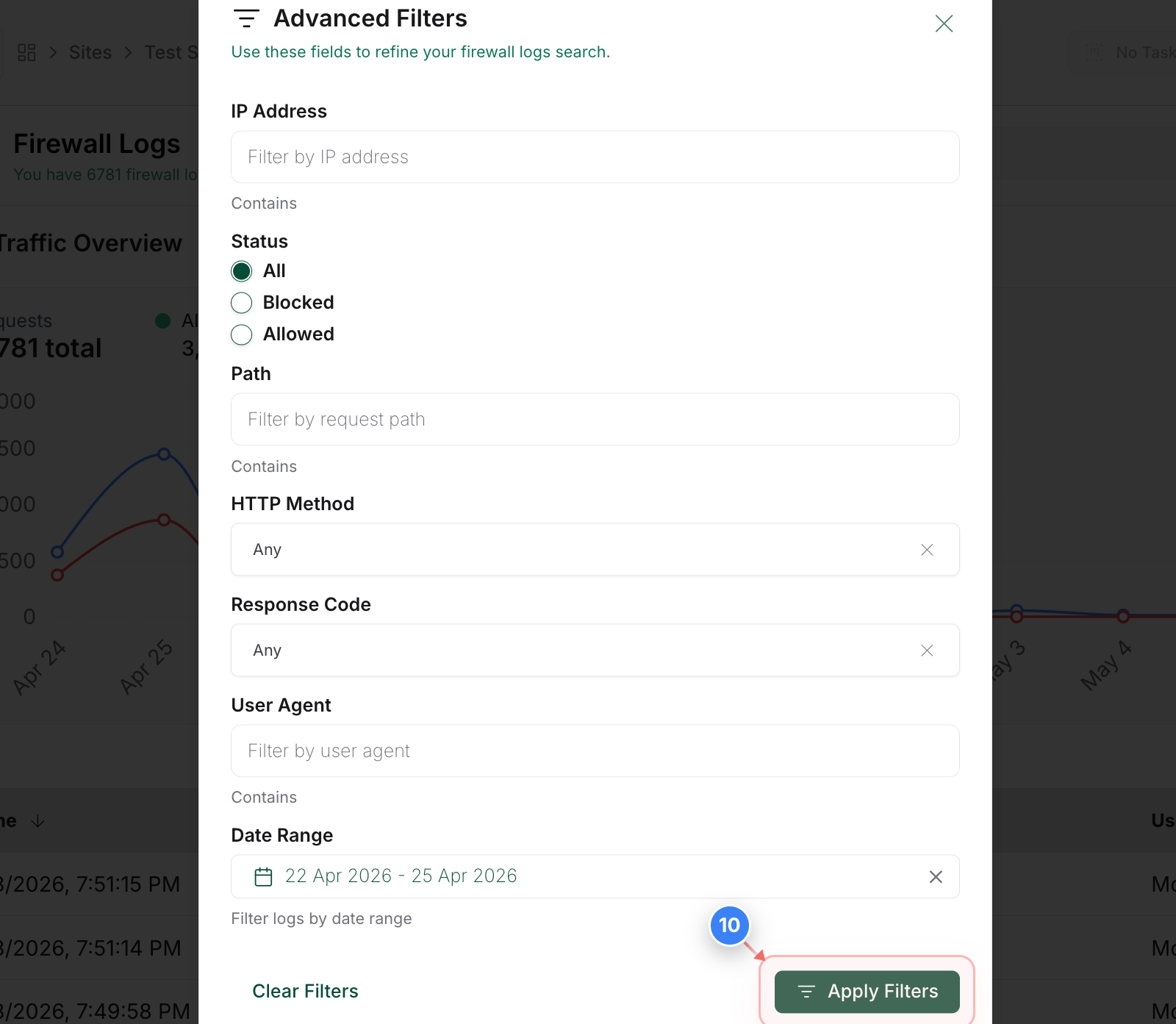
Log Filters - Optional
If you are looking to download logs for the specific IP, date range, user agent, and other metrics, you can do so from the Advanced Filter pop-up. Select the options and click the Apply Filters button at the bottom of the panel to update the log list with your selected options.
Step 6 of 7
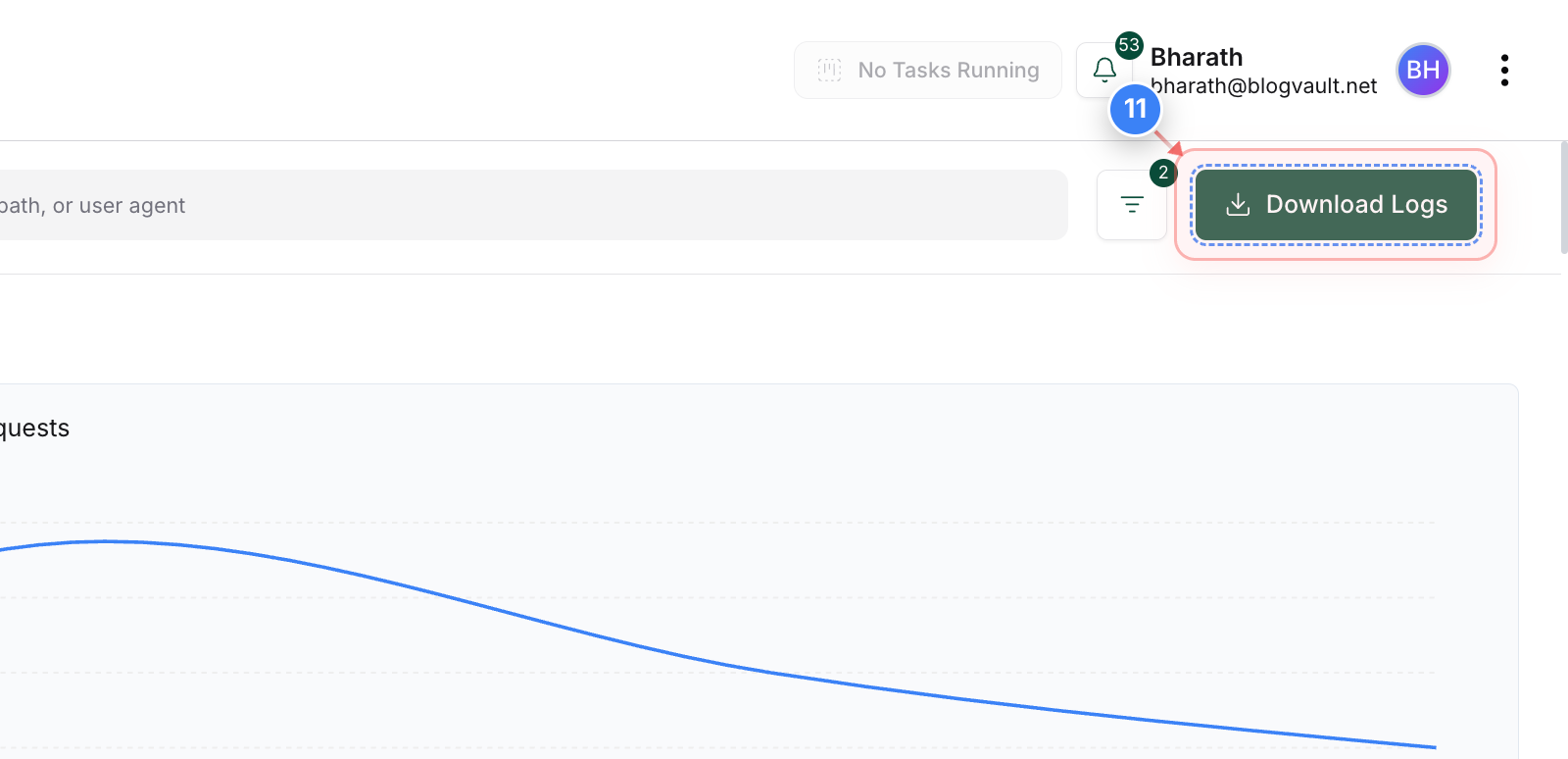
Initiate Log Export
Click the Download Logs button in the top-right area to prepare a CSV or file export of your filtered data.
Step 7 of 7
Confirm Data Download
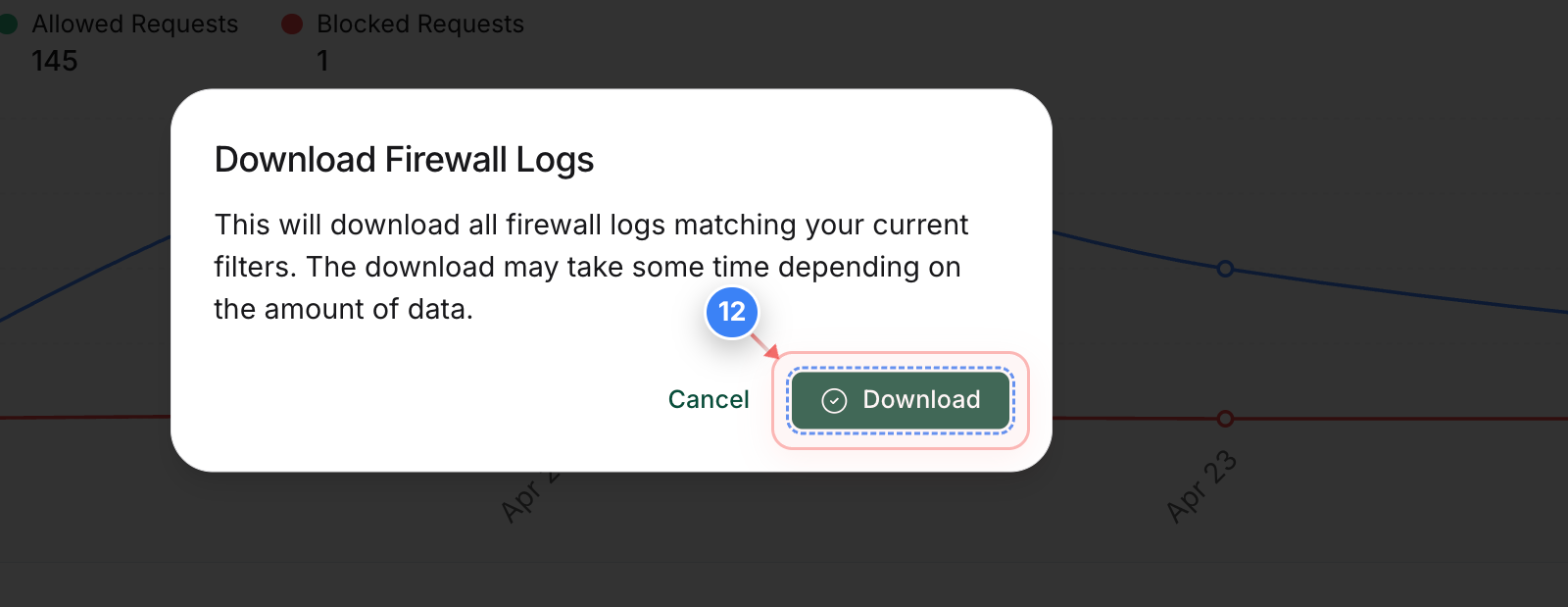
Click the Download button in the confirmation dialog to save the firewall logs. The link to download the logs will be sent to your registered email address.