How Do I View an Existing Report?
Step 1 of 3
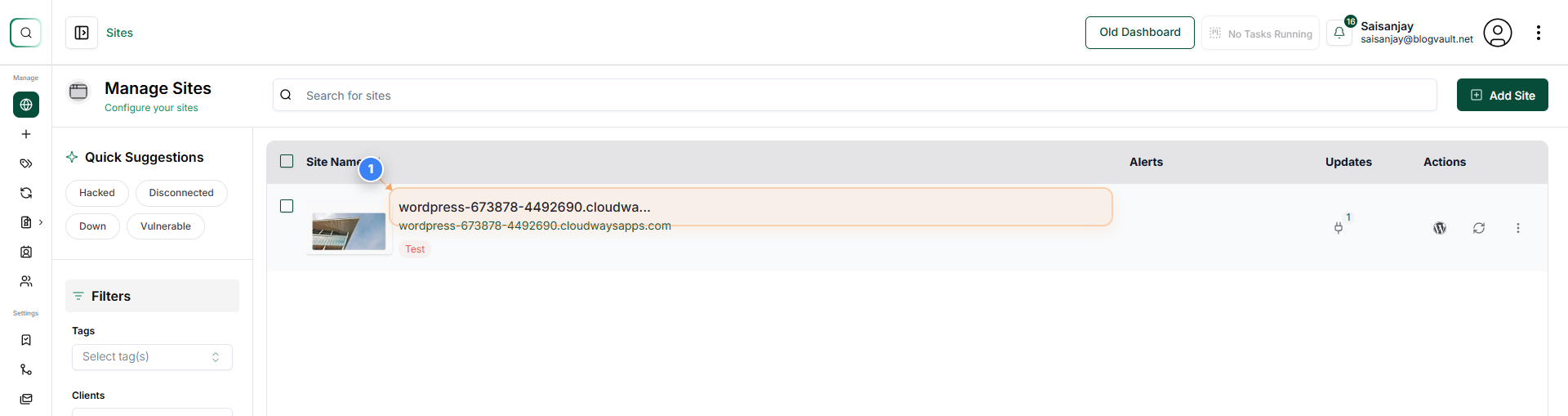
Open Your Site Dashboard
Click on your site name in the Sites page to open its dashboard and manage reports, backups, and settings for that specific site.
Note: If you manage multiple sites, confirm you are selecting the correct one to avoid viewing the wrong site's reports.
Step 2 of 3
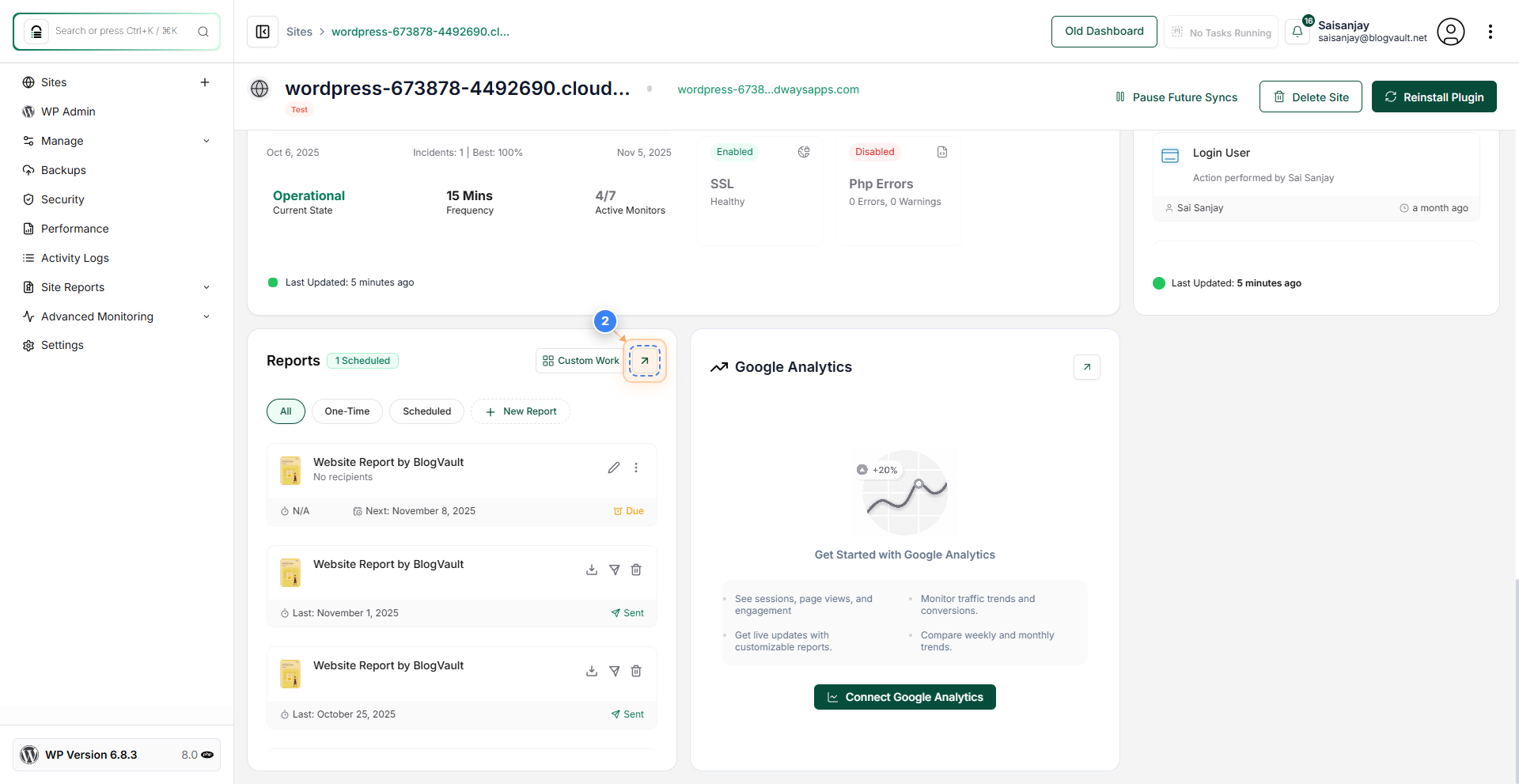
Access Report Options
Click the arrow icon button in the Reports section to enter the main report management screen.
Note: This will open a detailed page where you can manage all the reports previously generated for your site.
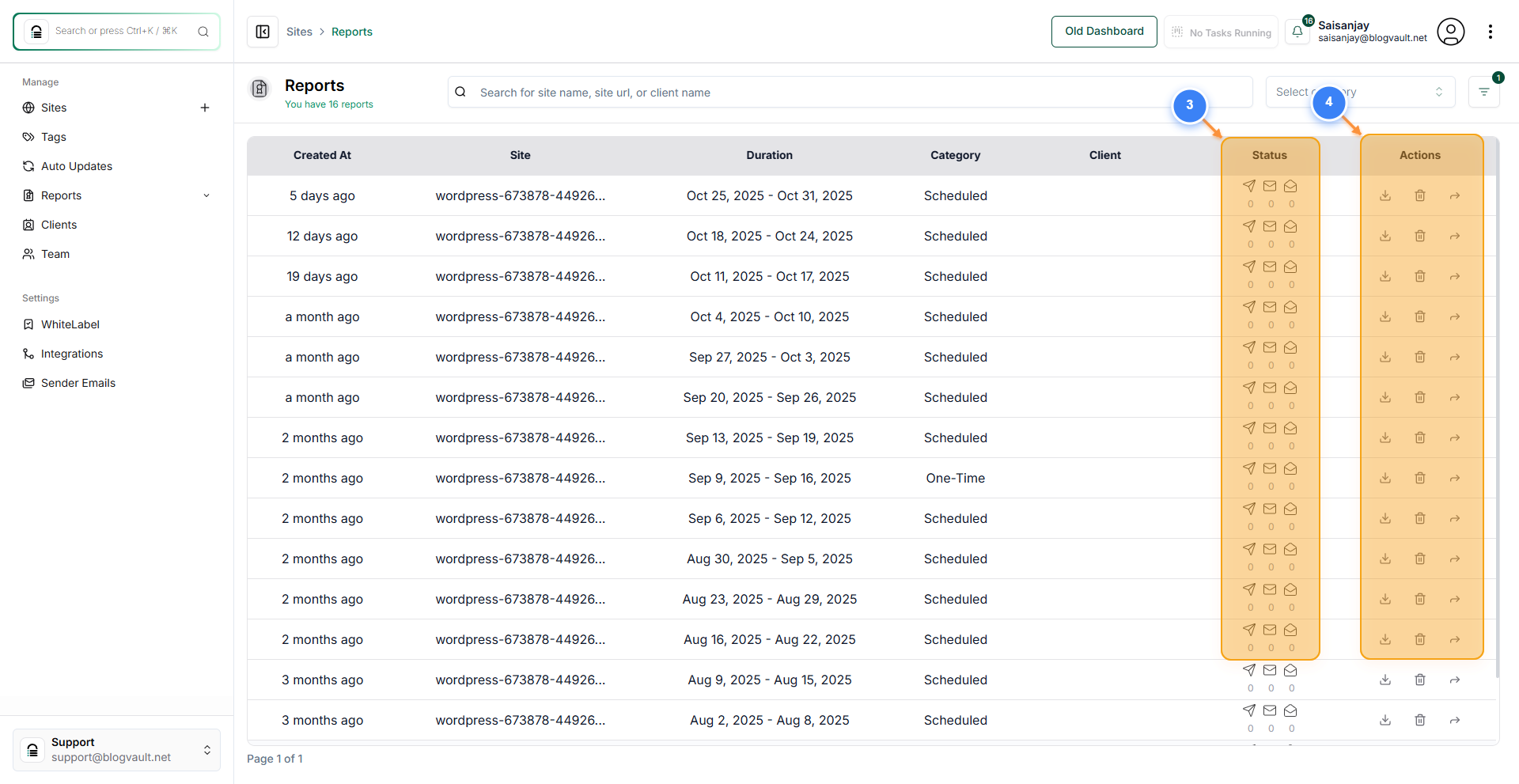
Step 3 of 3
Review Site Reports
The Reports page gives you a summary of all the reports generated for your selected site. It includes details such as the creation date, report duration, category, client, and status. The Status section (3) shows the email status of each report — whether it’s Sent, Delivered, or Opened. In the Actions section (4), you can Download, Delete, or Forward (email) the reports.
Note: Check the recent reports listed with the “Scheduled” or “One-Time” status, and download or forward them directly from the list.