How Do I Edit a Scheduled Report?
Step 1 of 6
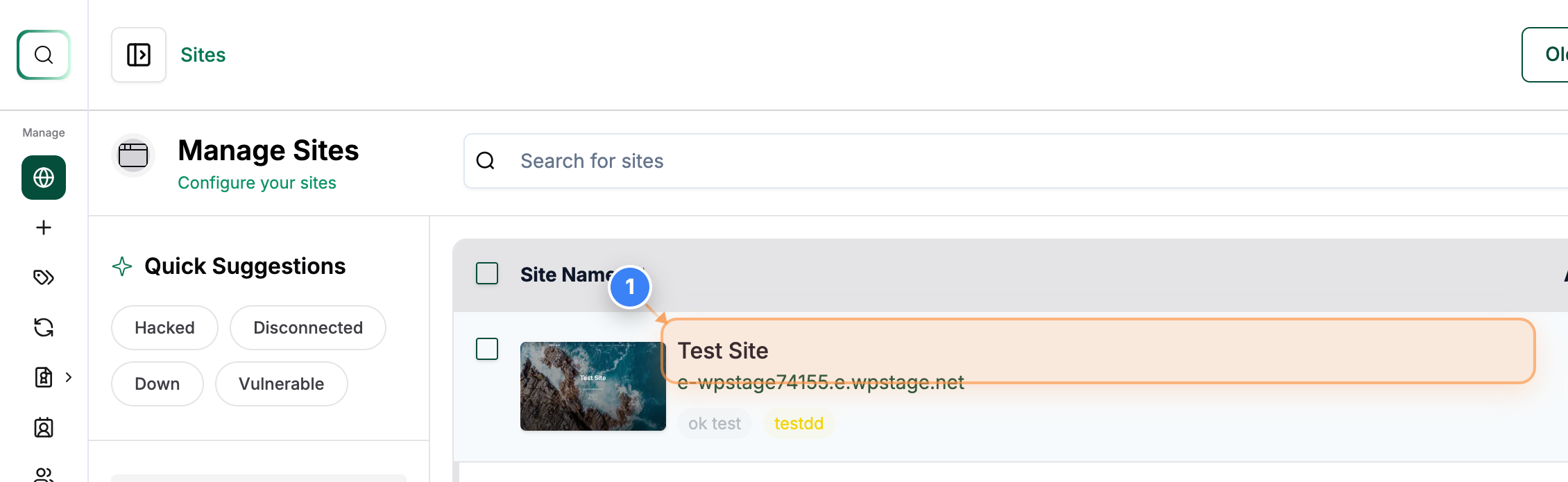
Open Site Dashboard
Click on the Site in the Sites page to open its management dashboard.
Step 2 of 6
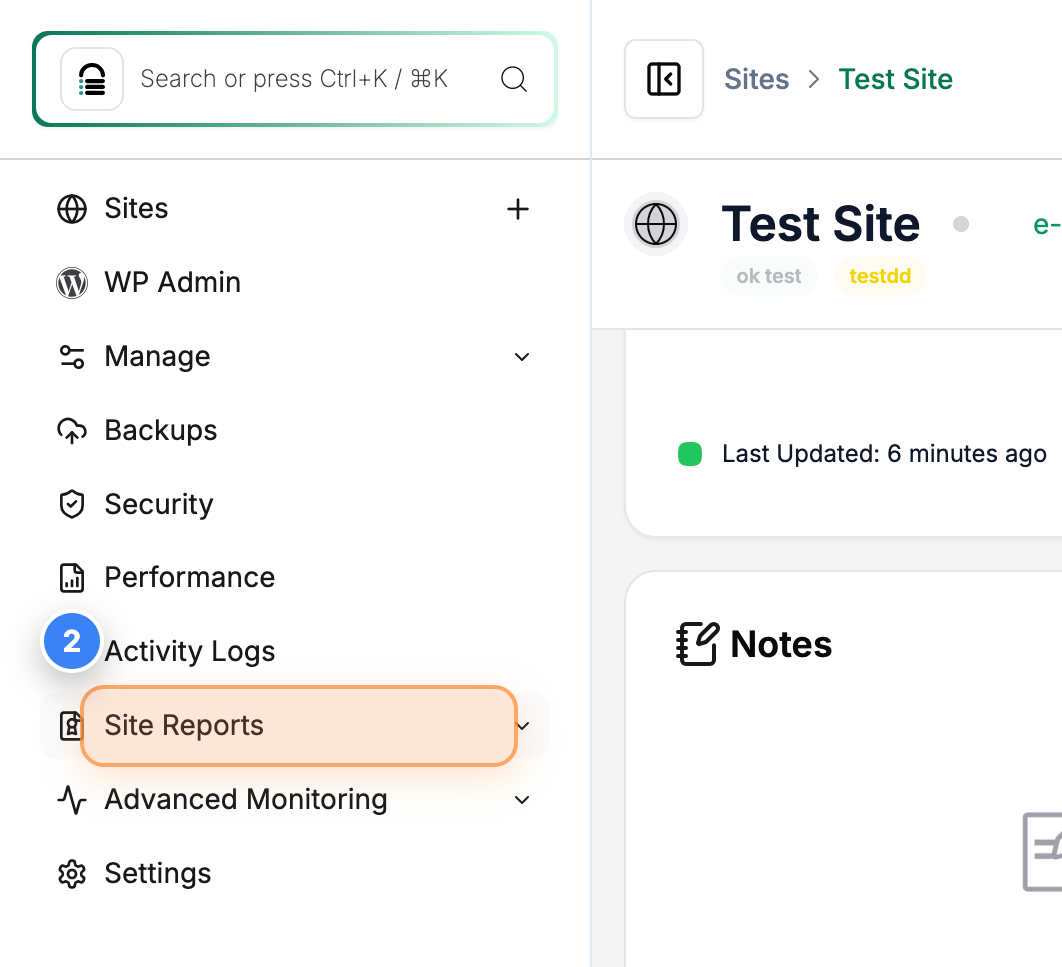
Access Site Reports
Click the Site Reports option in the left sidebar to view reporting tools for the selected site.
Step 3 of 6
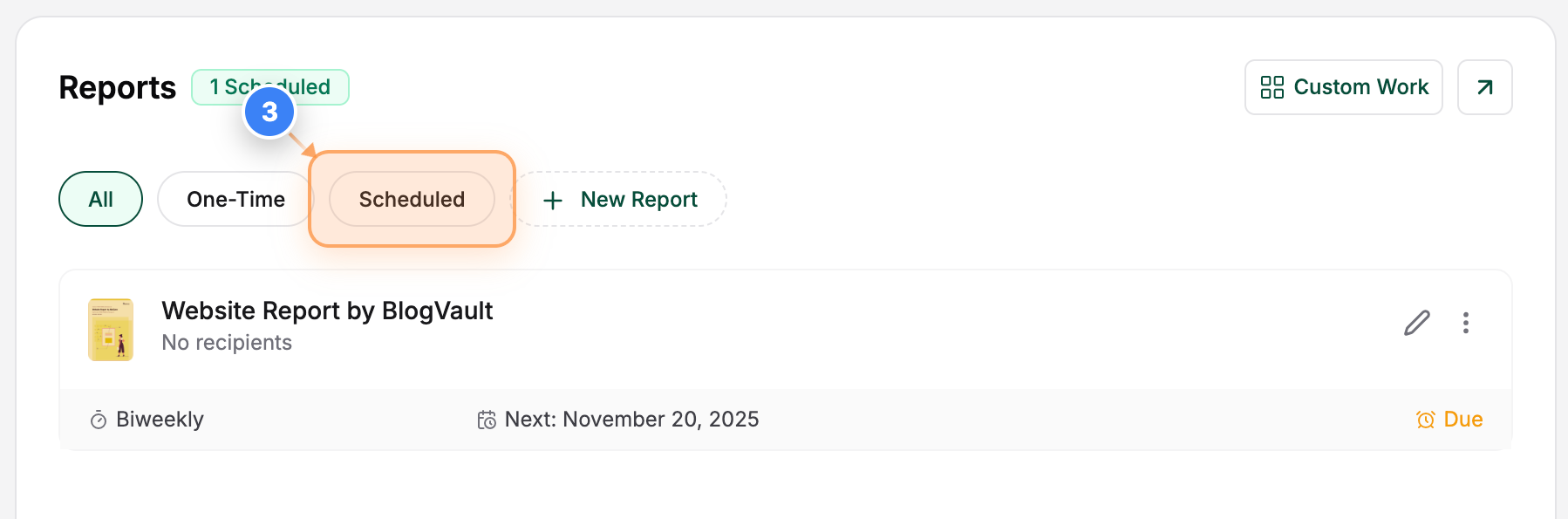
View Scheduled Reports
Select the Scheduled filter at the top of the Reports section to display all scheduled reports for the site.
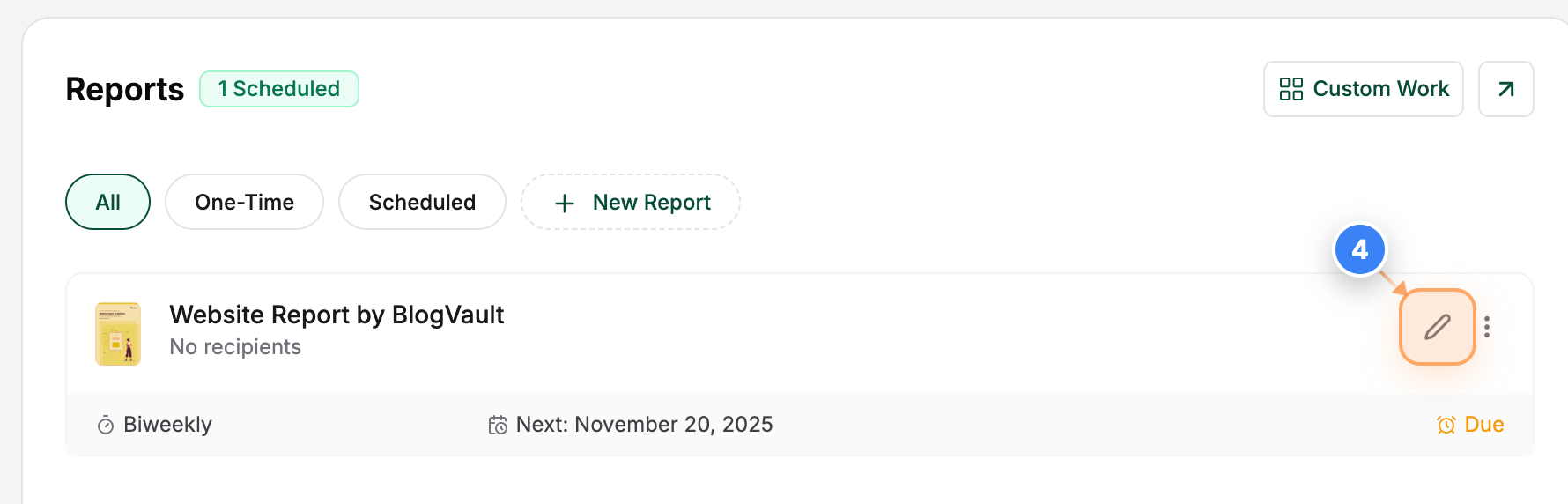
Step 4 of 6
Edit Report Details
Click the Edit icon on the report panel to edit the report with a detailed view & proceed with the changes.
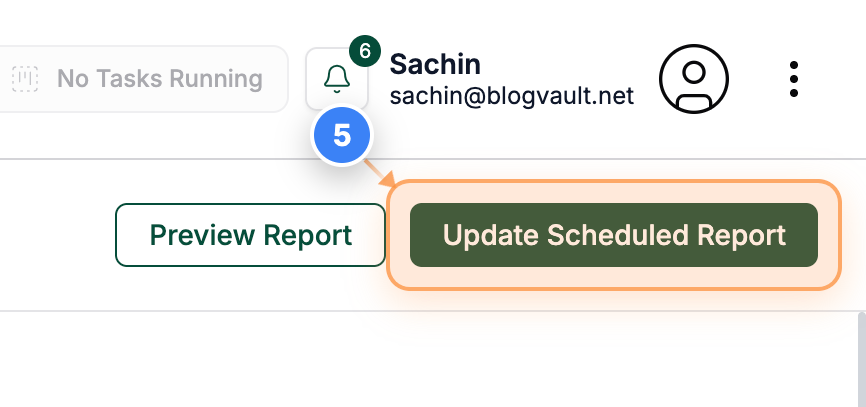
Step 5 of 6
Edit & Update Scheduled Report
Once the changes have been made, click the Update Scheduled Report button at the top-right of the page to save your changes to the recurring report configuration.
Step 6 of 6
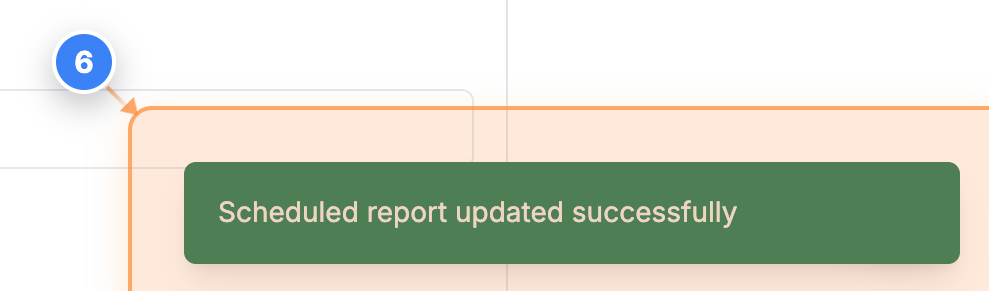
Confirm the Changes
Once the Scheduled report is updated successfully, you will see the confirmation notification in the bottom-right corner.