How Do I View My Old Backups?
Step 1 of 4
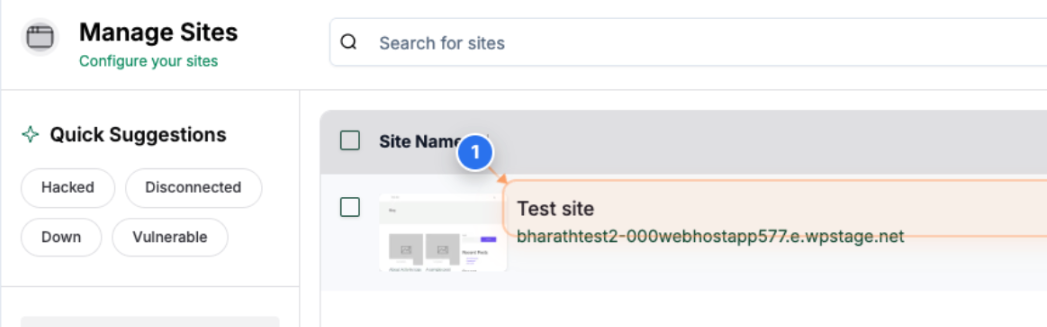
Open Your Site Dashboard
Click on your site name in the Sites list to open the site dashboard and access detailed management options.
Note: You can identify your site by its domain name displayed below the site title.
Step 2 of 4
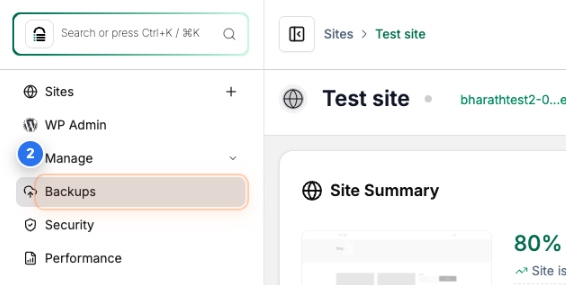
Access Backup Section
Click on the Backups option in the left sidebar to open the backup management area for the selected site.
Note: This section allows you to view backup schedules, restore points, and storage usage details.
Step 3 of 4
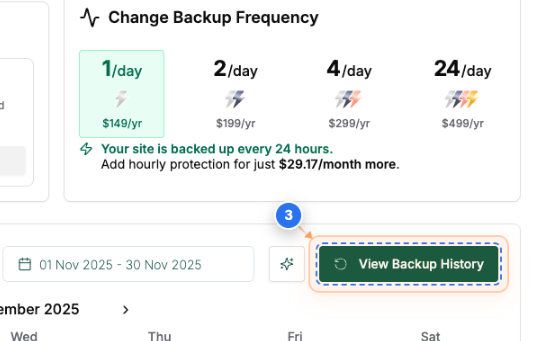
View Backup History
Click on the View Backup History button at the bottom center of the Backup Details page to review previous backups and their status.
Note: Scroll down a bit to find the View Backup History button.
Step 4 of 4
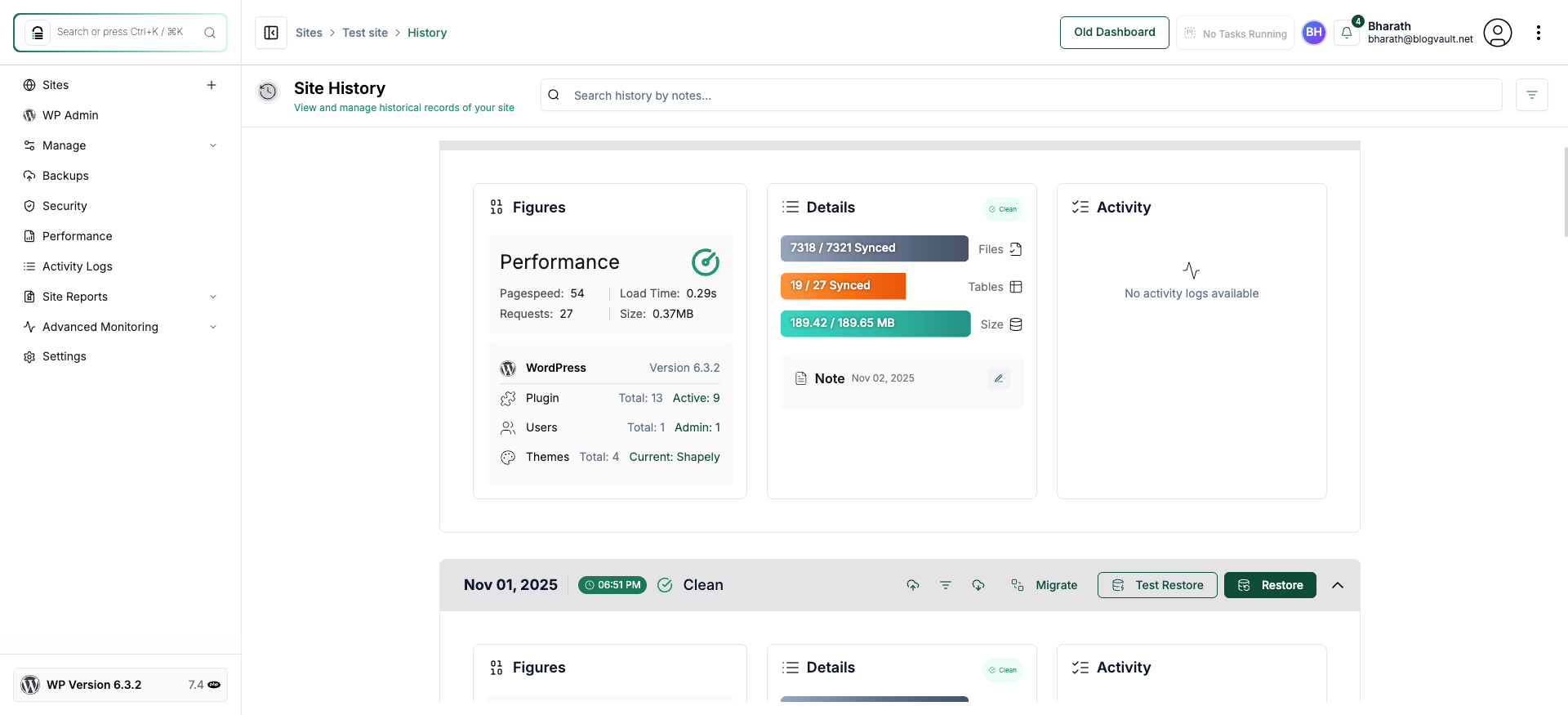
Review Site Backup History
The Site History page provides a detailed overview of your past backups, including the date, time, and health status of each backup. Review the list to confirm that backups have been completed successfully and are up to date.
Note: Check that the most recent entry shows a 'Clean' status and a recent timestamp. You can also initiate a test restore or view performance metrics from this page.