How Do I Validate or Test Restore My Backups?
Step 1 of 7
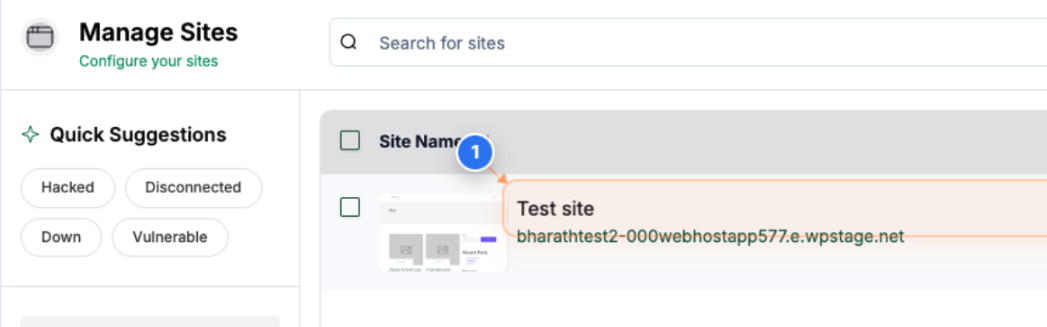
Select Your Website
Click on your site name in the main dashboard area to access site management options
Note: Your site will be listed with its domain name and a display name
Step 2 of 7
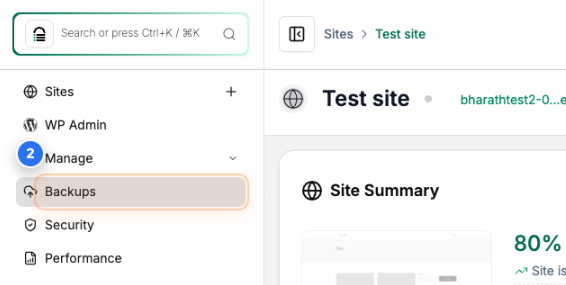
Navigate to the Backups Page
Click on "Backups" in the left sidebar menu to view your backup options and history
Note: The Backups section contains all your backup-related functions and settings
Step 3 of 7
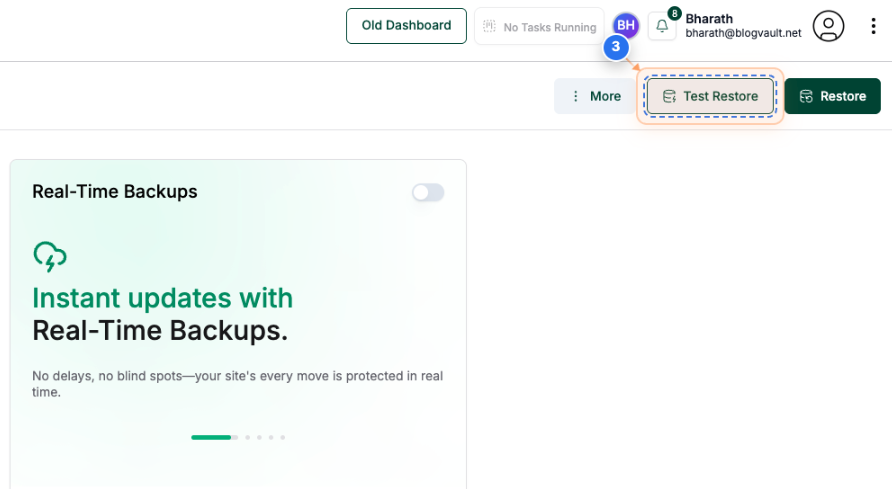
Initiate Test Restore
Click the "Test Restore" button in the top-right corner of the Backup Details page.
Note: Test Restore allows you to safely test a backup without affecting your live site
Step 4 of 7
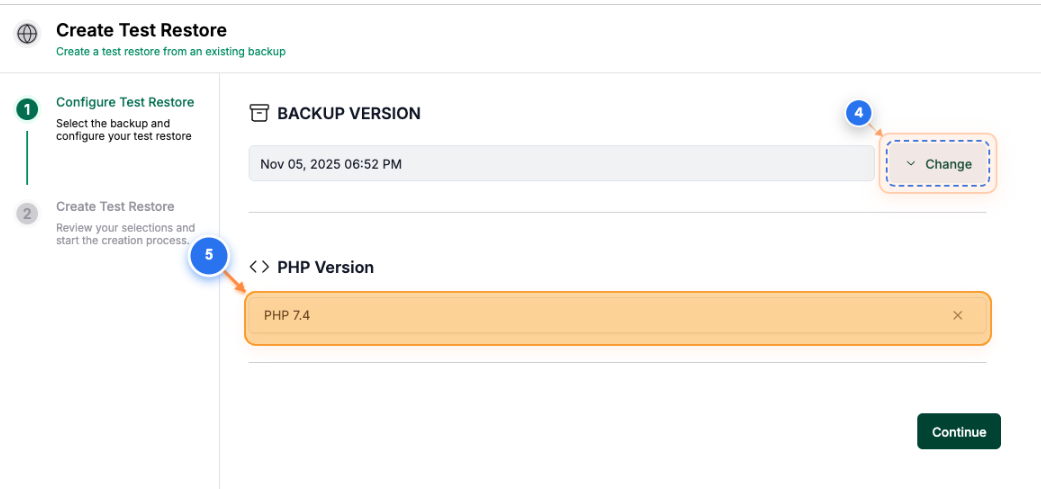
Choose Backup and PHP Version - Optional
Click the Change button in the center of the page to select which backup to test, then click the PHP Version dropdown to choose a custom PHP version if needed
Note: We show the latest backup and the live site's PHP version by default.
Step 5 of 7
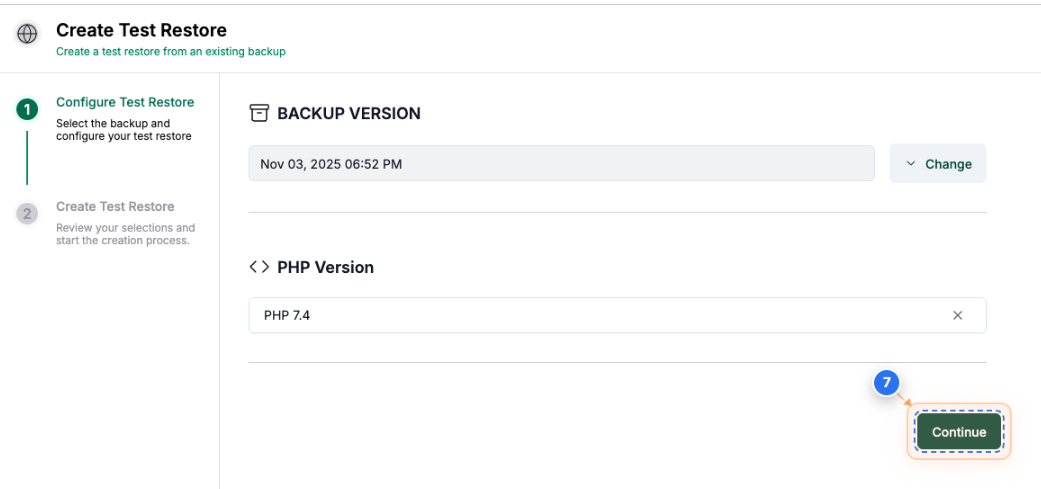
Proceed to Configuration
Click the "Continue" button to advance to the test restore configuration summary
Note: Make sure you select the correct Backup Version and PHP Version before clicking the Continue button
Step 6 of 7
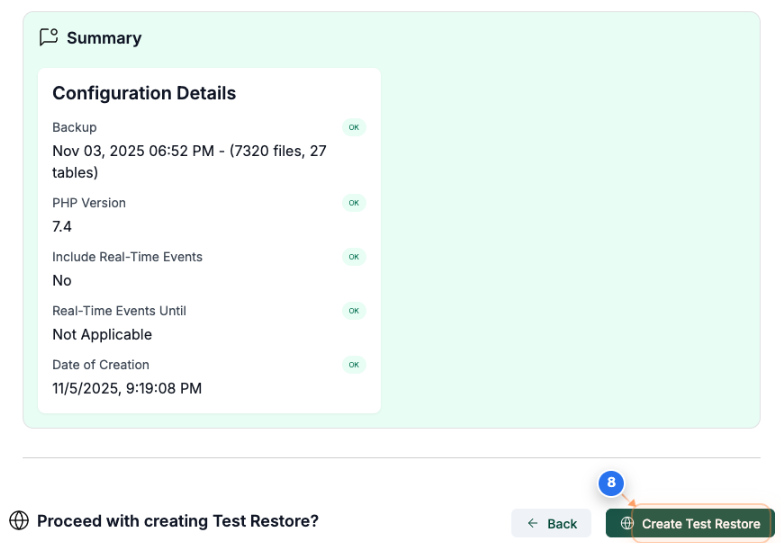
Start Test Restore Process
Click "Create Test Restore" at the bottom of the summary page to begin the restoration
Note: This initiates the process of creating a test environment with your selected backup
Step 7 of 7
Monitor Restore Progress
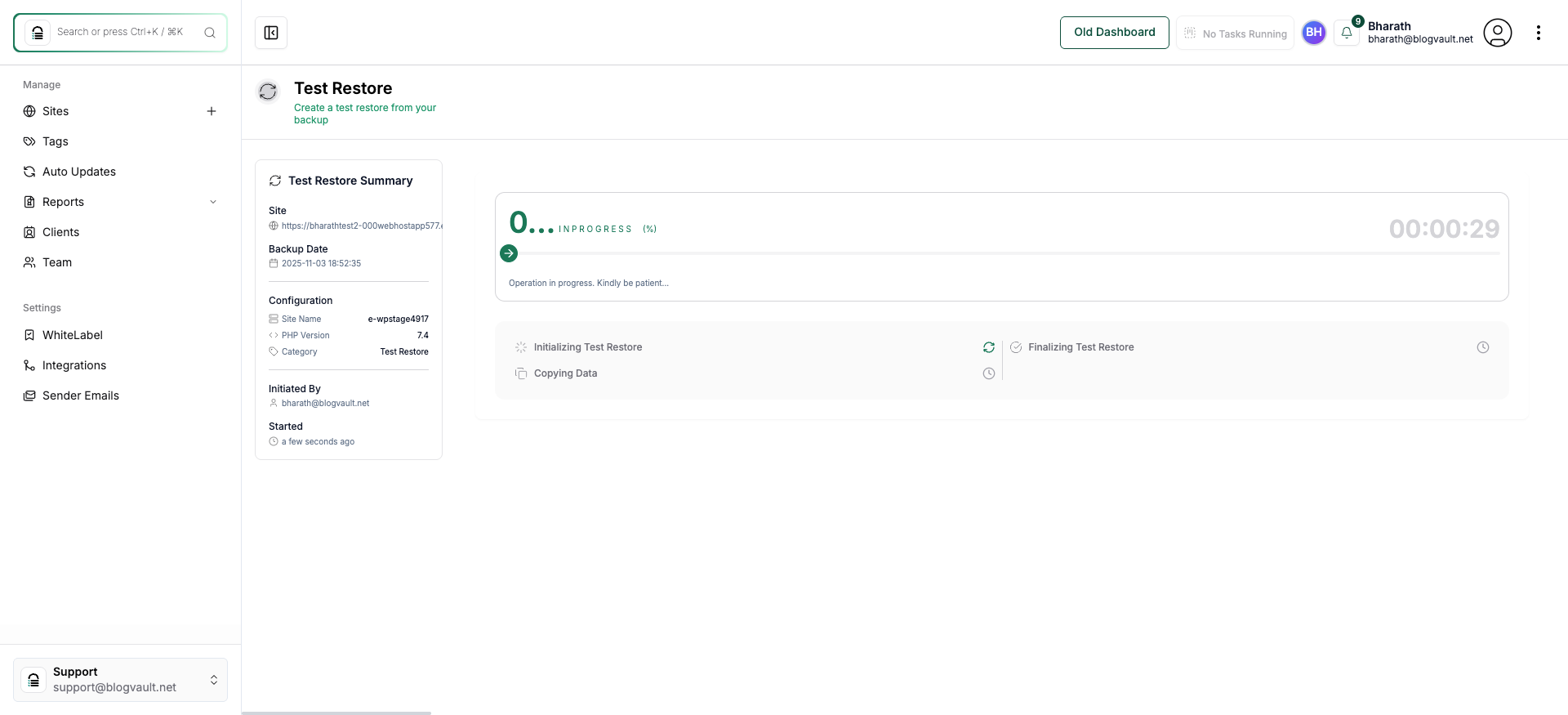
Review the progress page showing backup details, site information, and the real-time status of the test restore operation
Note: The page displays the backup date, site URL, PHP version, and progress indicators, including initialization, data copying, and finalization stages