How to Restore a WooCommerce Store Backup with the Latest Data?
Step 1 of 7
Open Site Dashboard
Click on your site name in the Sites list to open its management dashboard.
Note: Make sure you select the correct site if you manage multiple sites.

Step 2 of 7
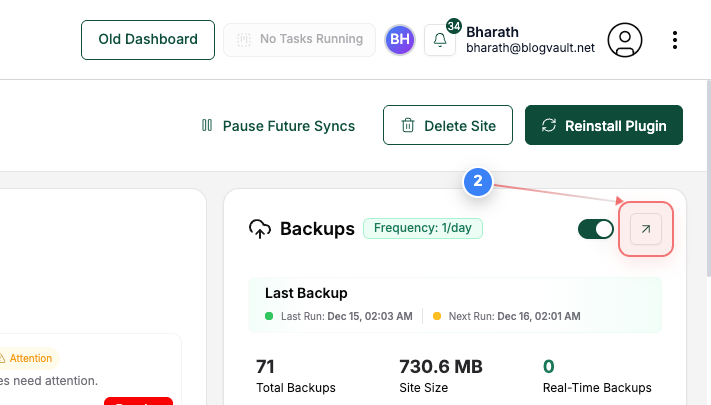
Open Backup Options
Click the options button in the Backups section on the right side of the page to manage backup actions for this site.
Step 3 of 7
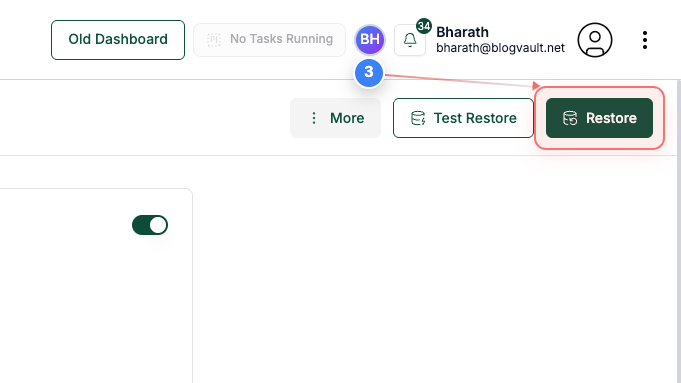
Initiate Restore
Click the restore option in the Backup Details header to begin restoring a backup.
Note: This opens the restore configuration for the selected backup.
Step 4 of 7
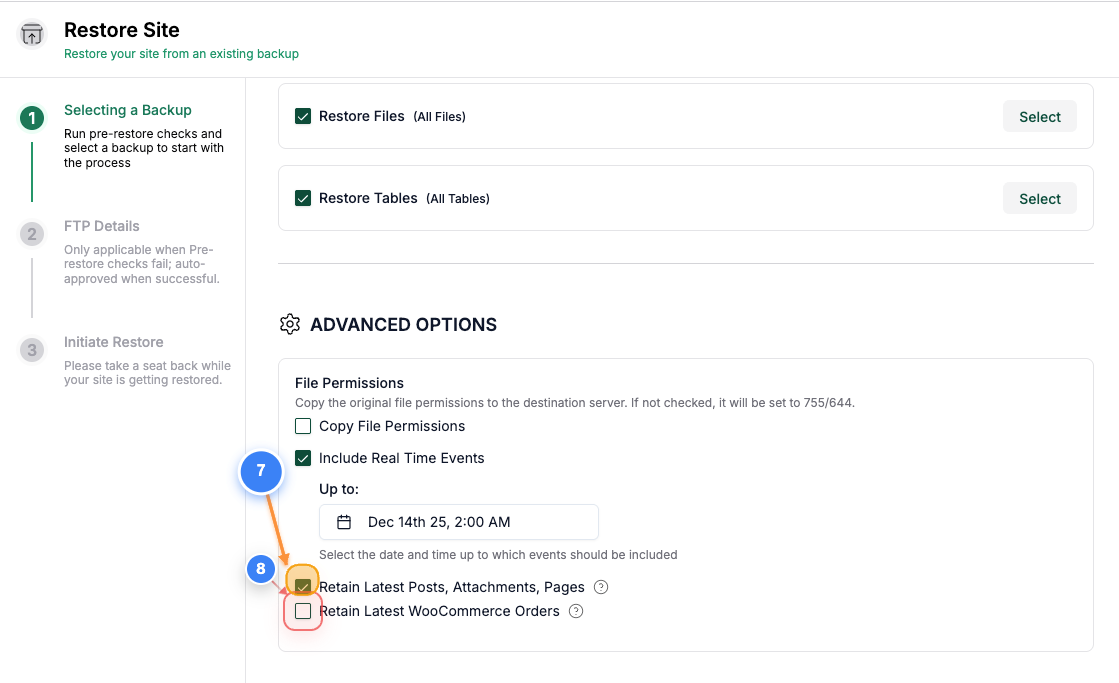
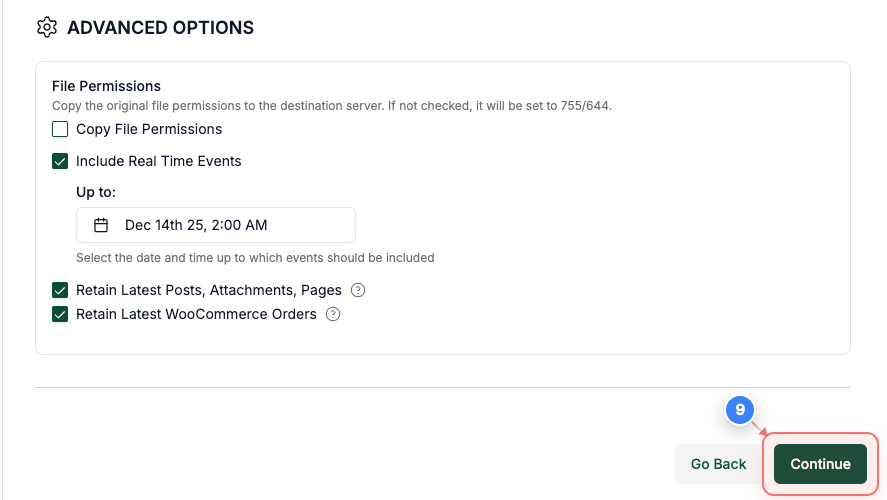
Select Retain options
Select the "Retain Latest Posts, Attachments, Pages" & "Retain Latest WooCommerce Orders" options to keep the latest posts and WooCommerce order data.
Note: You need to have Real-time backups enabled and the backups should have WooCommerce plugin enabled to access this feature.
Step 5 of 7
Proceed with Restore
Click the Continue button at the bottom of the configuration page to select the backup version to restore.
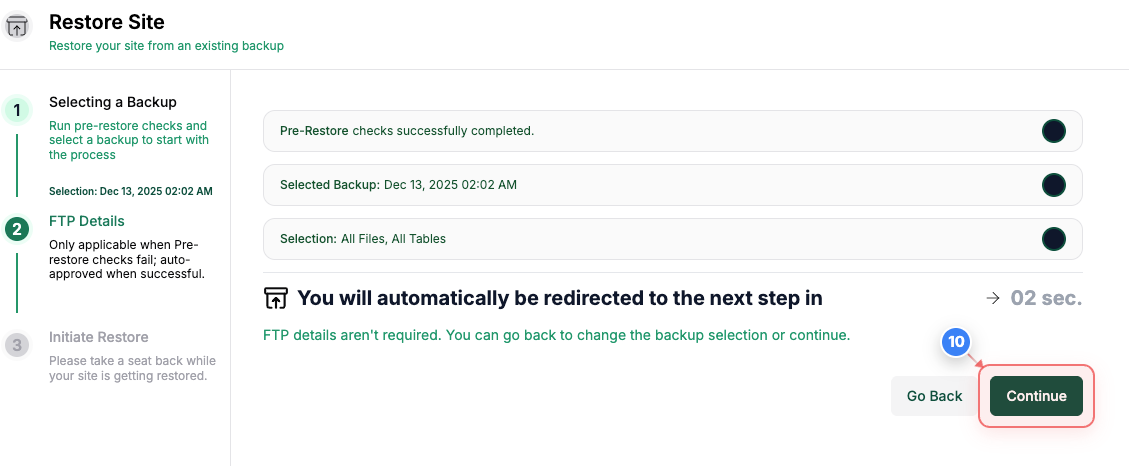
Step 6 of 7
Confirm Pre-Restore Checks
Click the Continue button in the restore connection page after reviewing the completed pre-restore checks and selected backup.
Note: All checks must be completed successfully to proceed.
Step 7 of 7
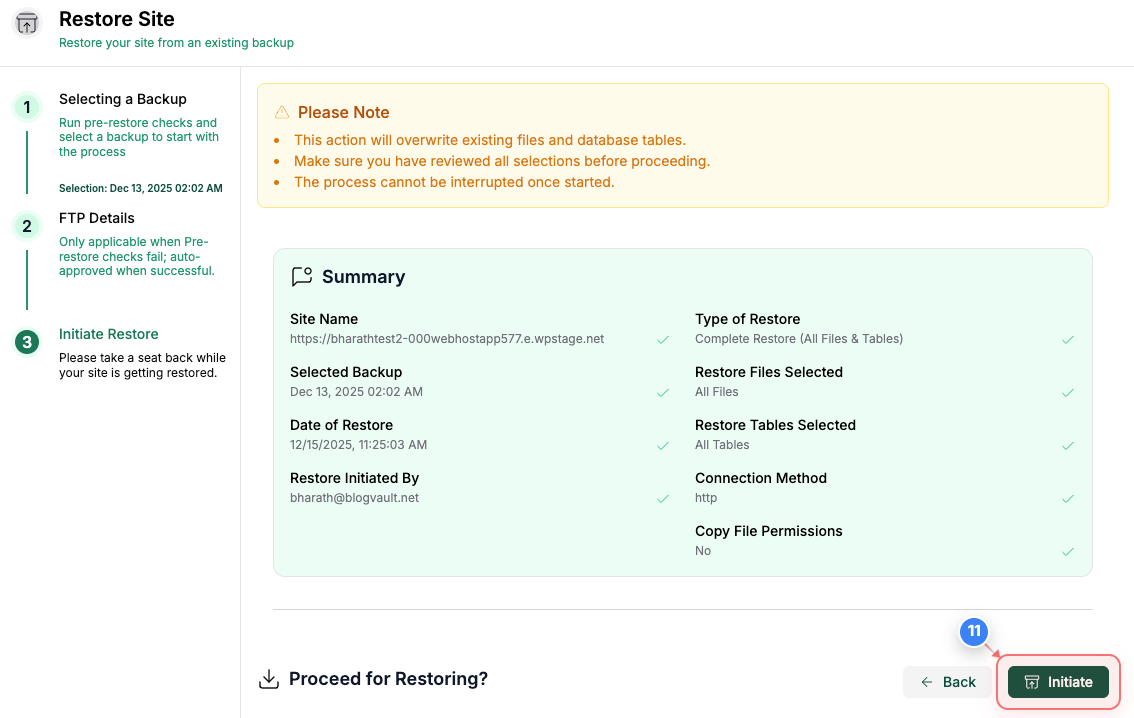
Initiate Restore
Click the initiate restore button at the bottom of the summary page to start restoring your site from the selected backup.