How Do I Exclude Certain folders from Backups?
Step 1 of 6
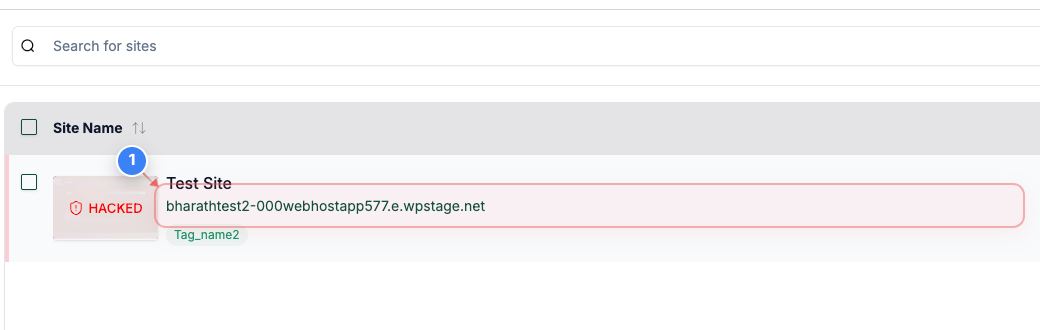
Open Site Management
Click on the site name in the middle area to open site management options
Note: The site name is highlighted and located in the center of the page
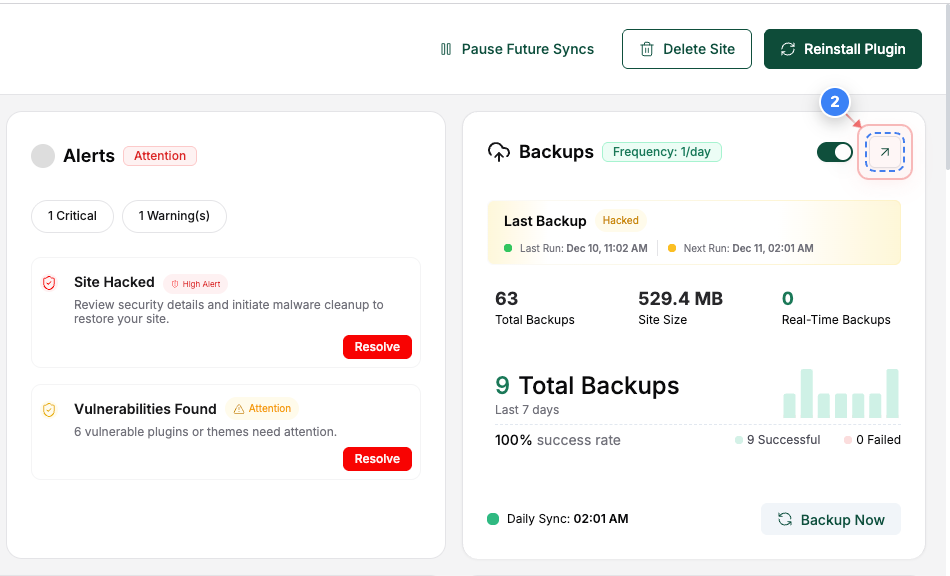
Step 2 of 6
Access Backup Options
Click on the icon button in the Backup section (right side of the page) to manage backup settings.
Note: This button allows you to adjust backup frequency and settings
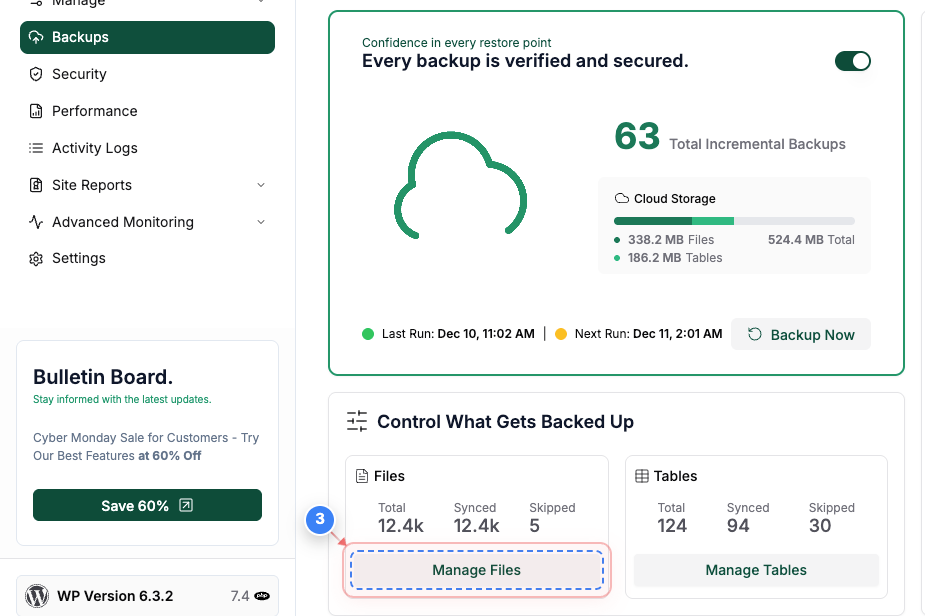
Step 3 of 6
Manage Backup Files
Click on the 'Manage Files' button in the lower-left area to view and manage backup files
Note: This will allow you to see the synced files and make changes as needed
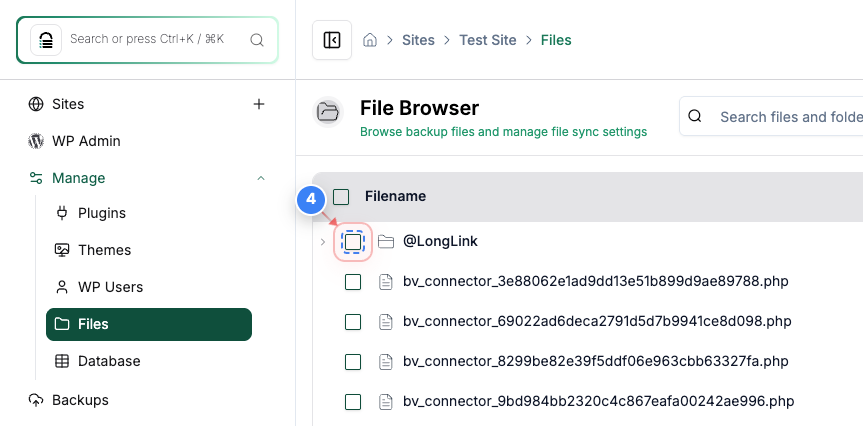
Step 4 of 6
Select Folder
Click on the 'on' button in the left side of the page to enable folder sync
Note: Please note that you can skip only the folders from the sync list. Skipping the specific file is not supported.
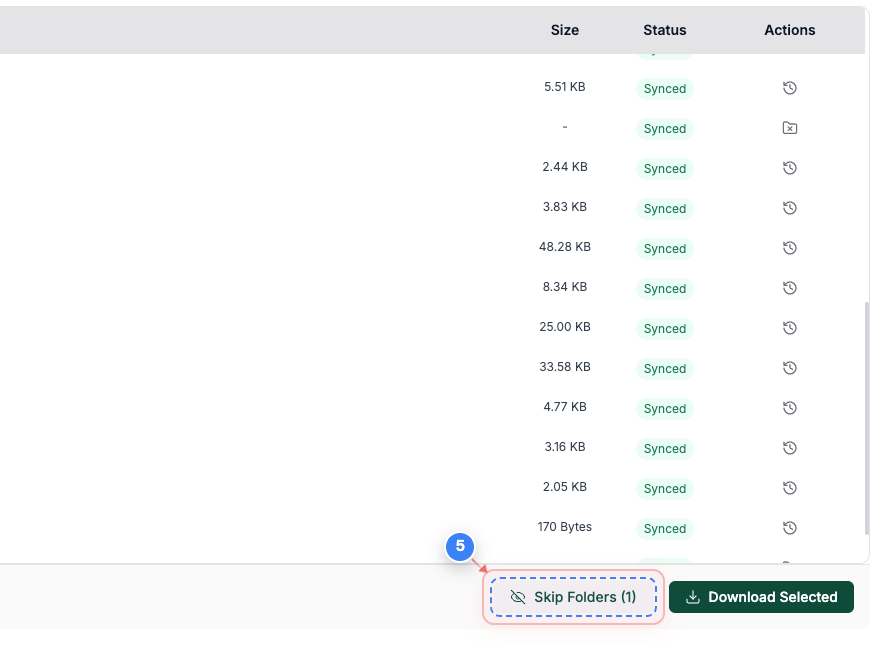
Step 5 of 6
Skip Folder Option
Click on the 'Skip Folders (1)' button in the bottom-right area to skip syncing specific folders
Note: This will allow you to exclude selected folders from the backup process
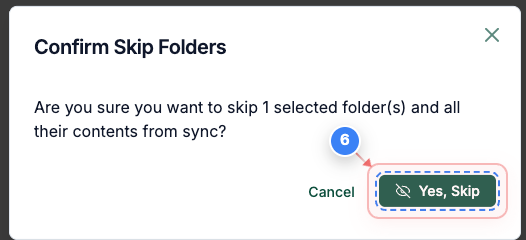
Step 6 of 6
Confirm Skip Action
Click the 'Yes, Skip' button in the center of the page to confirm skipping the selected folder(s)
Note: This step ensures that the folder(s) will not be included in the sync process