How Do I Re-Optimize a Site?
Step 1 of 4
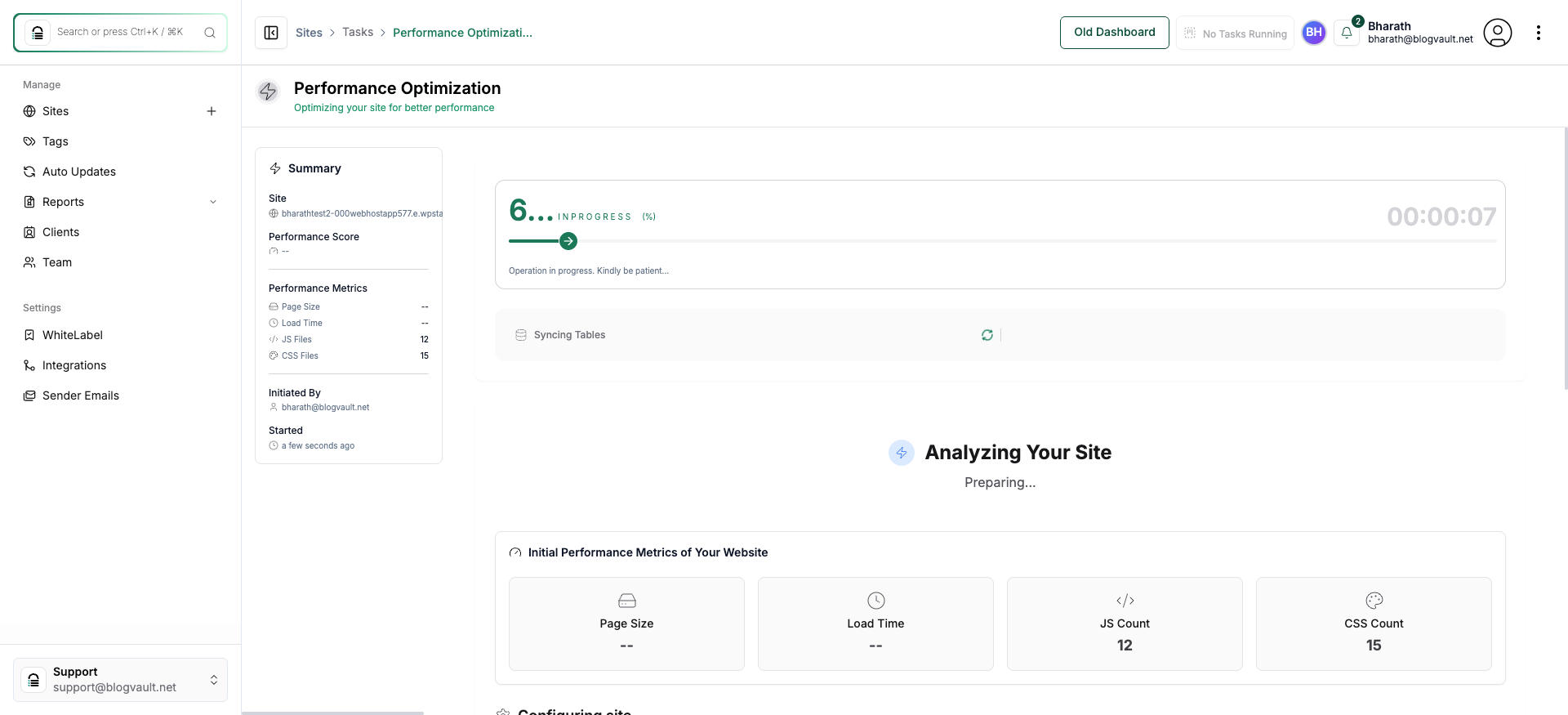
Open Your Site Dashboard
Click on your site name in the main Sites page to open its detailed dashboard and manage its settings.
Note: Ensure you select the correct site domain from the list if you manage multiple websites.
Step 2 of 4
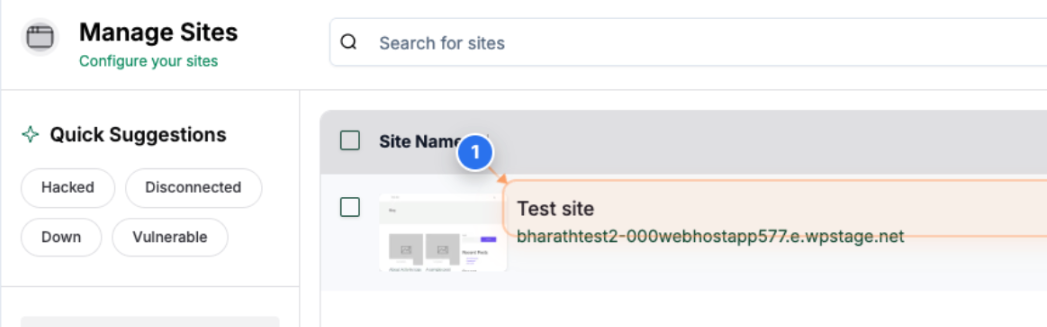
Access Performance Section
Click the Performance option in the left sidebar to view detailed insights about your site's speed, optimization status, and improvement recommendations.
Note: Use this section to analyze site load times and identify optimization opportunities.
Step 3 of 4
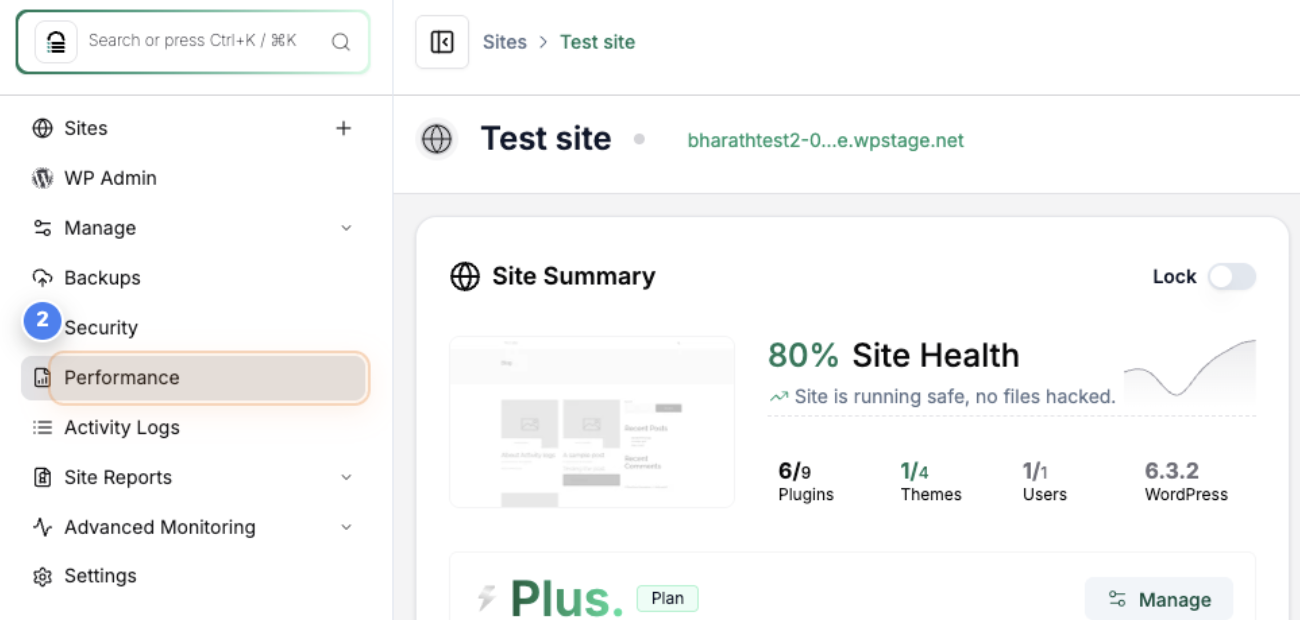
Re-optimize Your Site
Click the Re-optimize Site button at the top-right corner to start a new performance optimization process that improves loading speed and efficiency.
Note: This action triggers site analysis, script deferral, and CSS/JS optimization. Allow the process to complete without navigating away.
Step 4 of 4
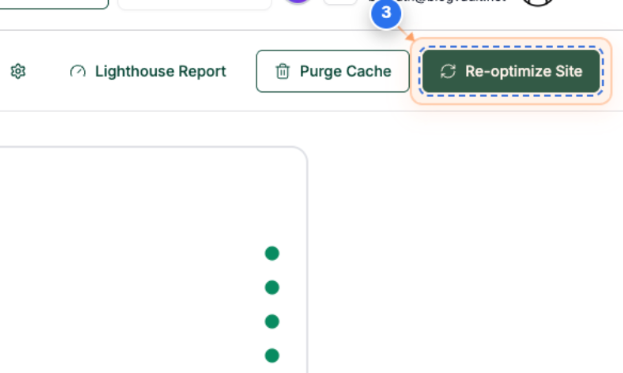
Performance Optimization Progress page
The Performance Optimization page provides real-time progress of the re-optimization process, showing metrics such as page size, load time, and the number of JS and CSS files processed. You can track each step of script minification and image resizing as it happens.
Note: You can safely close this window — the optimization process will continue running in the background. To track its progress, check the status in the Notifications section.