Notification Control Settings
Step 1 of 6
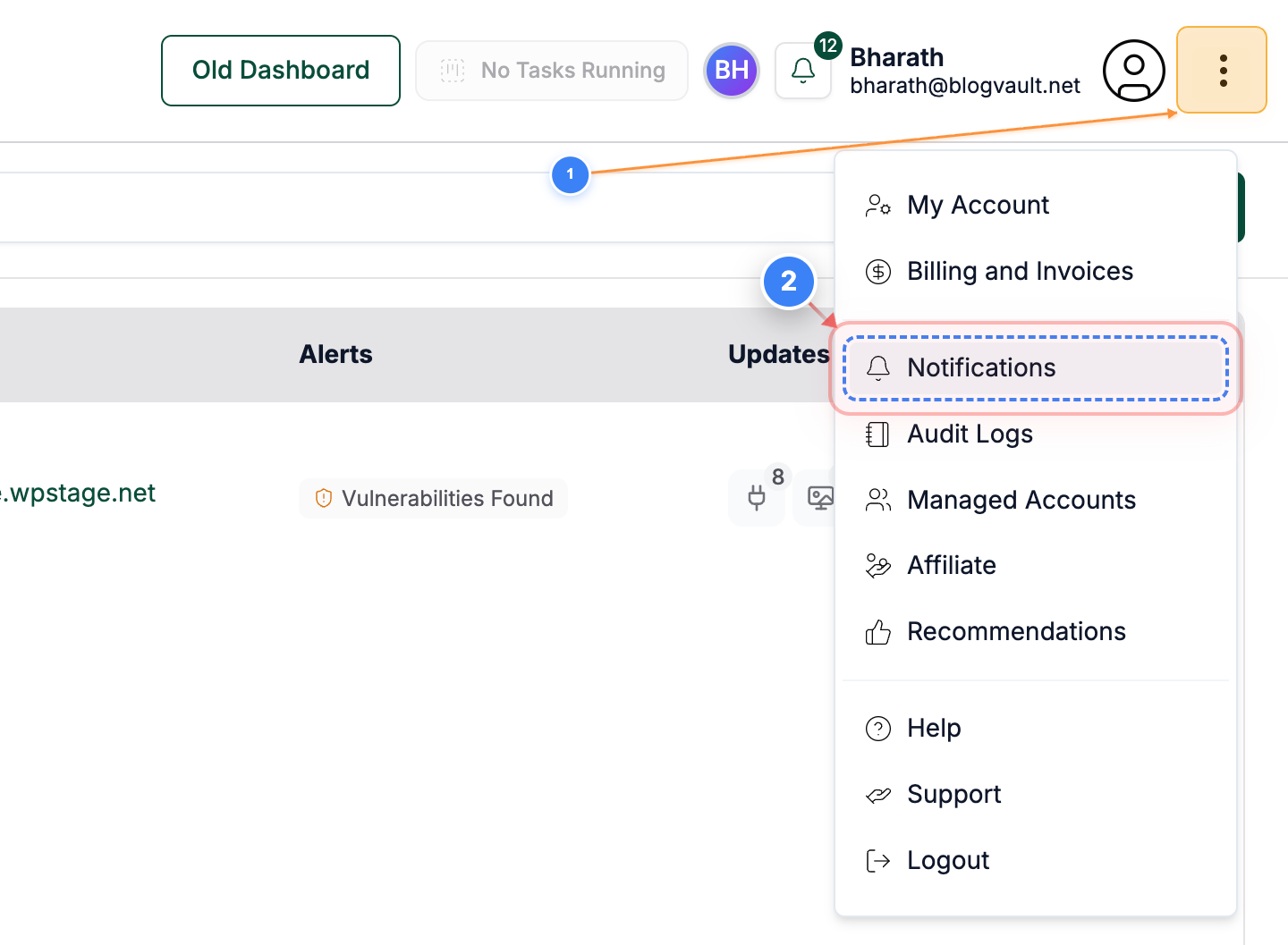
Open Notifications
Click the Three Dots -> Notifications link in the top-right navigation to open the Notifications menu and access notification settings and recent alerts.
Note: The Notifications link is located on the right side of the header; use it to quickly reach notification preferences and recent messages.
Step 2 of 6
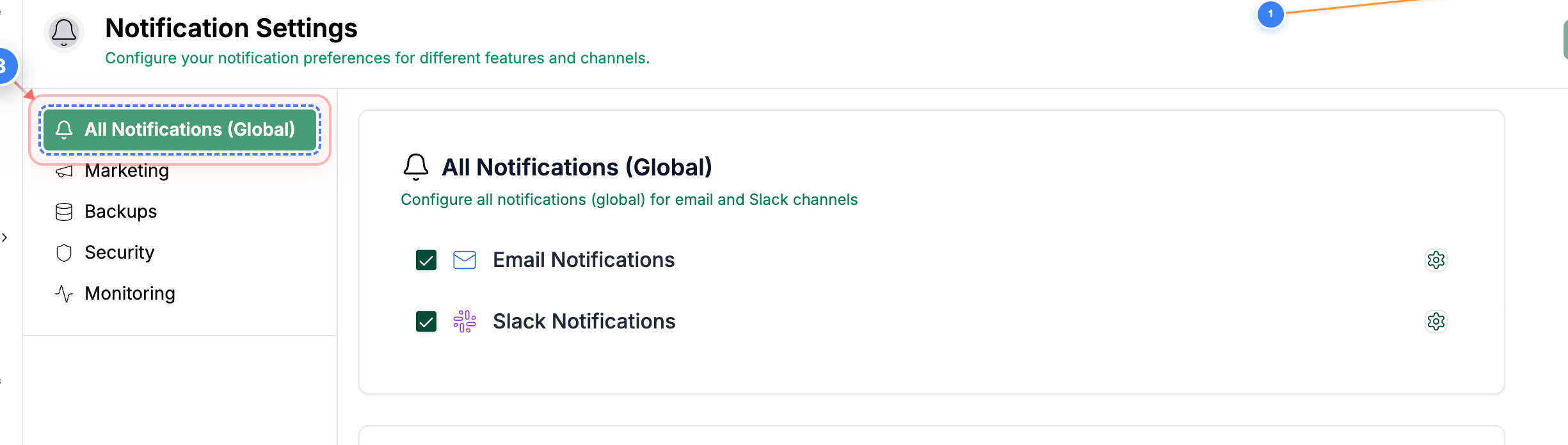
All Global Notifications
Click the All Notifications (Global) option in the Notification Settings area to view and manage global notification preferences across your account.
You can also configure notifications for your team members and Slack channels within the Global and other notification sections.
Step 3 of 6
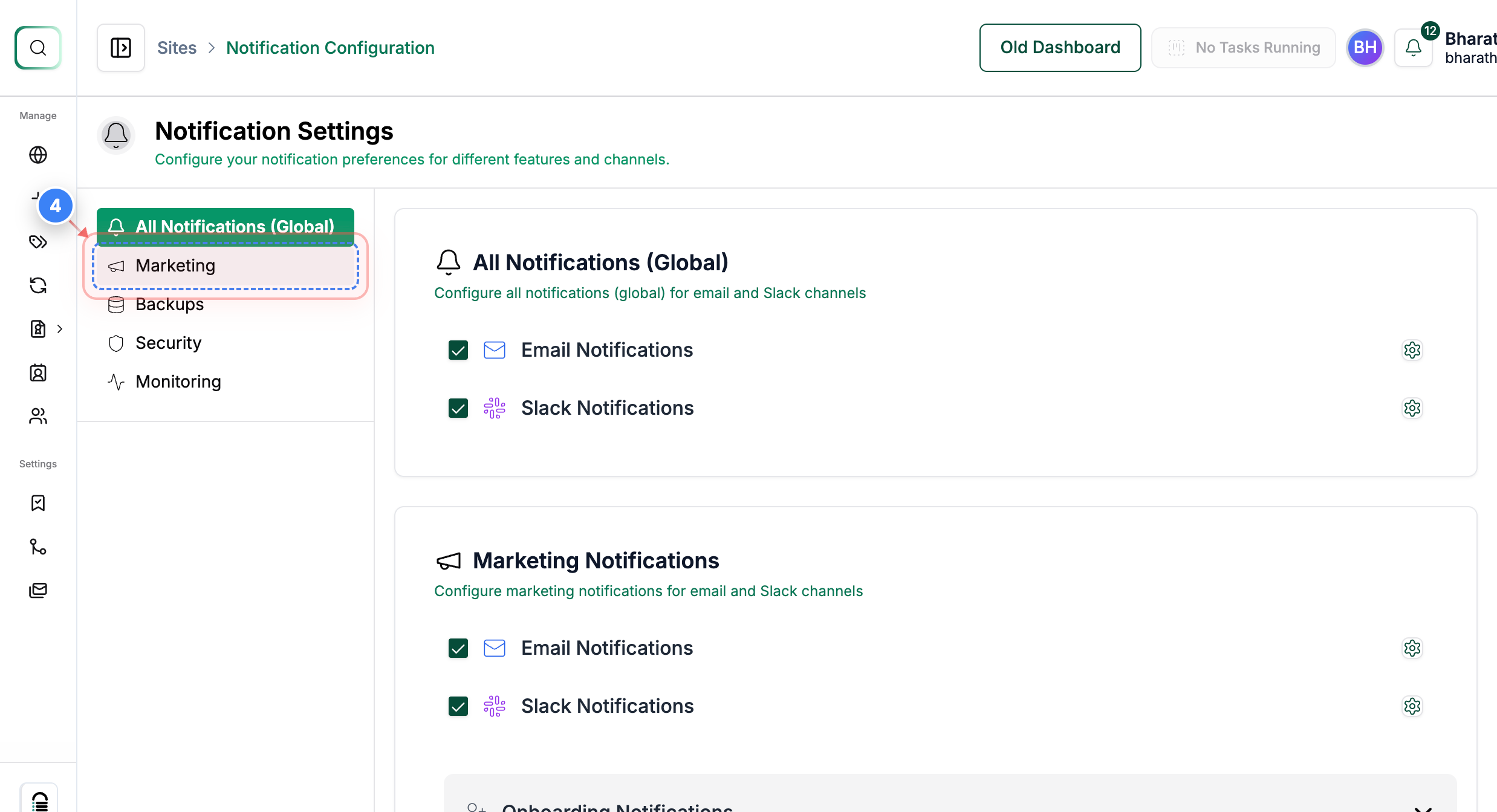
Marketing Notifications
Click the Marketing option in the Notification Settings area to manage marketing-related notifications. You can also configure onboarding notifications individually in this section.
Step 4 of 6
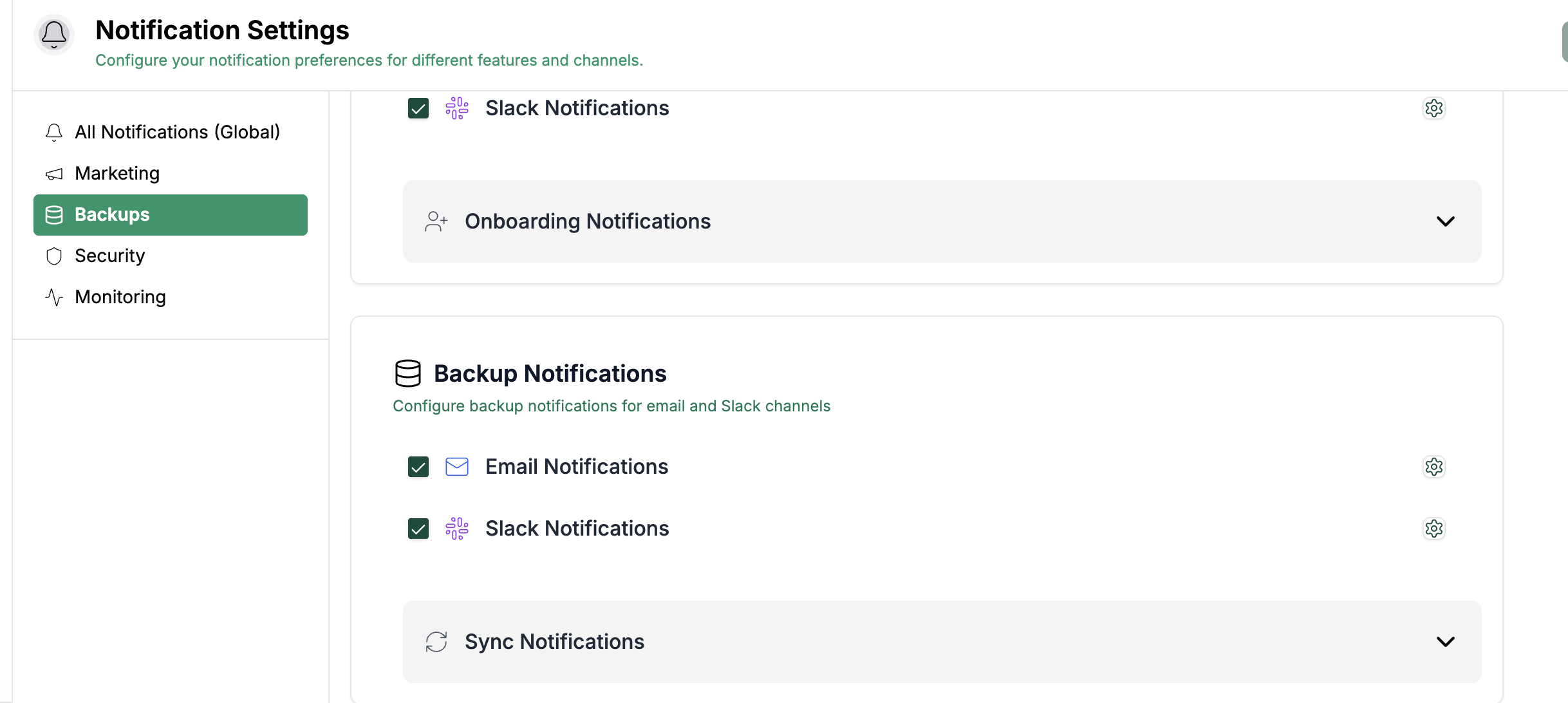
Backups Notifications
Click the Backups button in the Notification Settings area to manage alerts related to backups. You can also individually configure notifications for the sync process here.
Note: Check this section to ensure you receive critical backup alerts for scheduled or failed backups.
Step 5 of 6
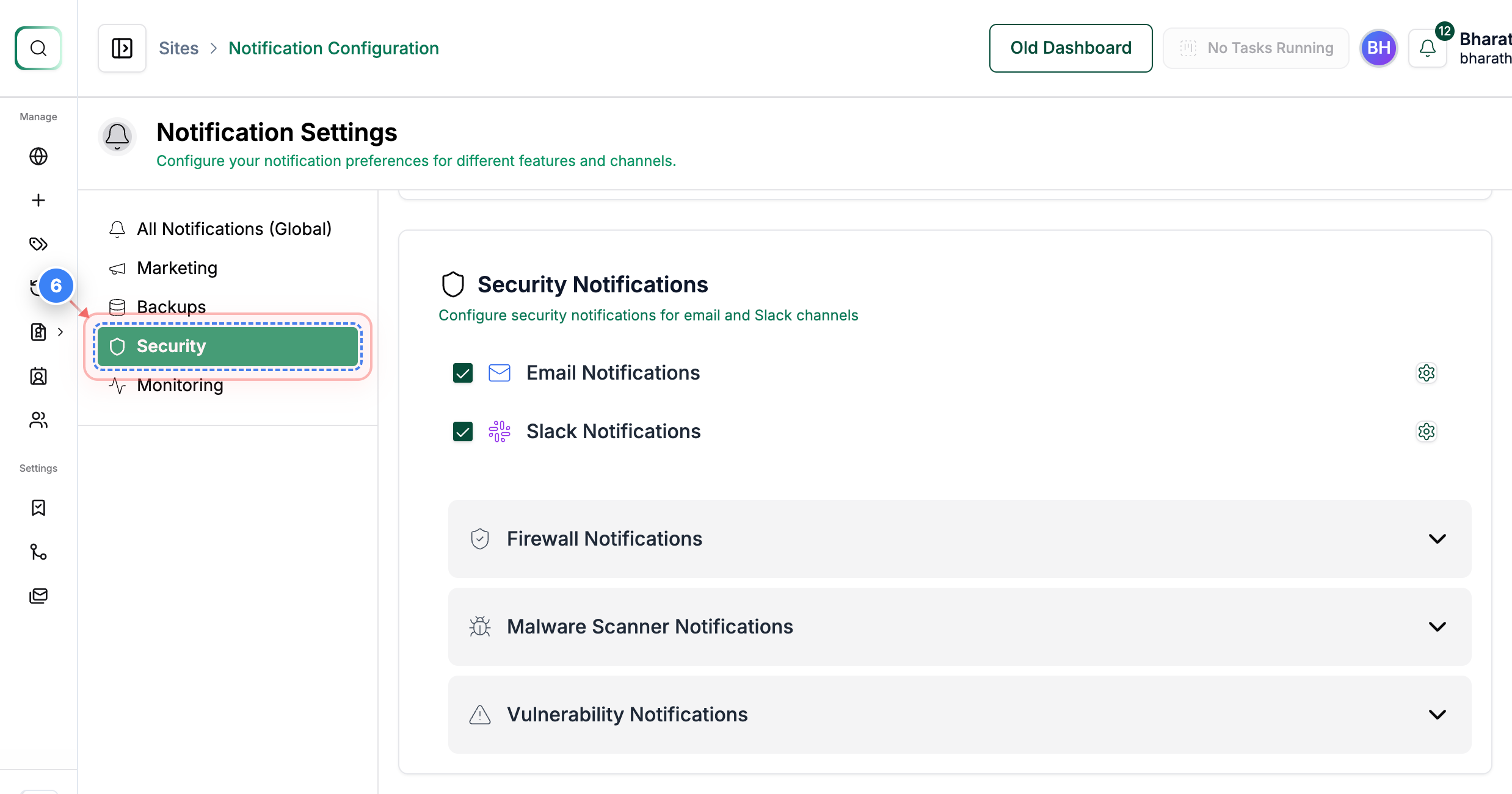
Security Notifications
Access the Security section within Notification Settings to manage all security-related alerts. You can also individually configure notifications for Firewall events, Malware Scanner detections, and Vulnerability alerts.
Step 6 of 6
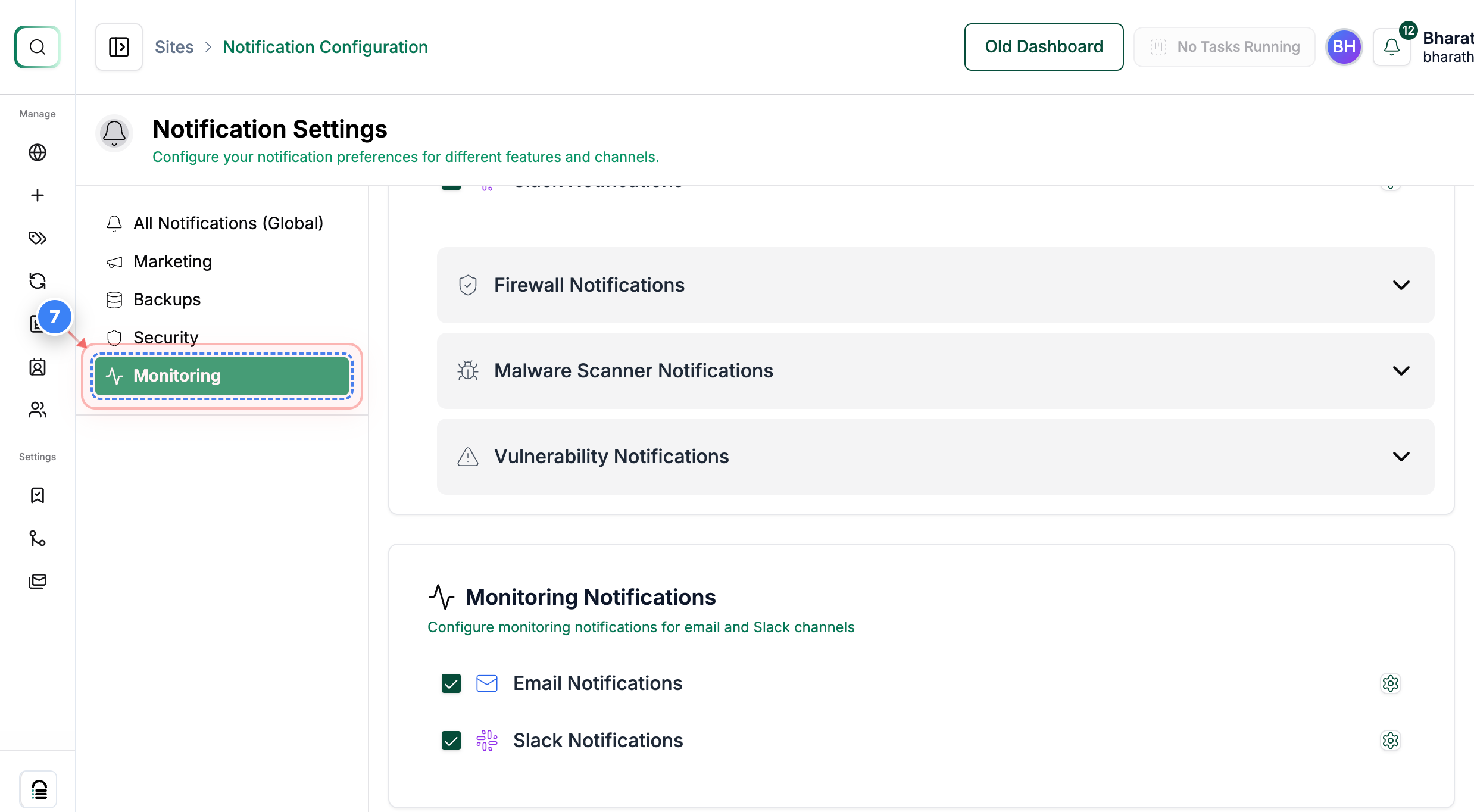
Monitoring Notifications
Click the Monitoring button in the Notification Settings area to adjust monitoring alerts for uptime, downtime, and performance checks.