How Do I Change or Reset My Account Password?
Step 1 of 4
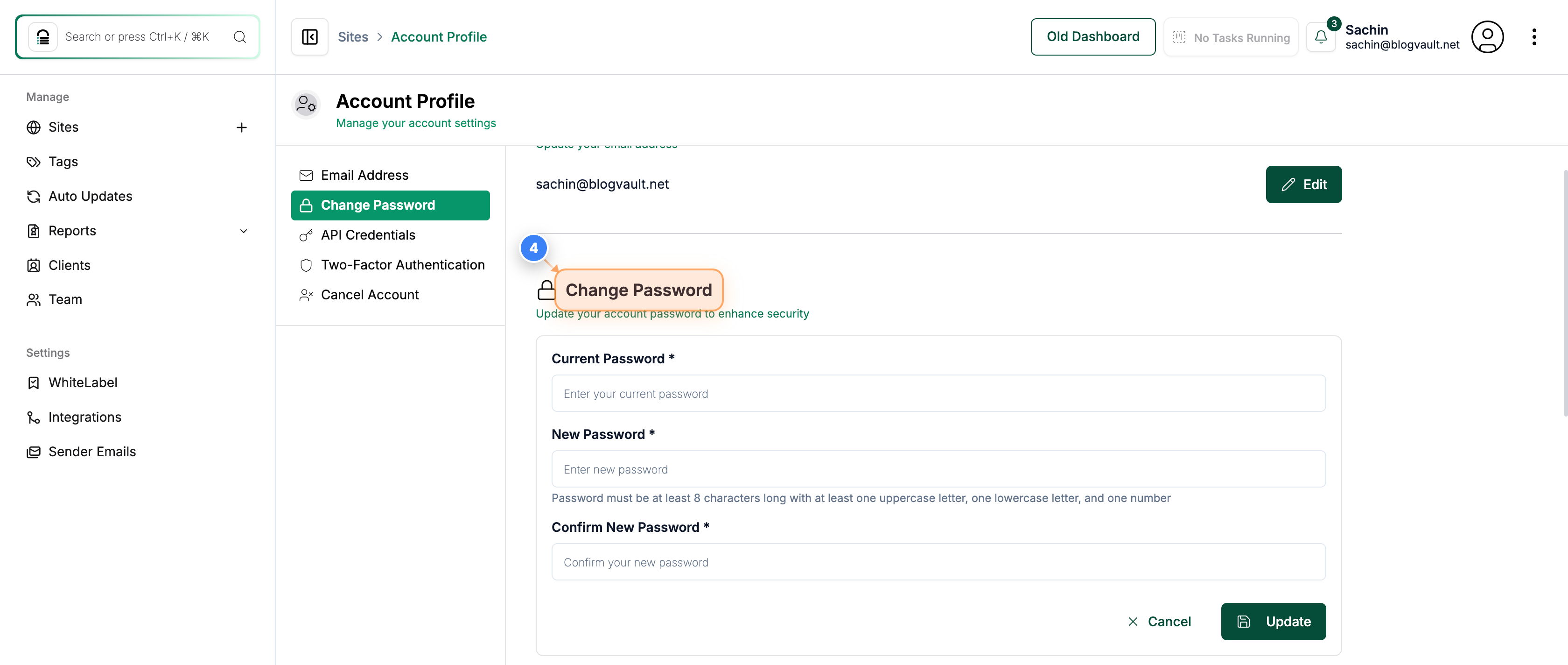
Open Your Account Settings
Click the 'My Account' link in the top-right corner of the dashboard to open your account settings and profile details.
Note: Use this option to manage your personal information, email, and password preferences.
Step 2 of 4
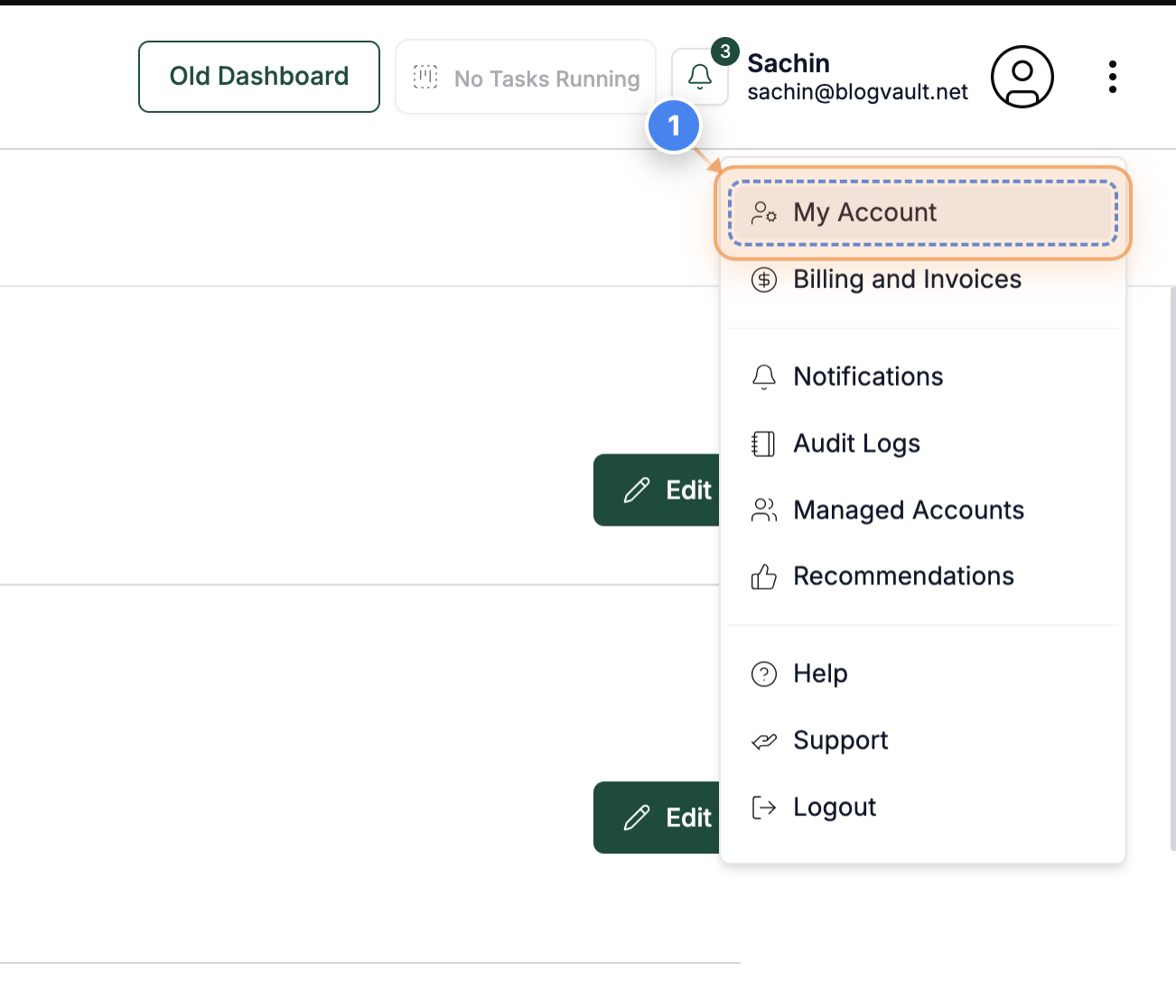
Access the Password Settings
Click the 'Change Password' option in the left-side panel to open the password management section.
Note: This section allows you to update your password securely.
Step 3 of 4
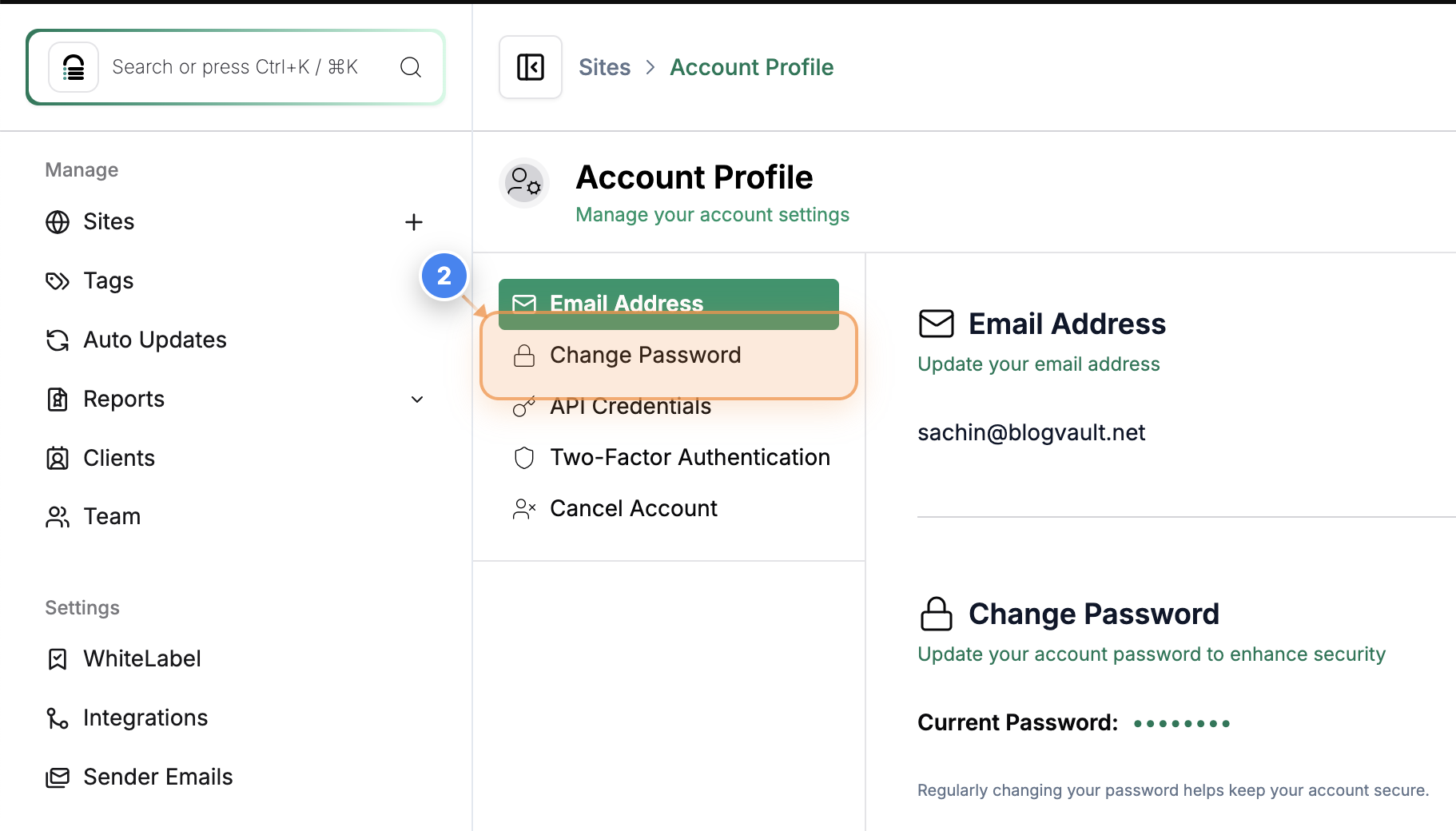
Edit Current Password
Click the 'Edit' button beside the Current Password field to begin updating your password.
Note: Make sure you remember your existing password before making changes. You will be asked for that.
Step 4 of 4
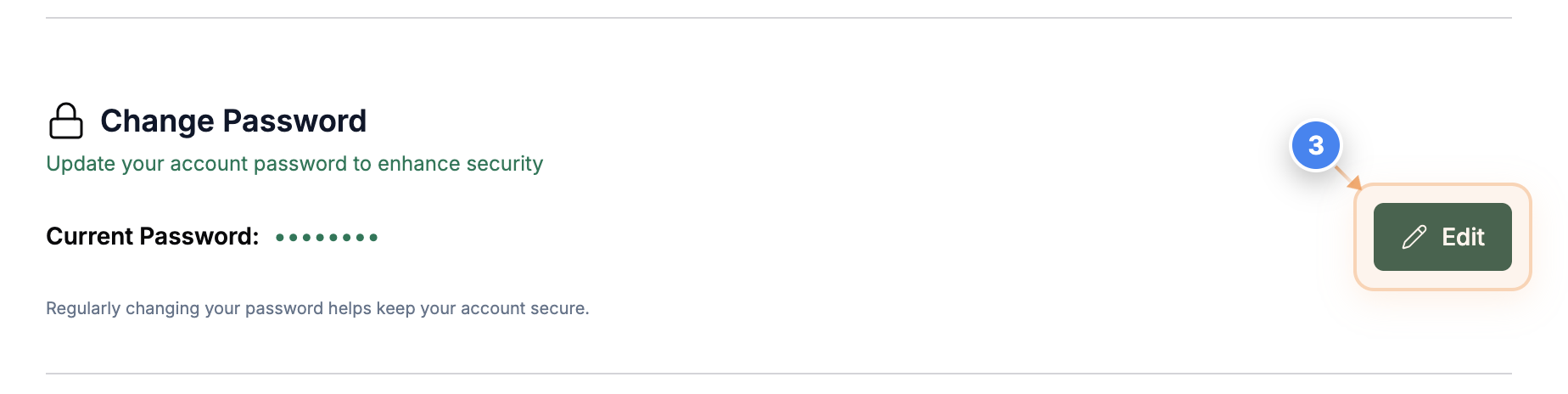
Confirm Password Change
See the 'Change Password' options on the page and add your current password and new password, then click the Update button.
Note: You will be prompted to re-enter your credentials to verify the update.