How Do I Cancel My Account?
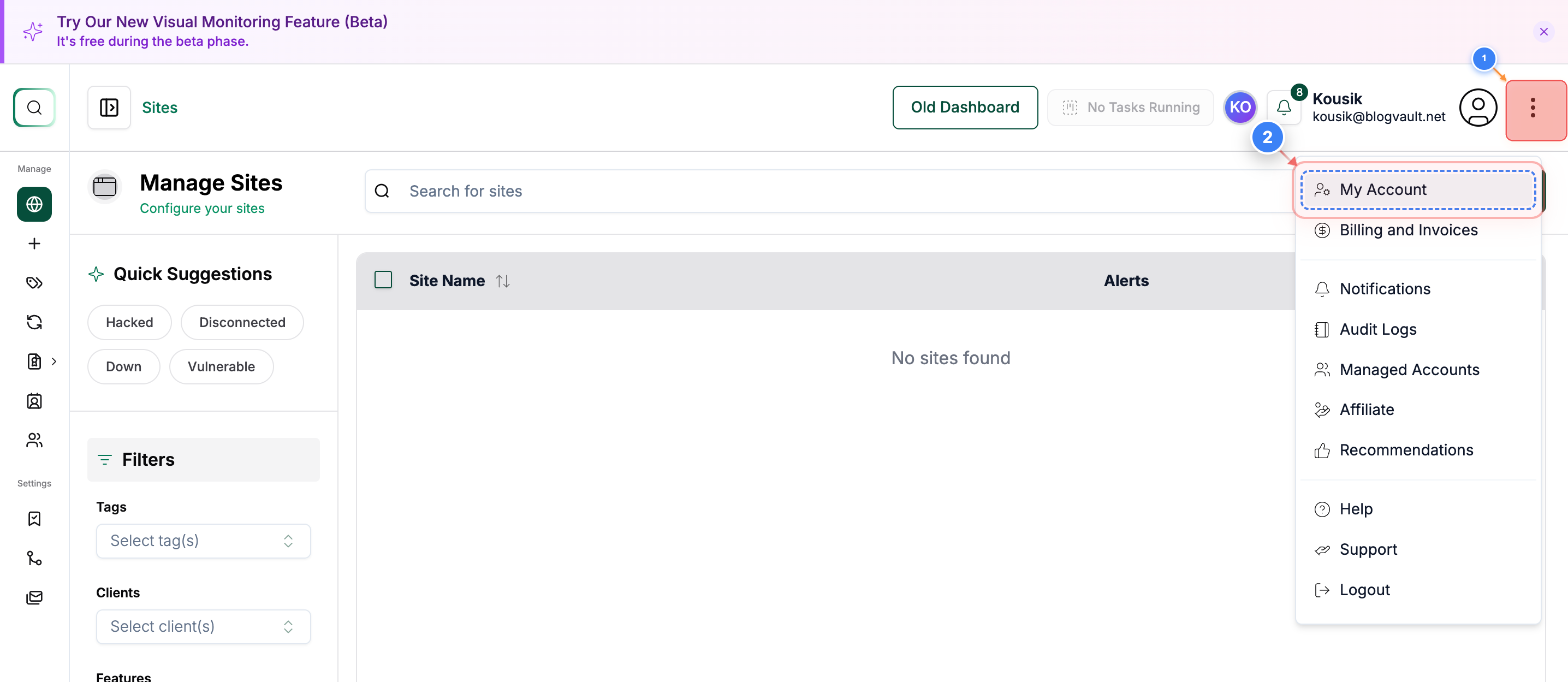
Step 1 of 5
Open Account Settings
Click the Menu button on the right side of your dashboard, then select My Account from the top-right navigation to access your account settings.
Note: Use this section whenever you need to update your profile email, change your password, manage account 2FA, or cancel your account.
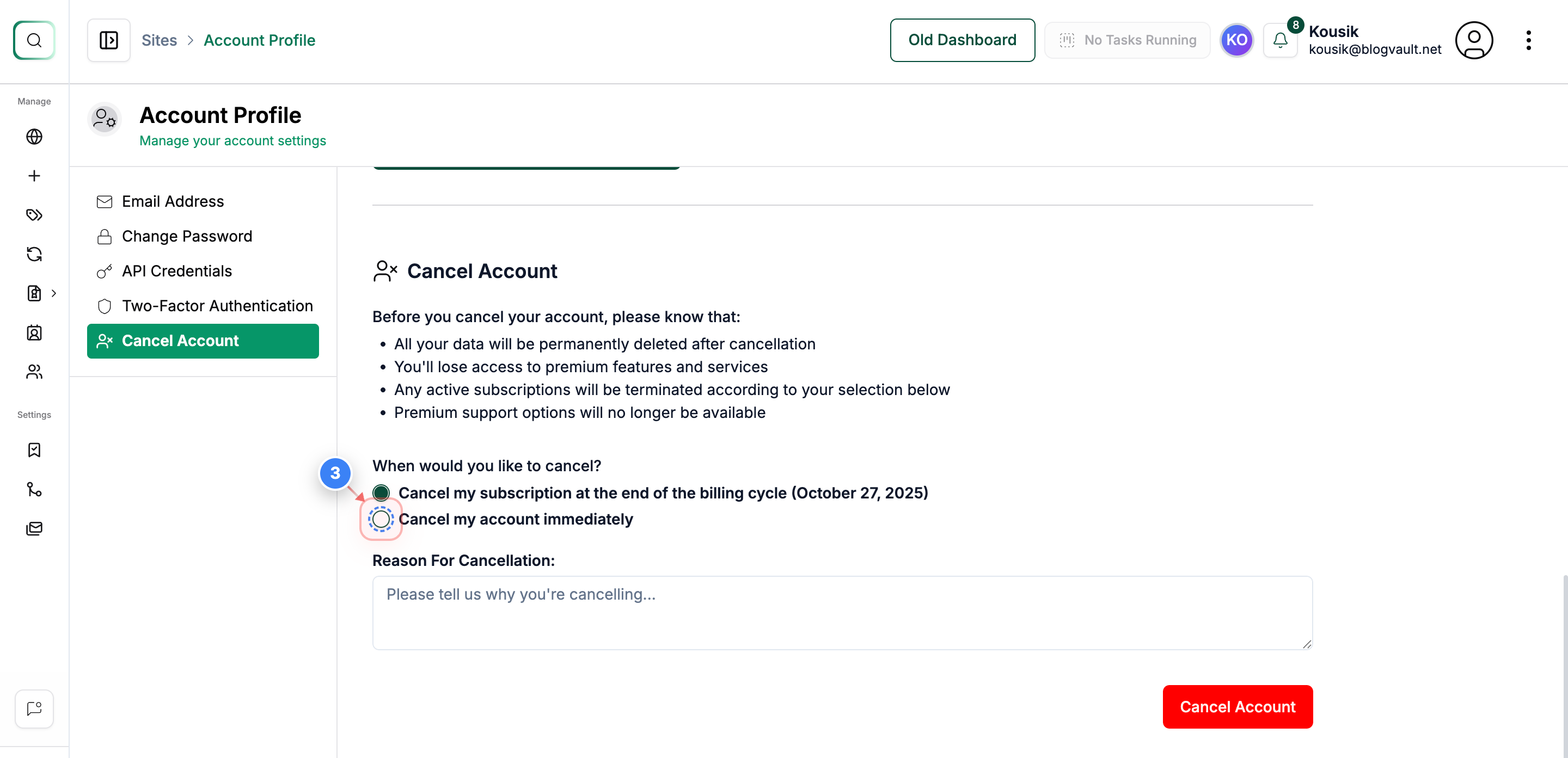
Step 2 of 5
Select Immediate Cancellation
Choose the immediate cancellation option in the Cancel Account section to end your subscription right away.
Note: This option removes access instantly rather than waiting until the billing cycle ends.
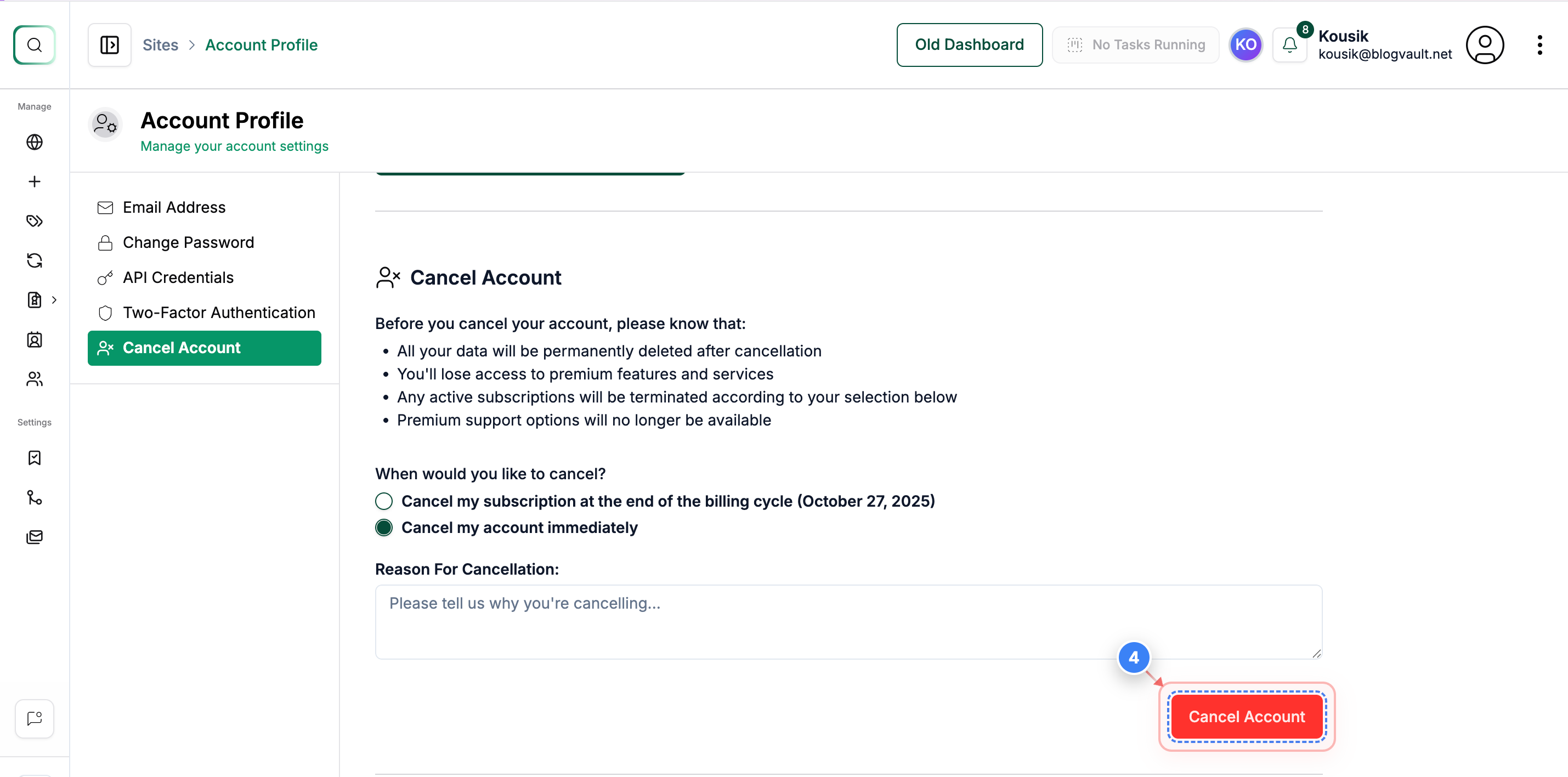
Step 3 of 5
Proceed to Cancel Account
Click the Cancel Account button at the bottom of the page to continue with the cancellation request.
Note: You can enter the reason for cancellation in the text box provided.
Step 4 of 5
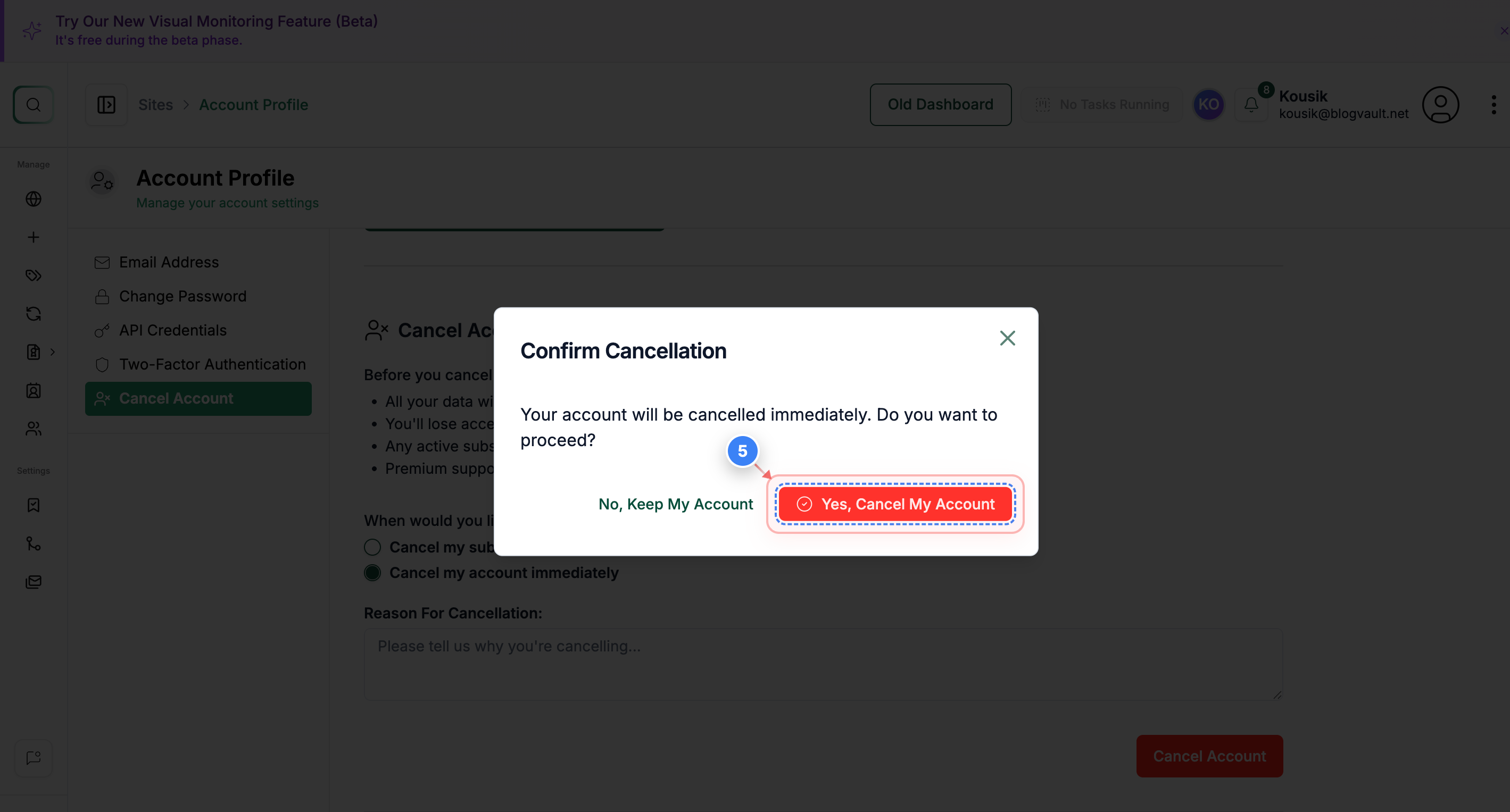
Confirm Cancellation
Click the Yes, Cancel My Account button in the confirmation window to finalize the cancellation.
Note: Once confirmed, access to all premium features and data will be permanently removed.
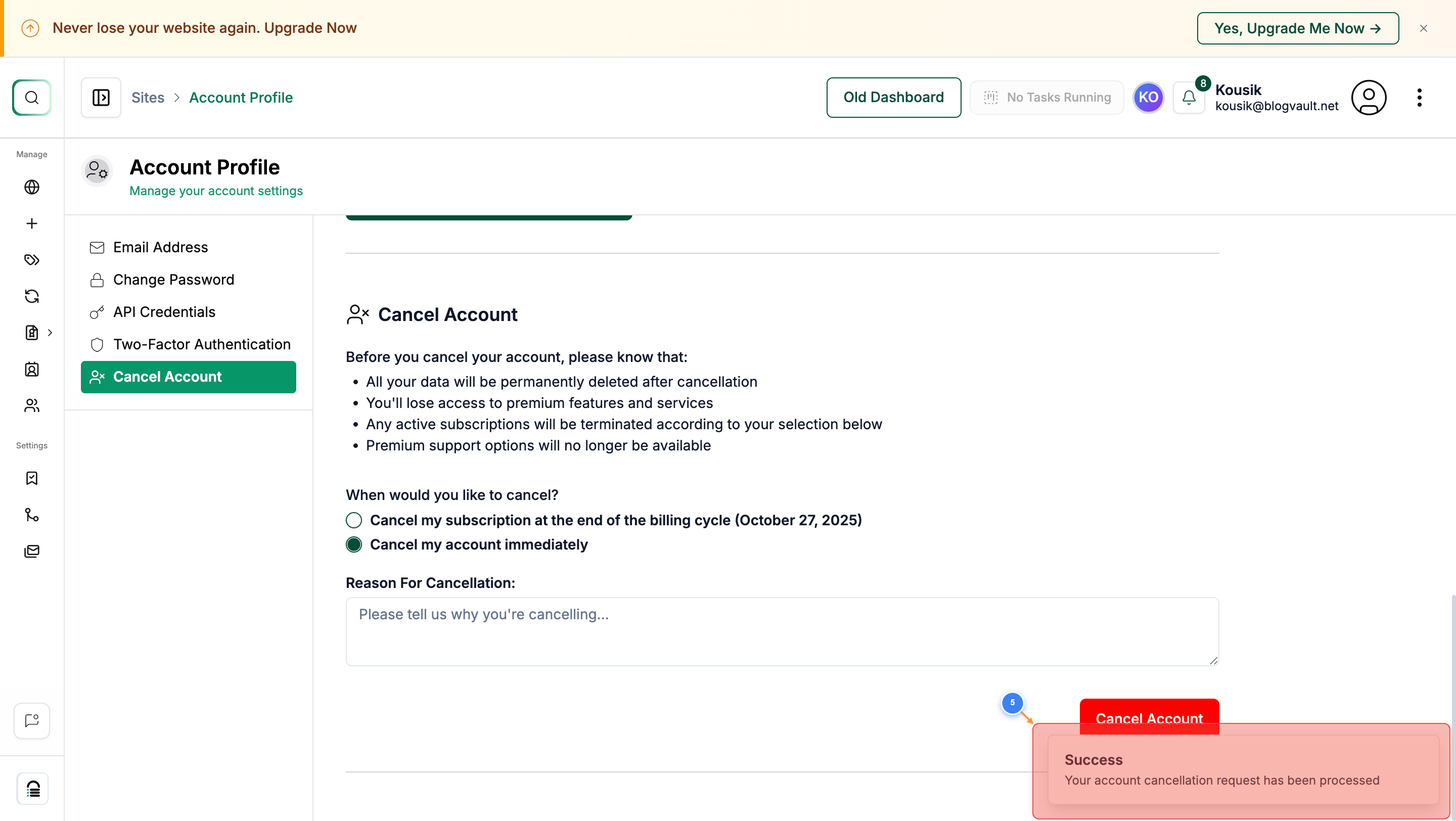
Step 5 of 5
Review Account Status
A success pop-up will appear in the bottom-right corner, indicating that the account cancellation process has begun.
Note: When you reload the page, you can see the message "Your account has been cancelled." All the data related to your account will be removed shortly.